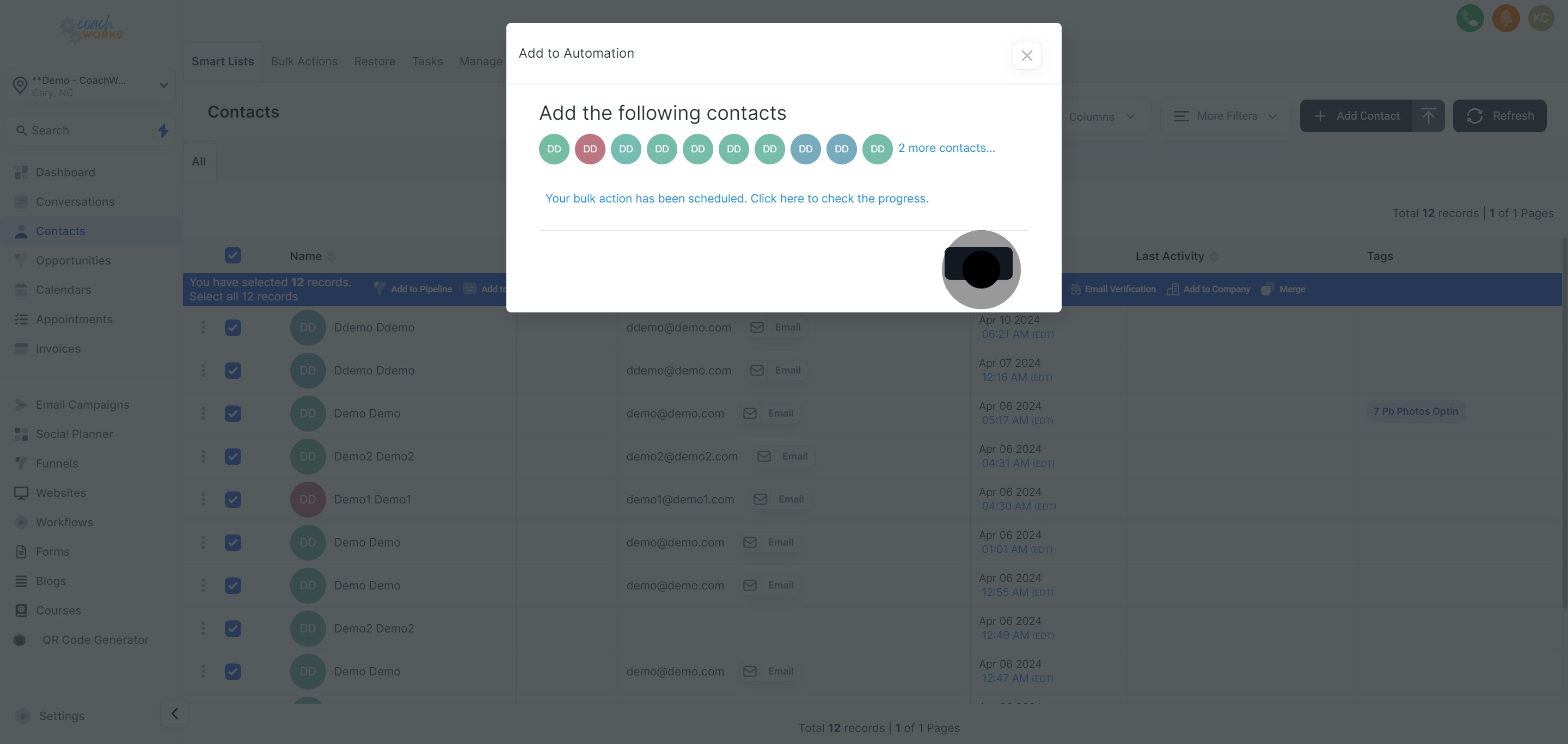
Start by clicking on the 'Contacts' tab within CoachWorks Marketing. This will display your comprehensive list of contacts.
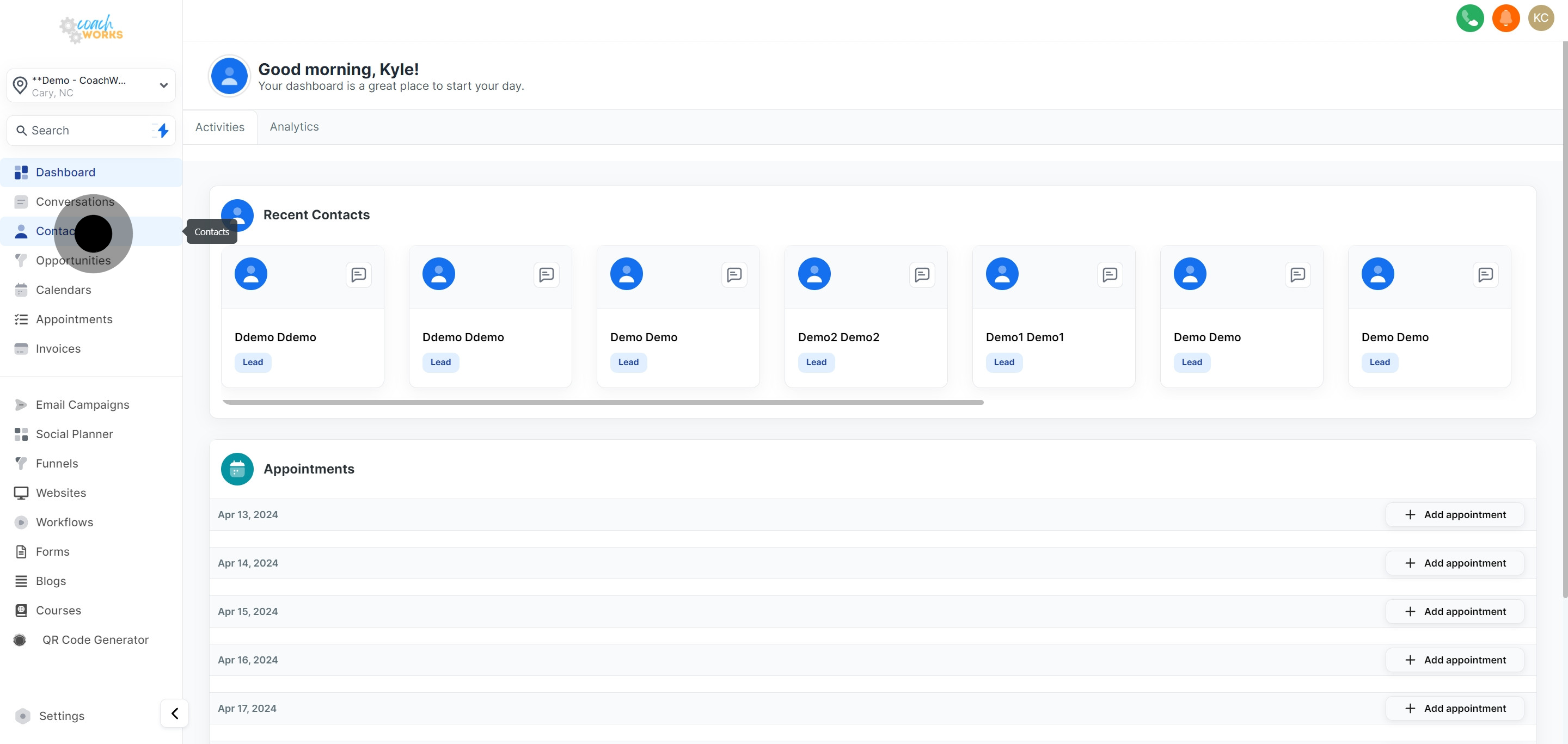
Identify and select the contact you wish to add to a workflow from the list presented.
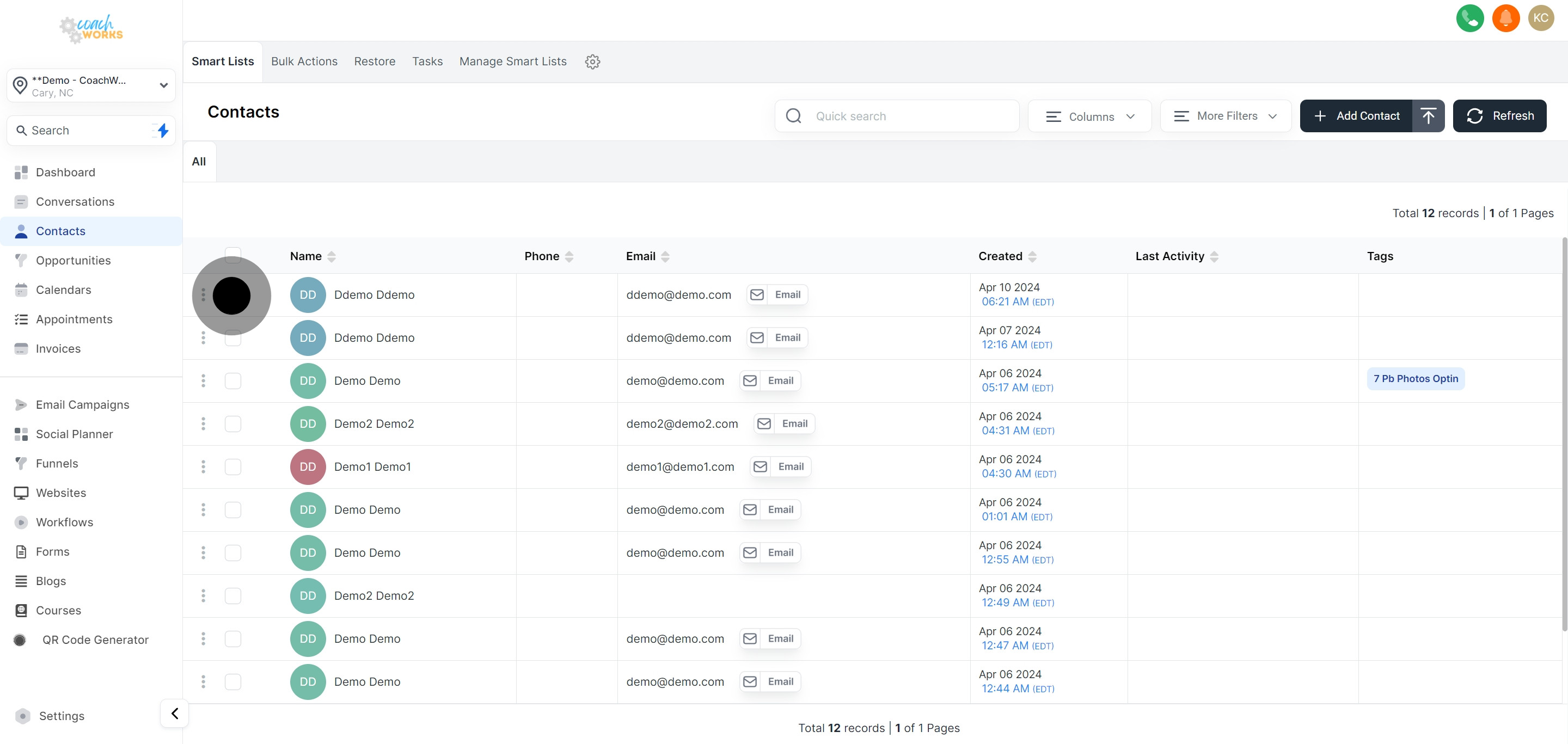
If you intend to include more than one contact, use the checkboxes next to each contact's name to select multiple contacts simultaneously.
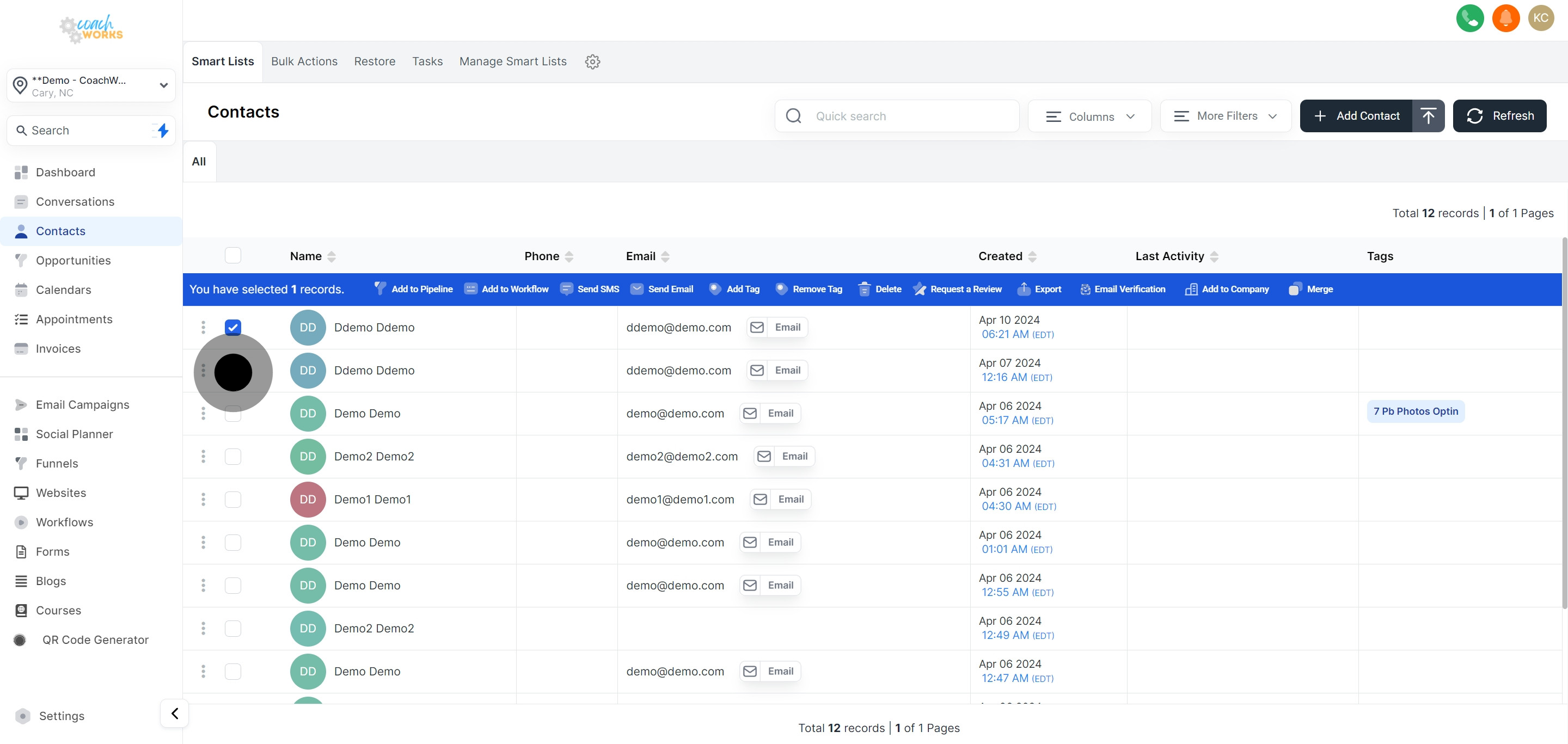
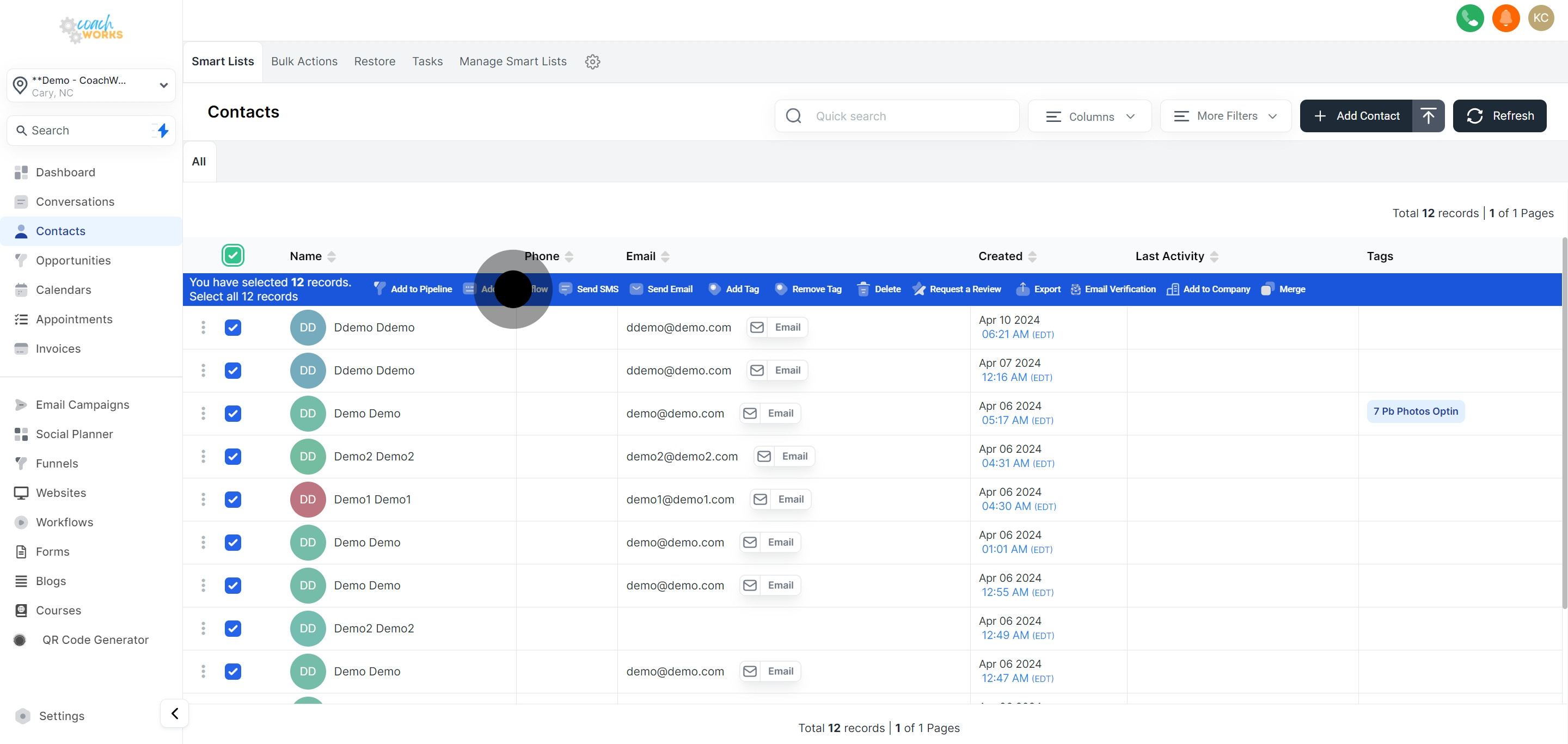
For larger operations, utilize the master checkbox to select all contacts in your list at once, facilitating a mass action.
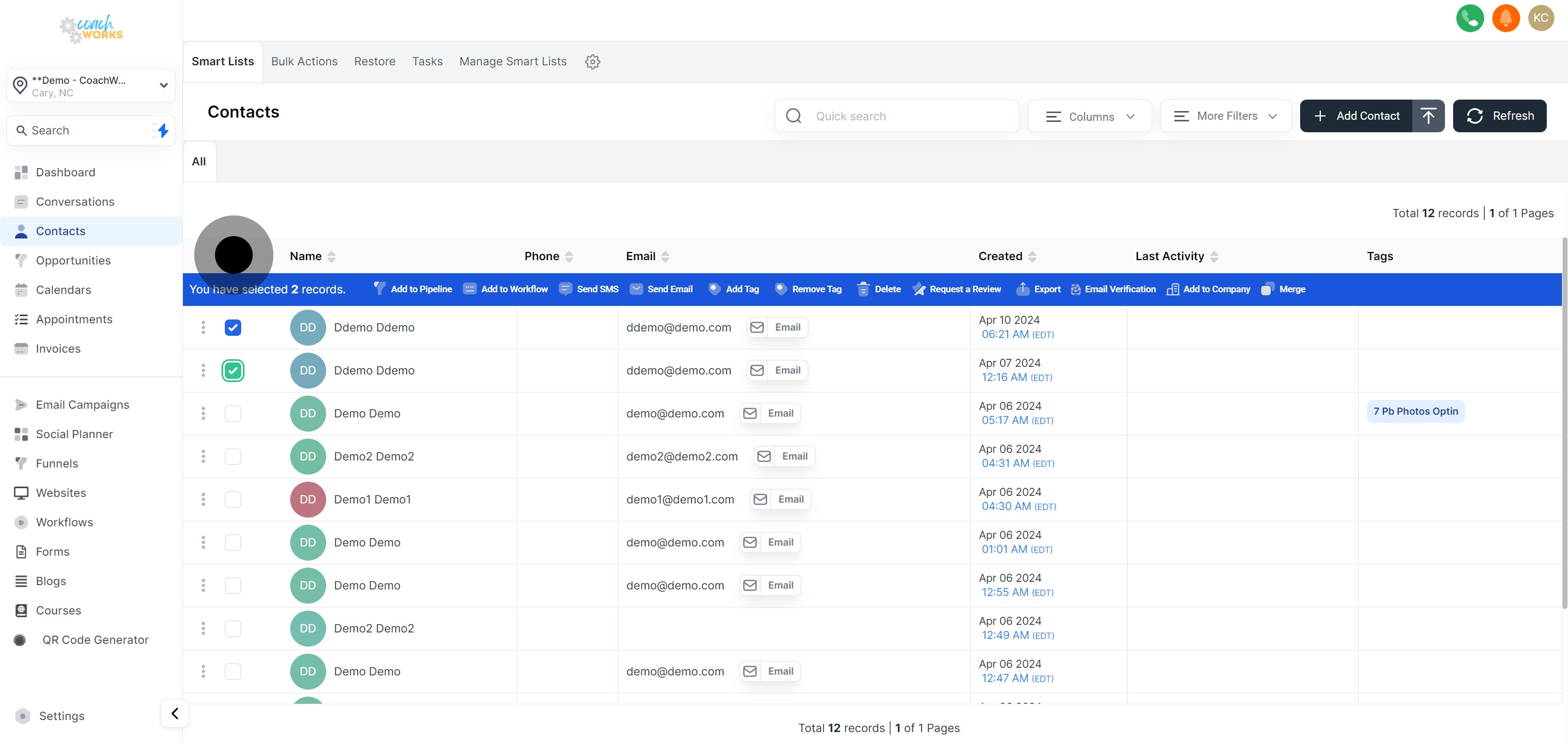
With your contacts selected, proceed to add them to your desired workflow by navigating to the corresponding option or tab.
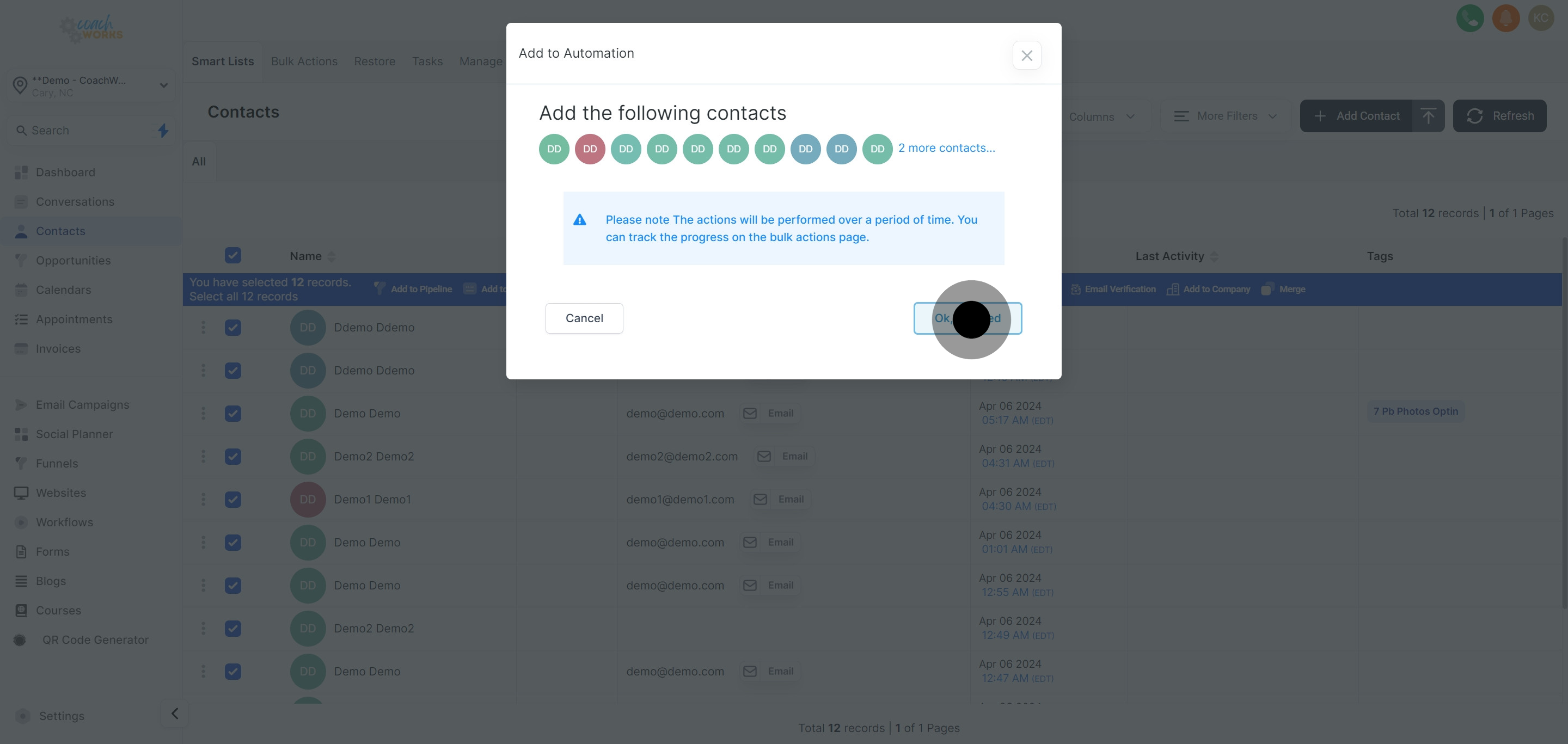
Click on 'Ok, proceed' to verify your decision and continue with the integration process.
From the list of pre-existing workflows, choose the one to which your selected contacts will be added. Ensure this workflow aligns with the intended communication or engagement strategy.

Opt to schedule when the contacts should be integrated into the workflow, allowing for timing adjustments based on campaign timelines or segmentation strategies.
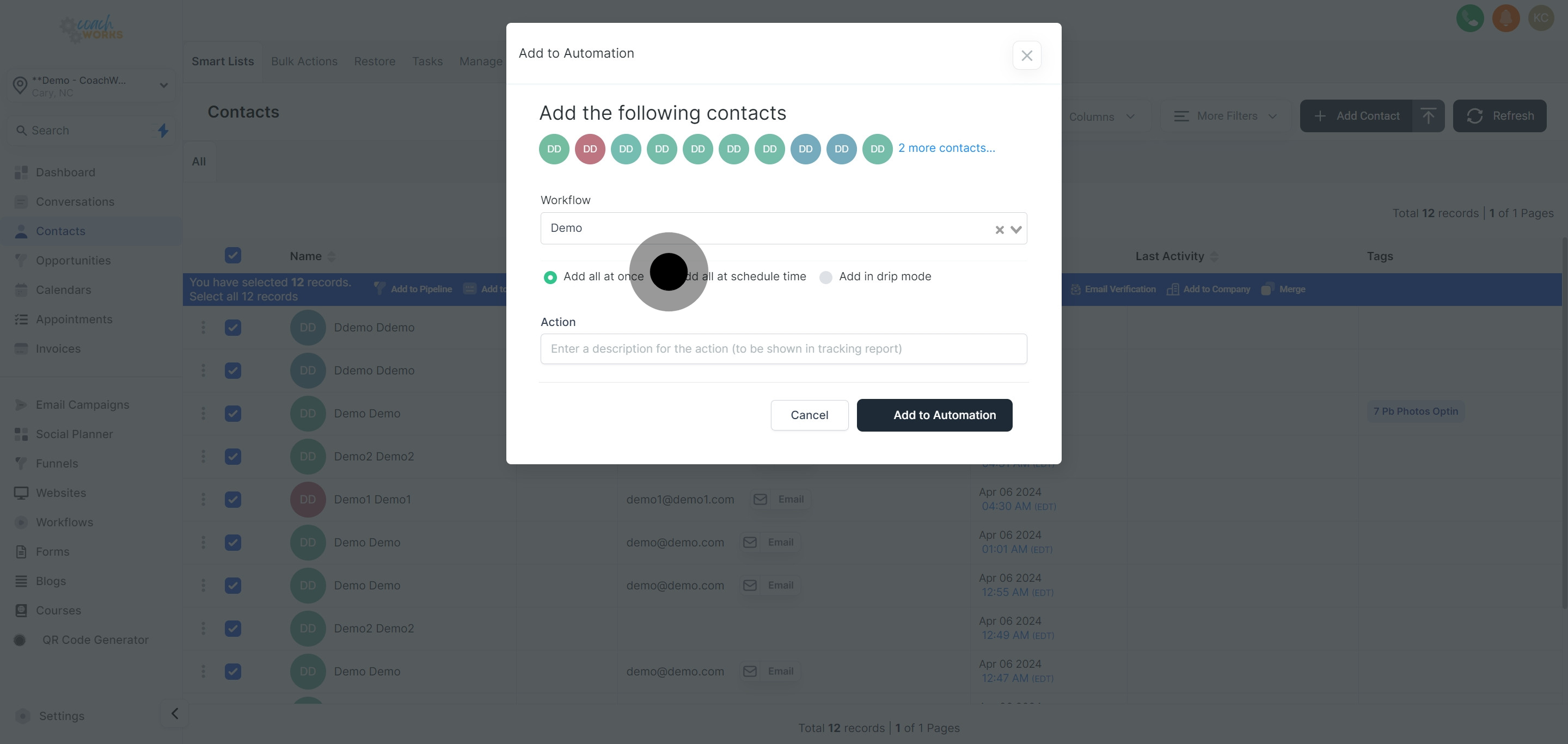
Provide a concise description of this action. This step is crucial for easy tracking and identification within your action logs or history.
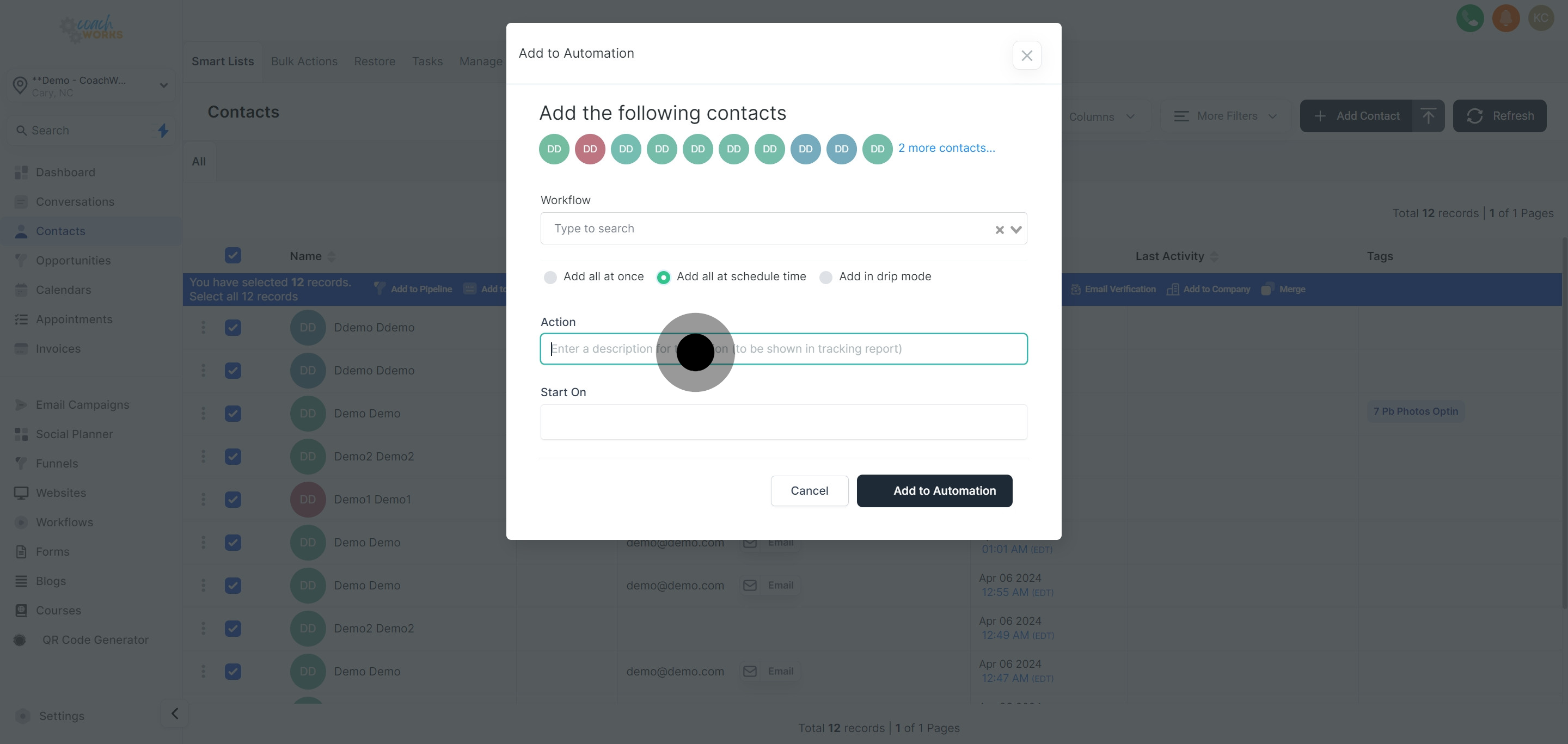
Select the commencement date for this action, determining when your contacts will begin their journey within the chosen workflow.
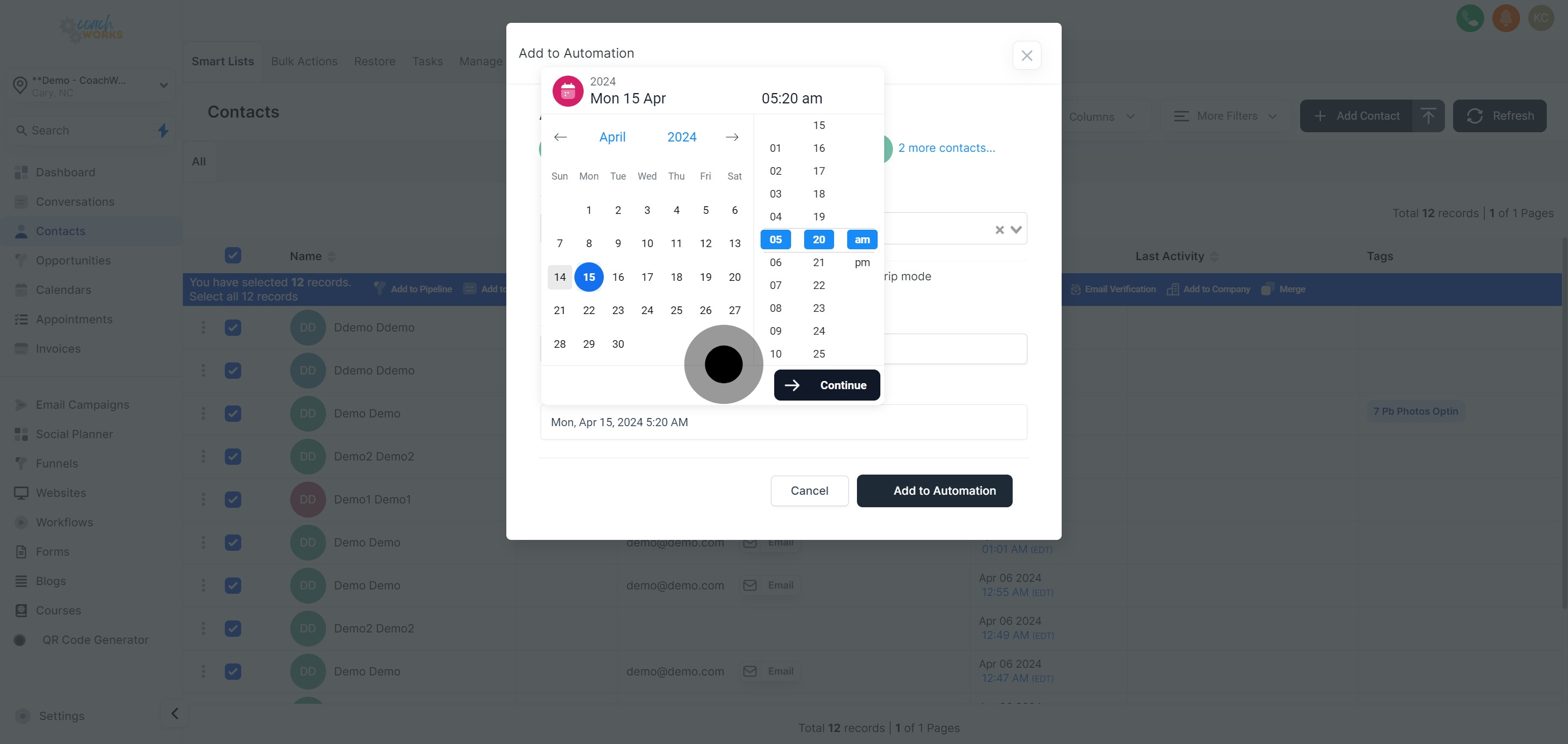
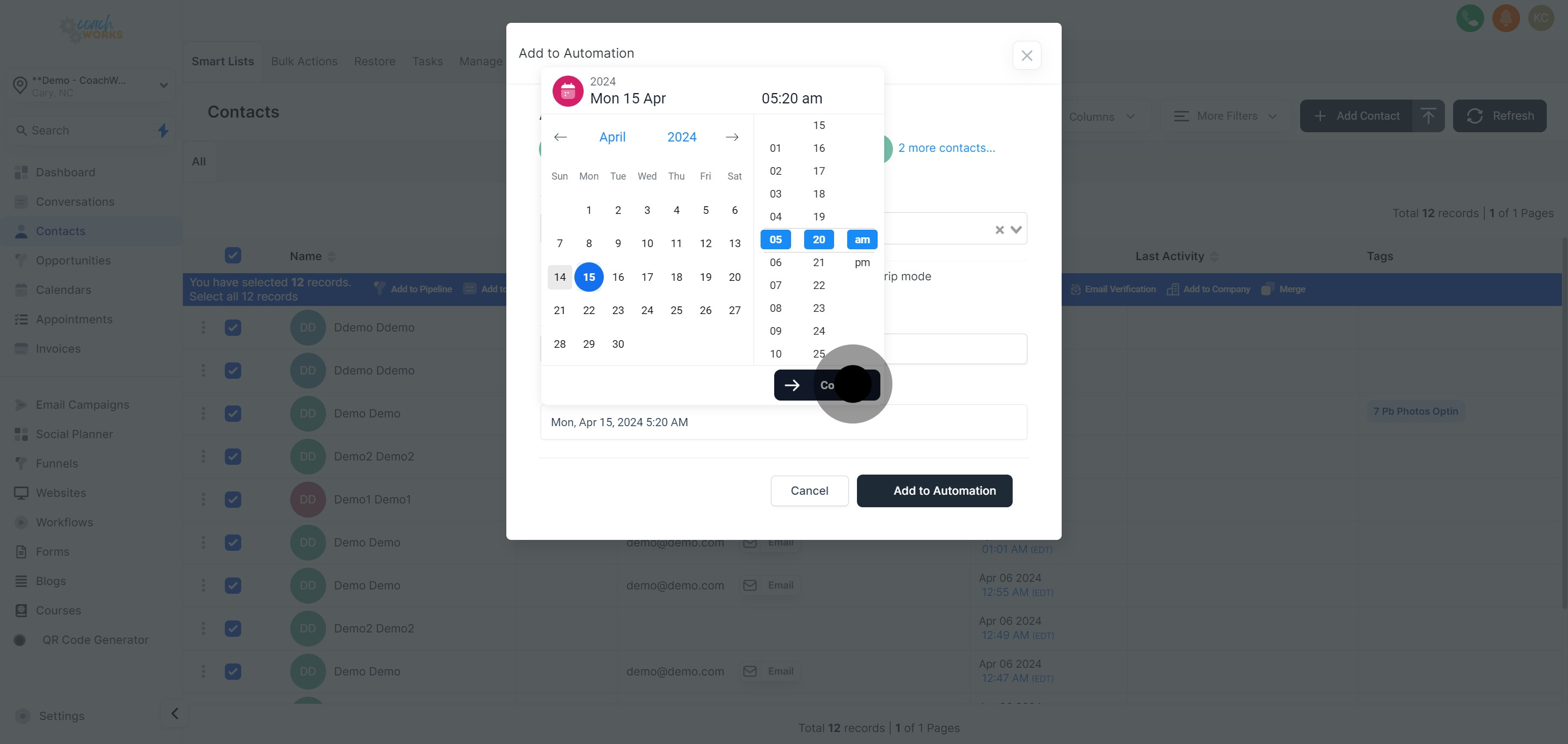
After setting the date, click 'Continue' to move forward with the configuration process.
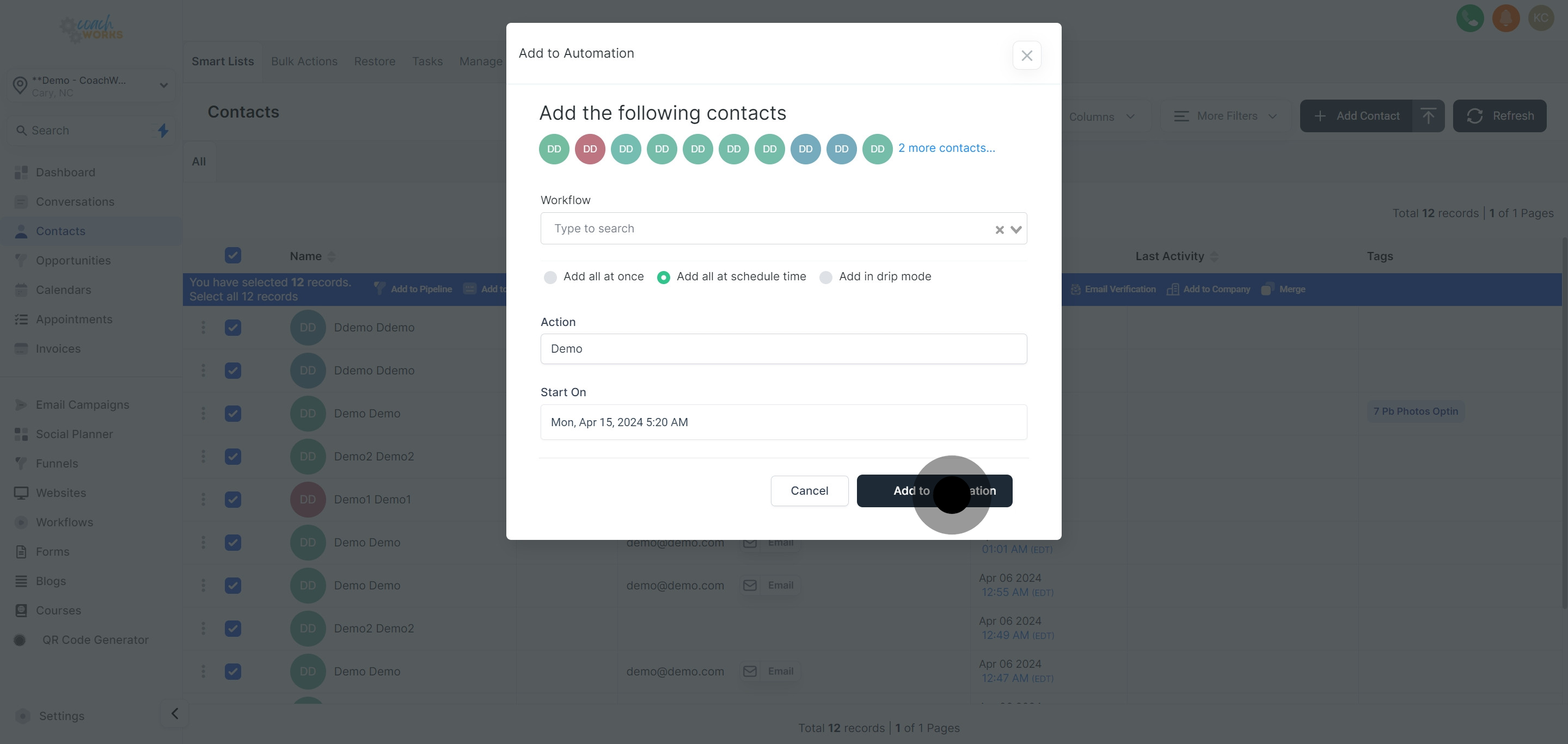
Add your configuration to 'Automation', finalizing the settings for how and when the selected contacts will be integrated into the workflow.
For assurance and oversight, inspect the status of your process by clicking on the provided link, which directs you to an overview or detailed log of the action.
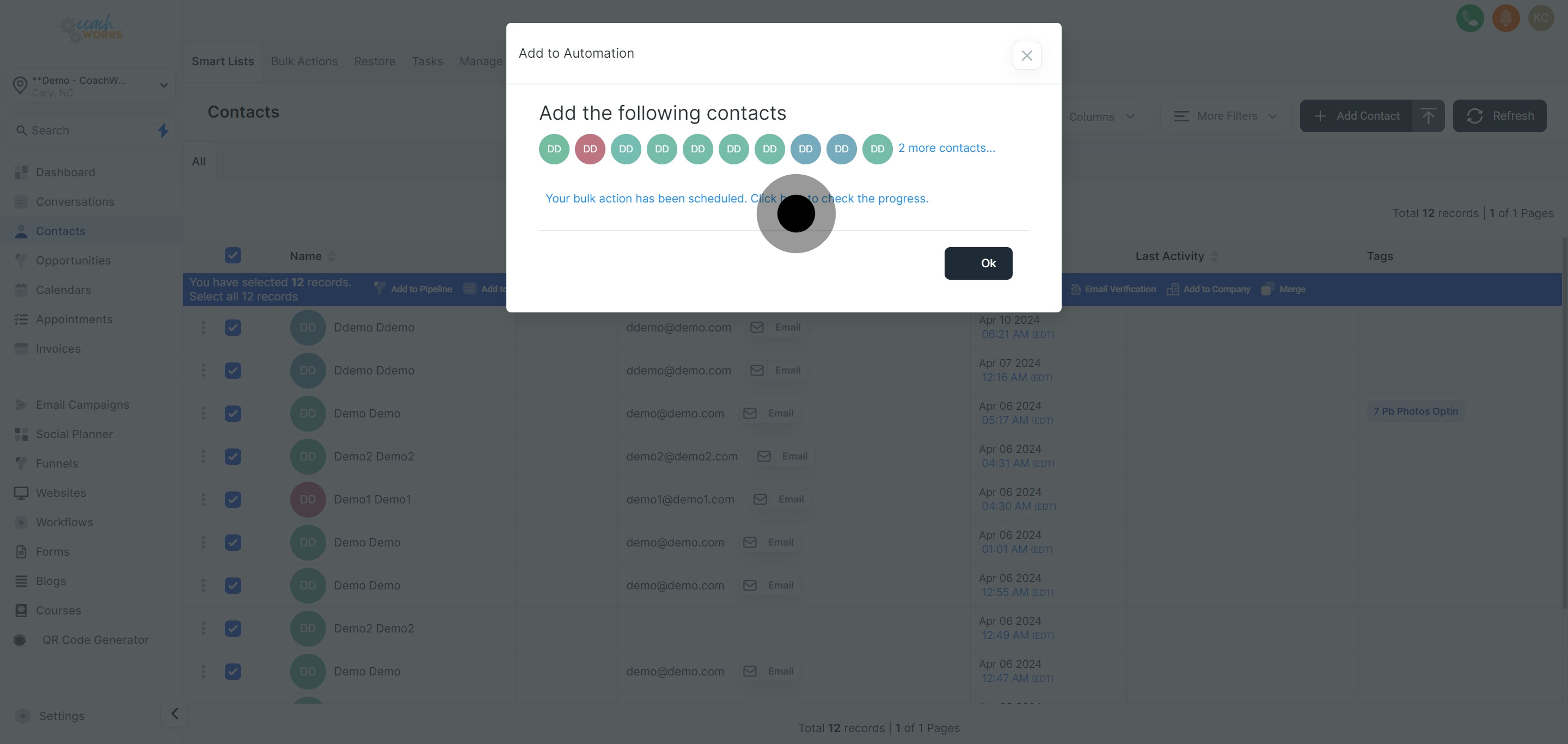
Conclude your workflow setup by clicking 'Ok' to finish. This confirms the integration and begins the automation process based on your configured settings.