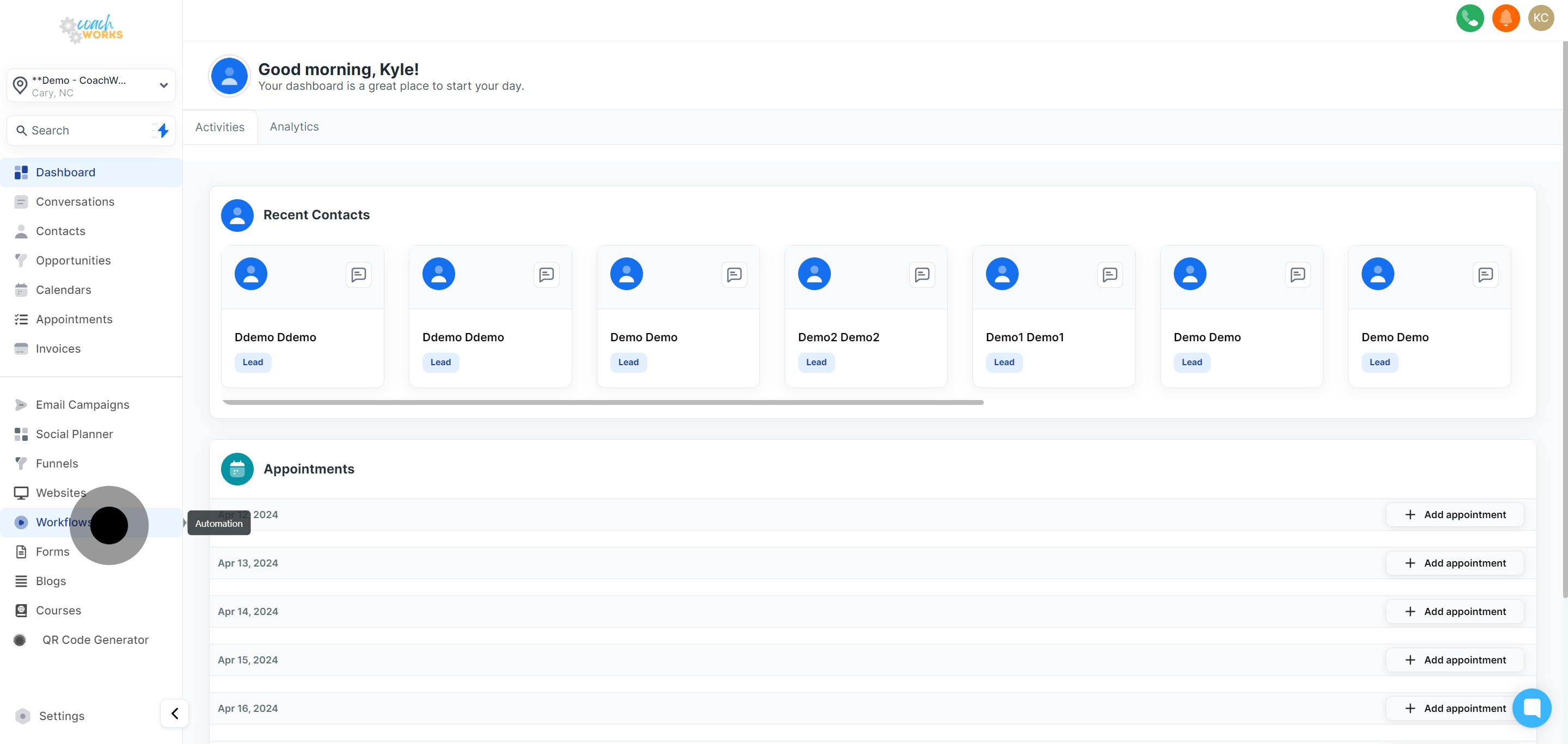
Begin by navigating to the workflow page within your CoachWorks Marketing dashboard to view existing workflows or create a new one.
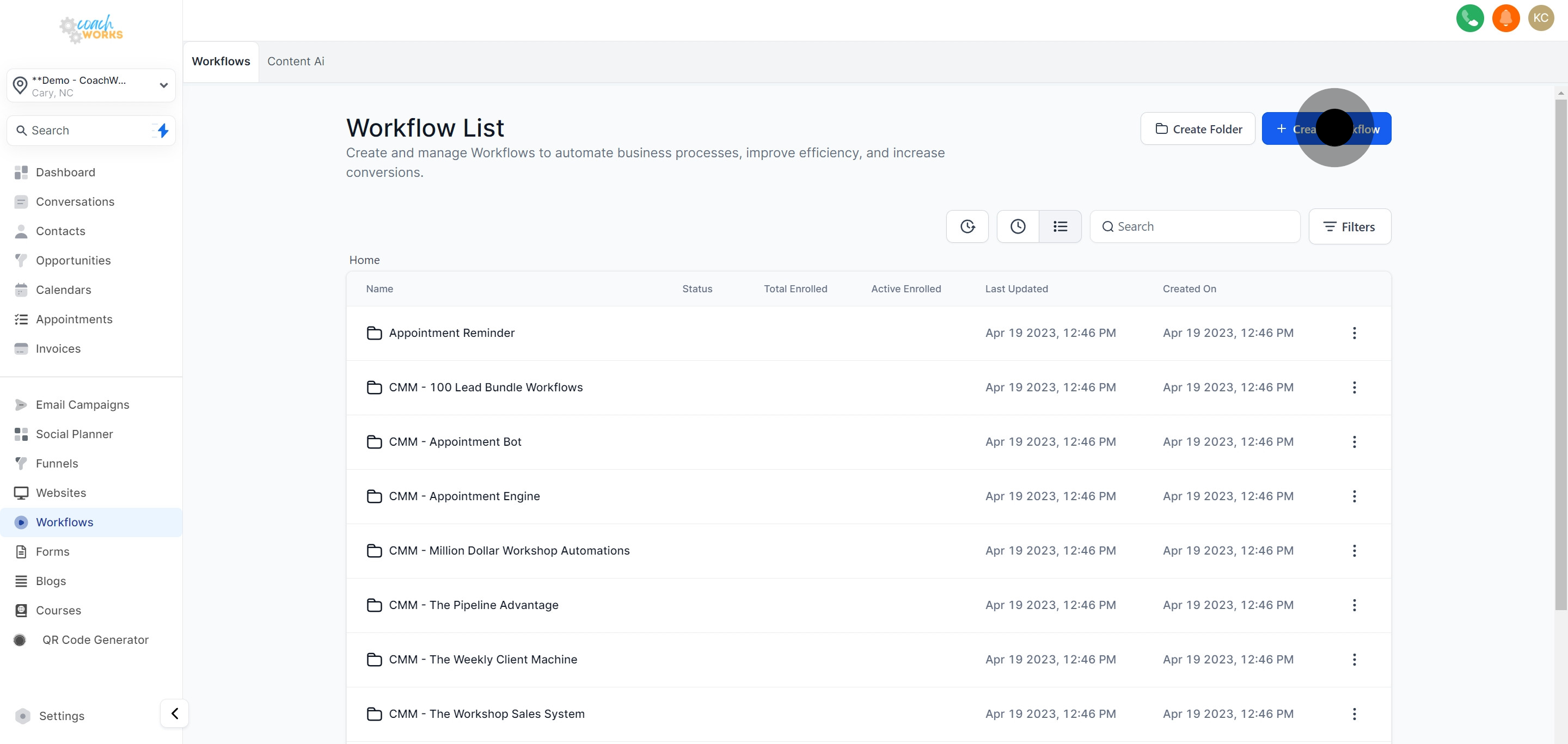
Click on the option to create a new workflow. This will open up possibilities for workflow creation based on your marketing needs.
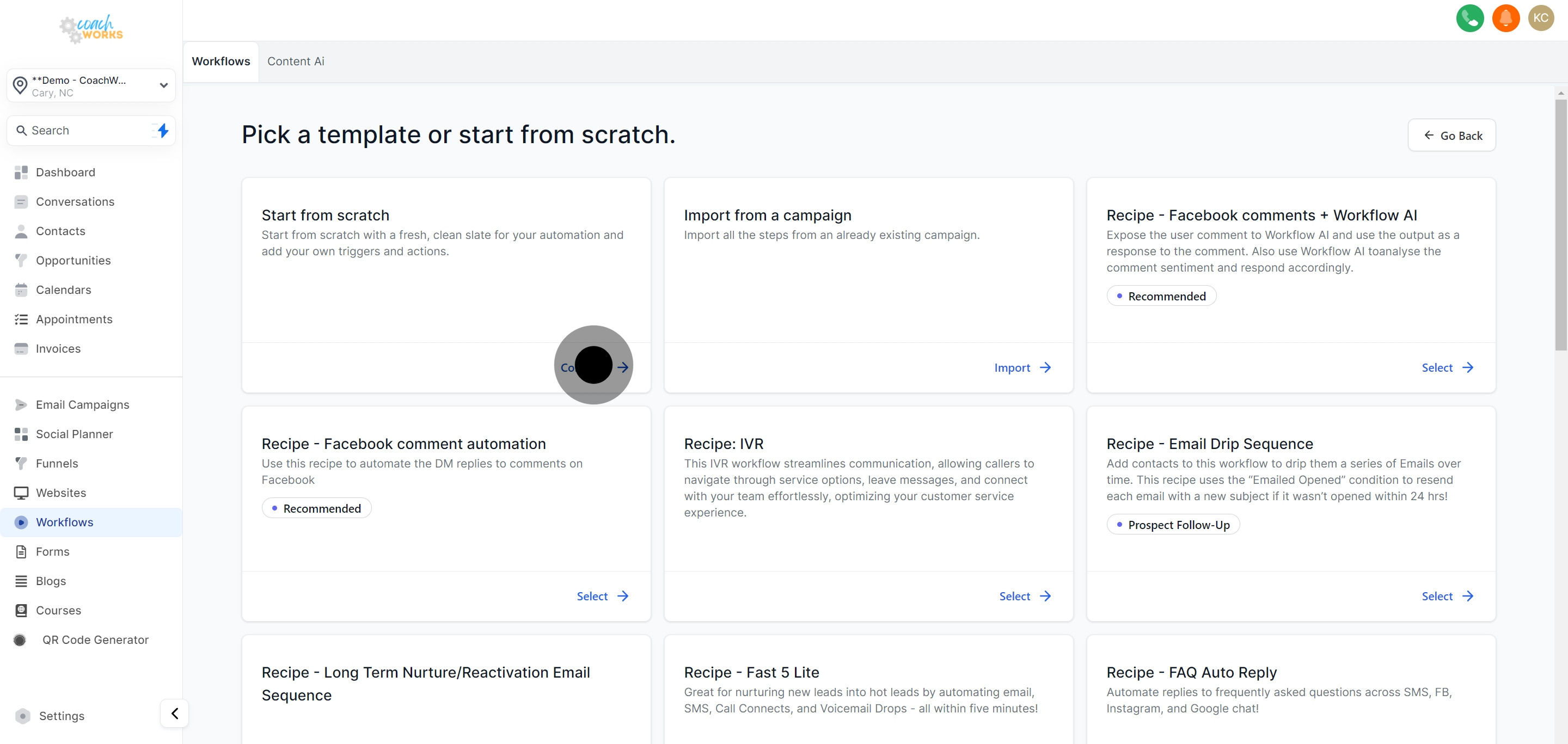
If you prefer a guided approach, you can continue on to select from the available templates, which offer pre-set configurations for various marketing goals.
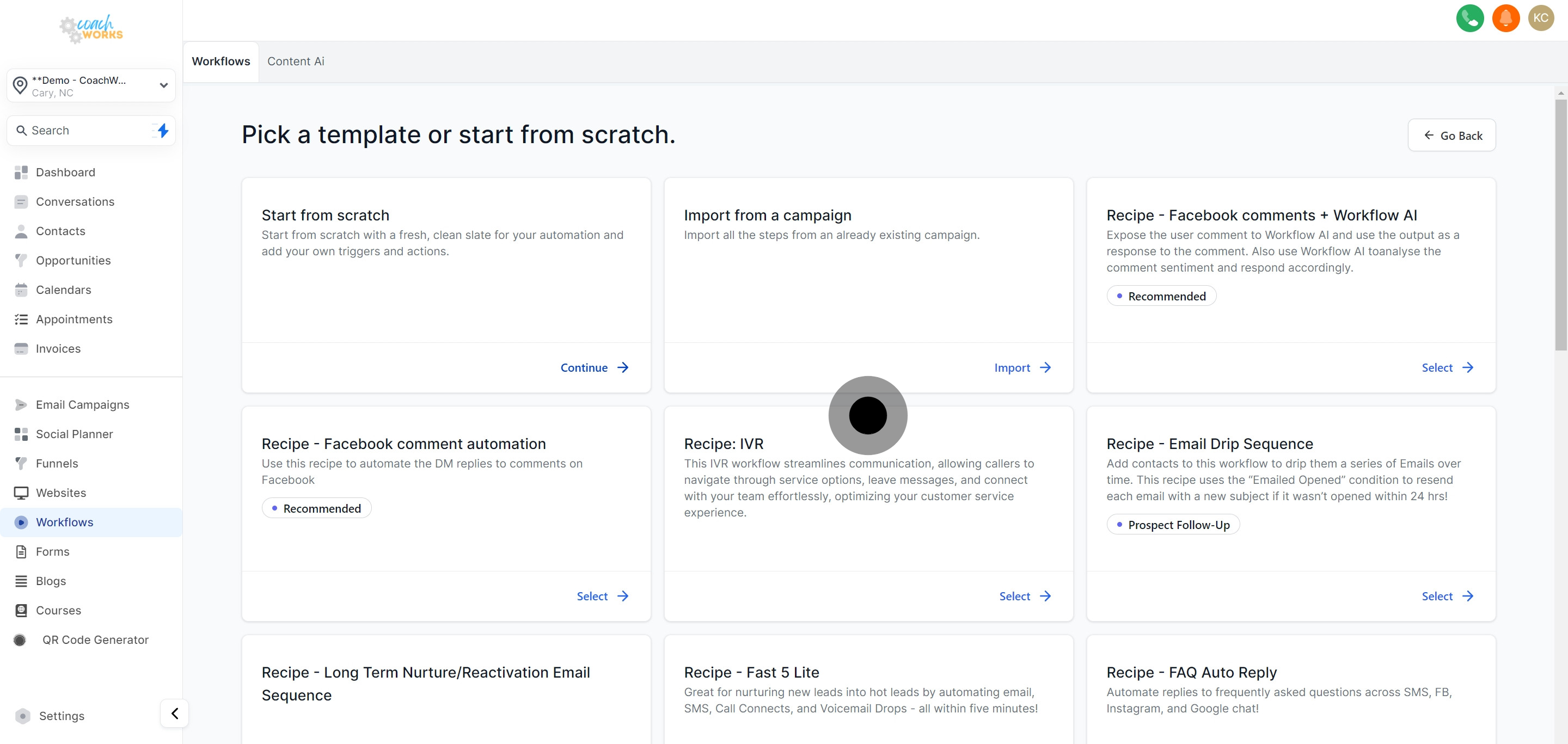
For a customized workflow tailored to your specific requirements, choose the 'Start from scratch' option.
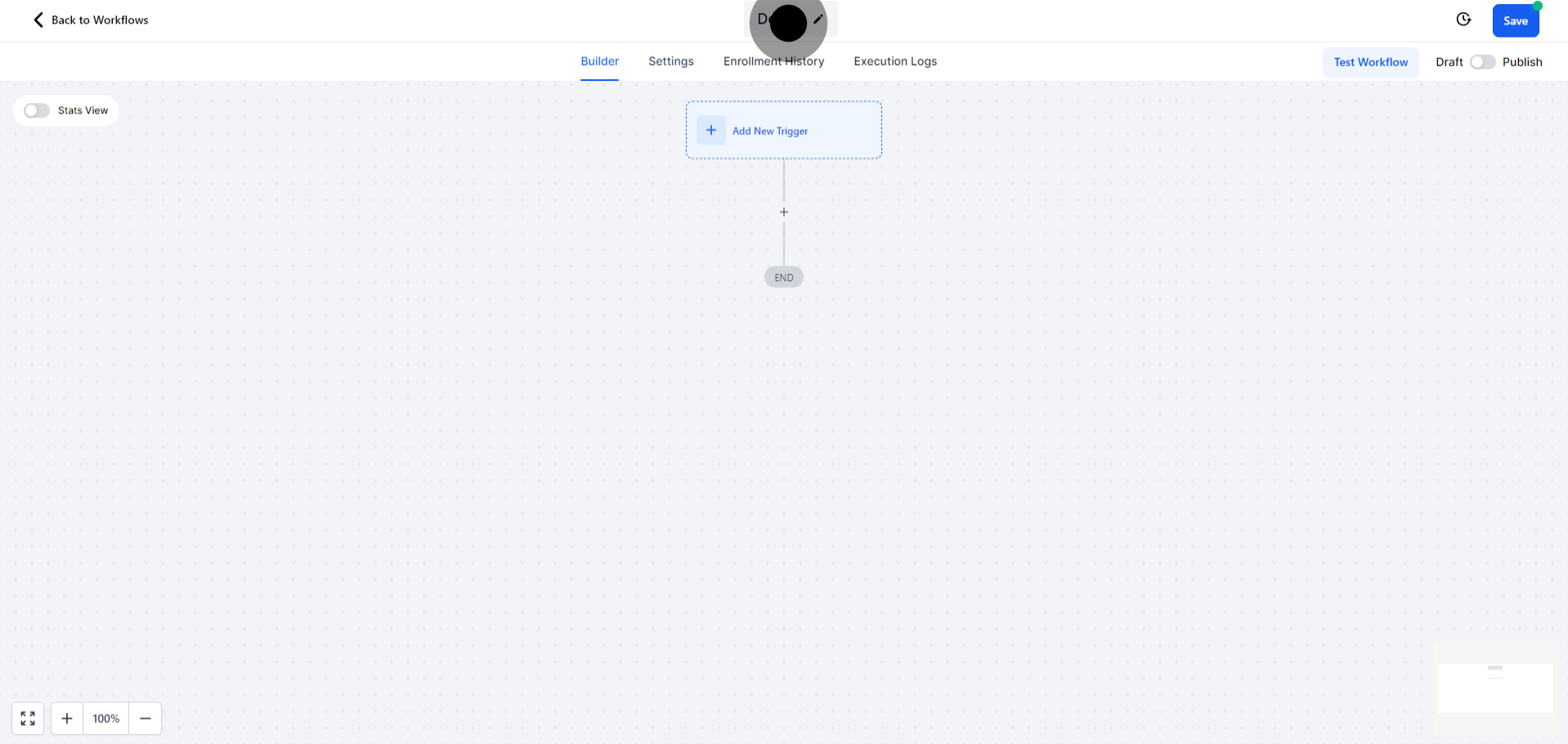
Assign a descriptive name to your workflow for easy identification and management.
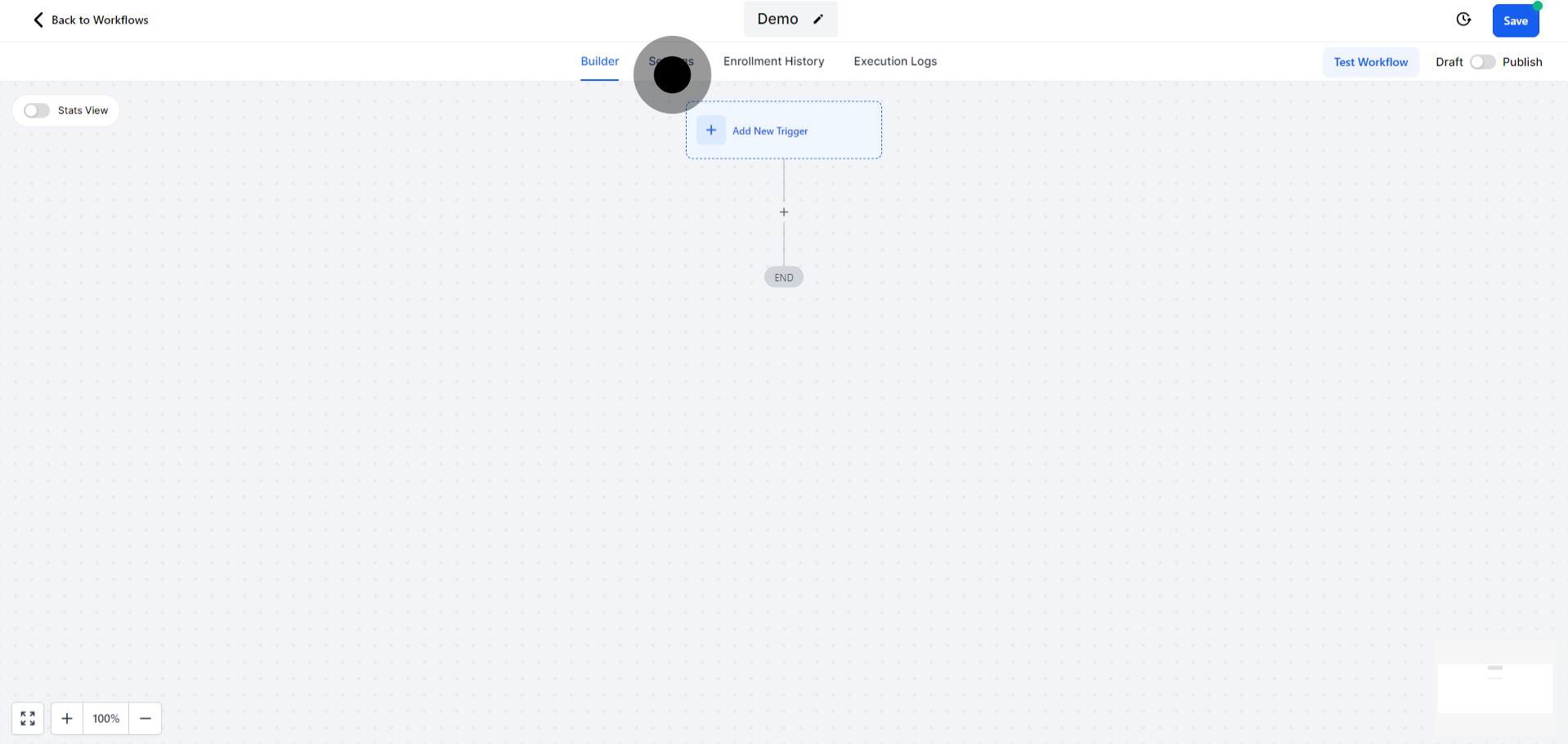
Navigate to the 'Settings' tab to configure the operational parameters of your workflow.
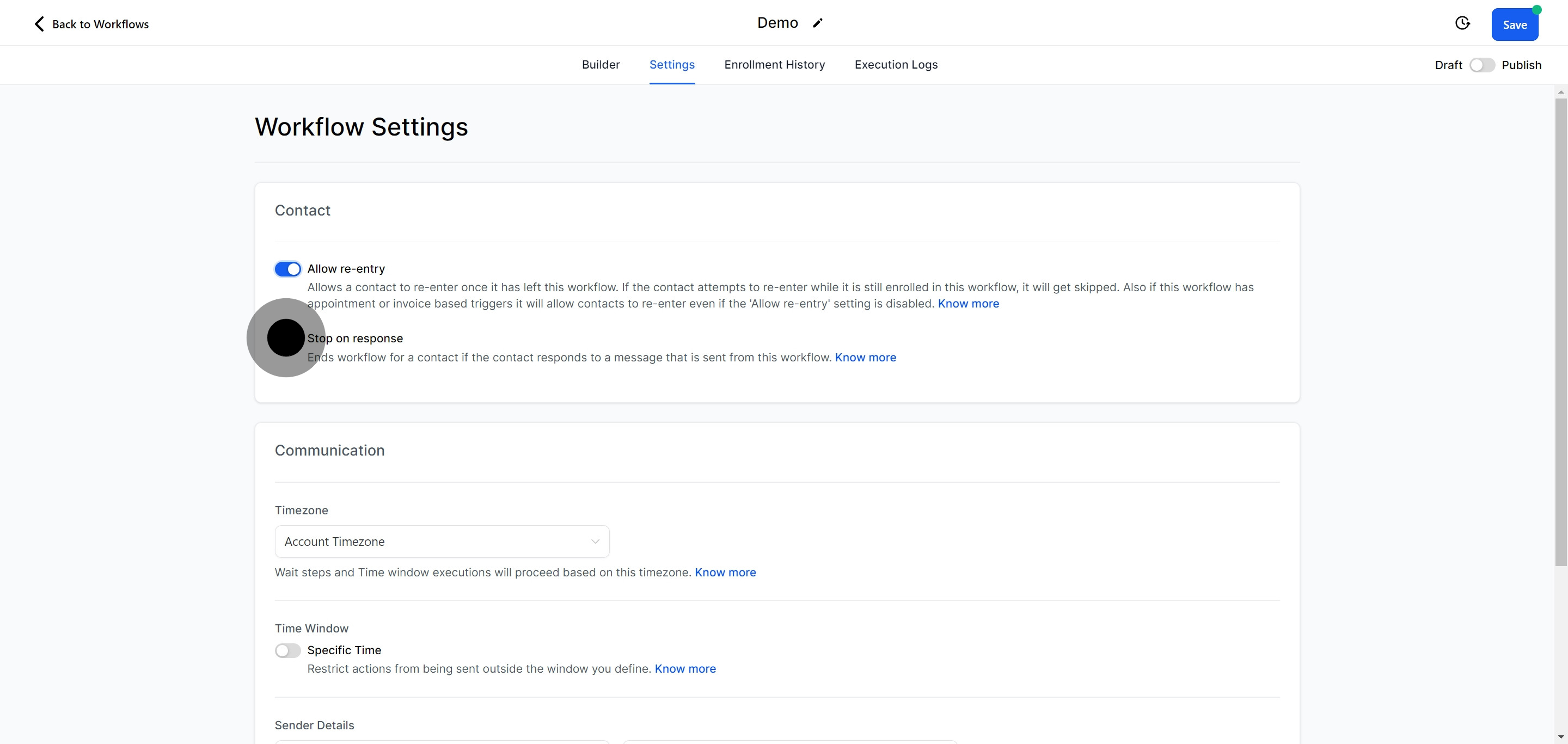
Enable the 'Allow re-entry' feature if you wish to allow contacts to re-enter the workflow based on new or repeated actions.
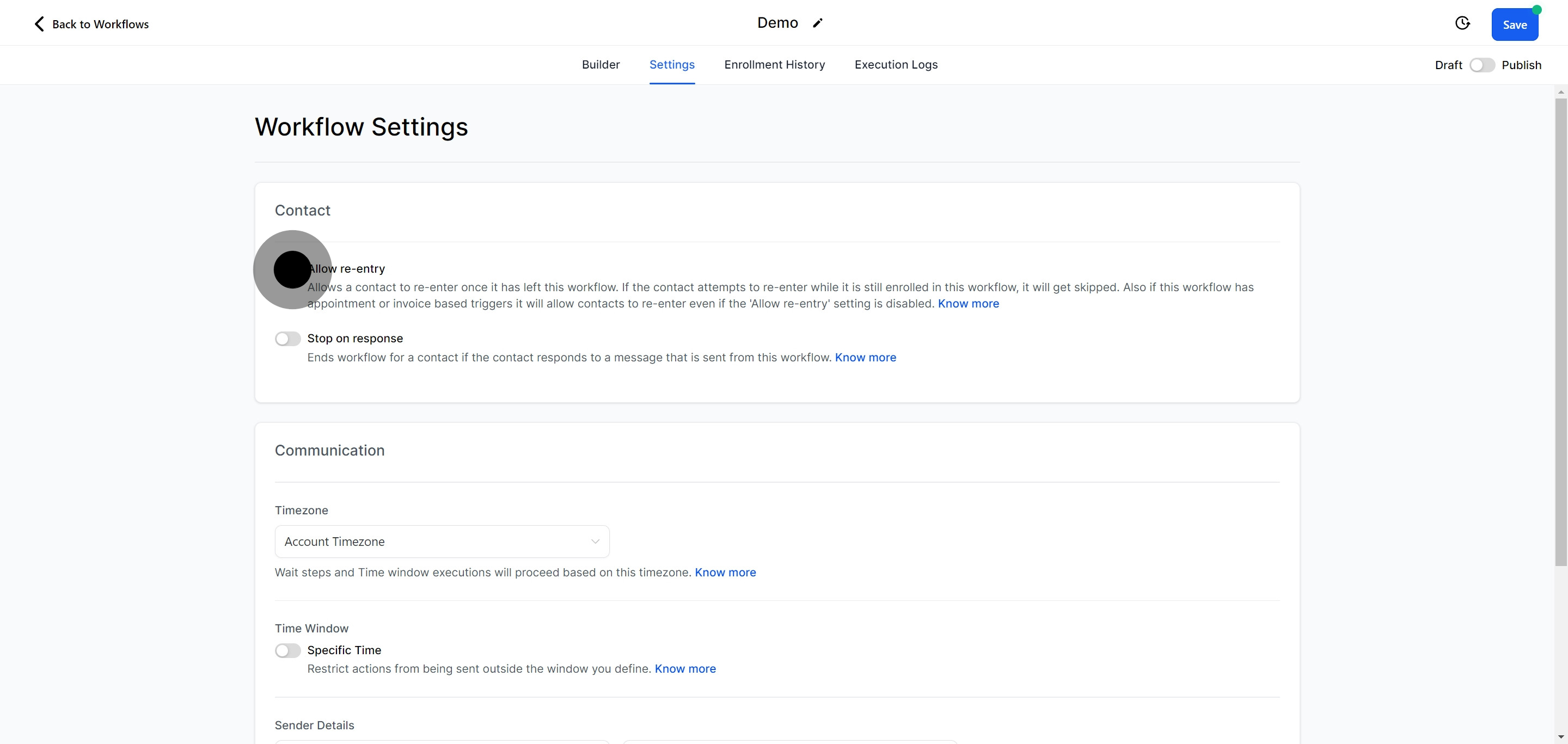
Activate the 'Stop on response' feature to halt the workflow when a designated response is received, optimizing engagement strategies.
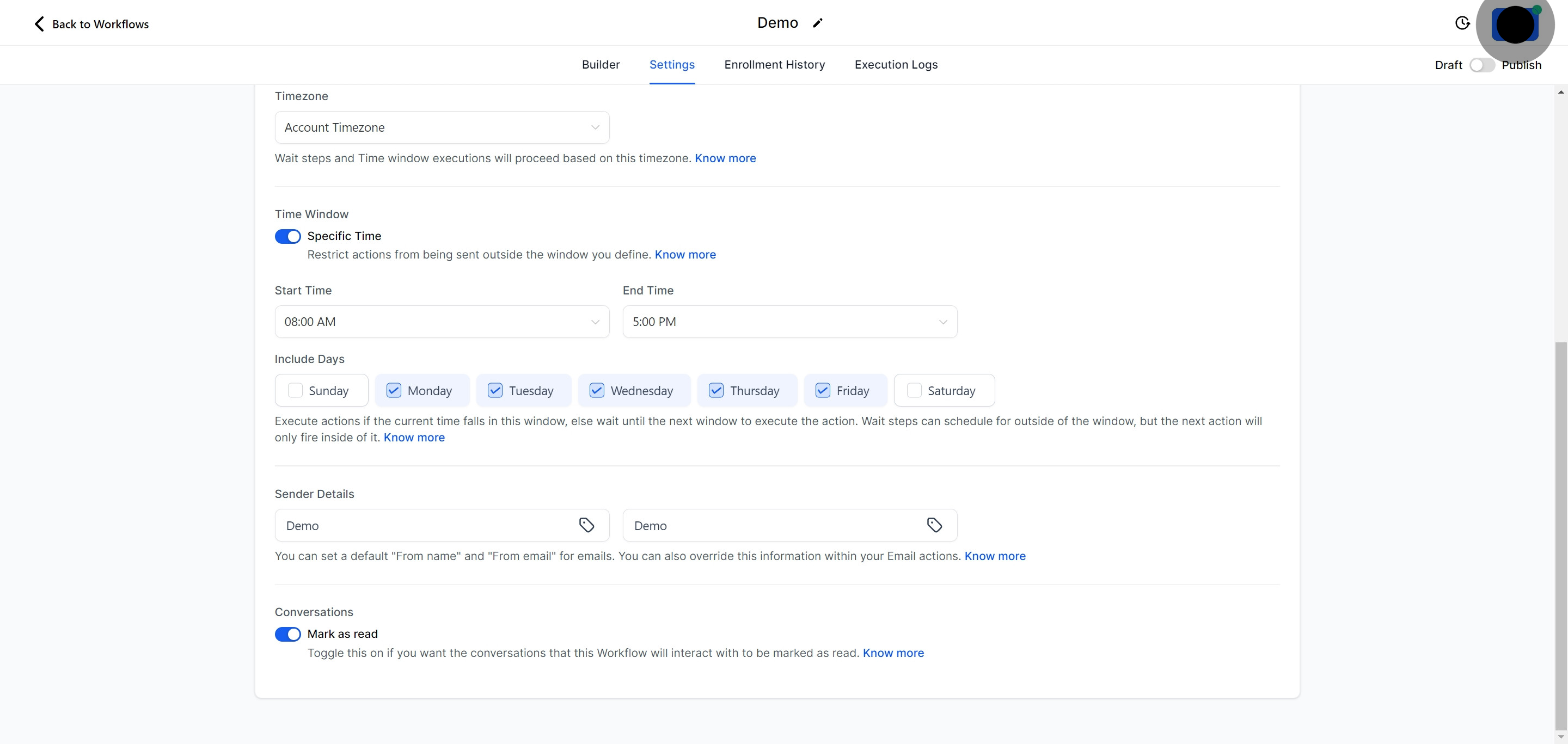
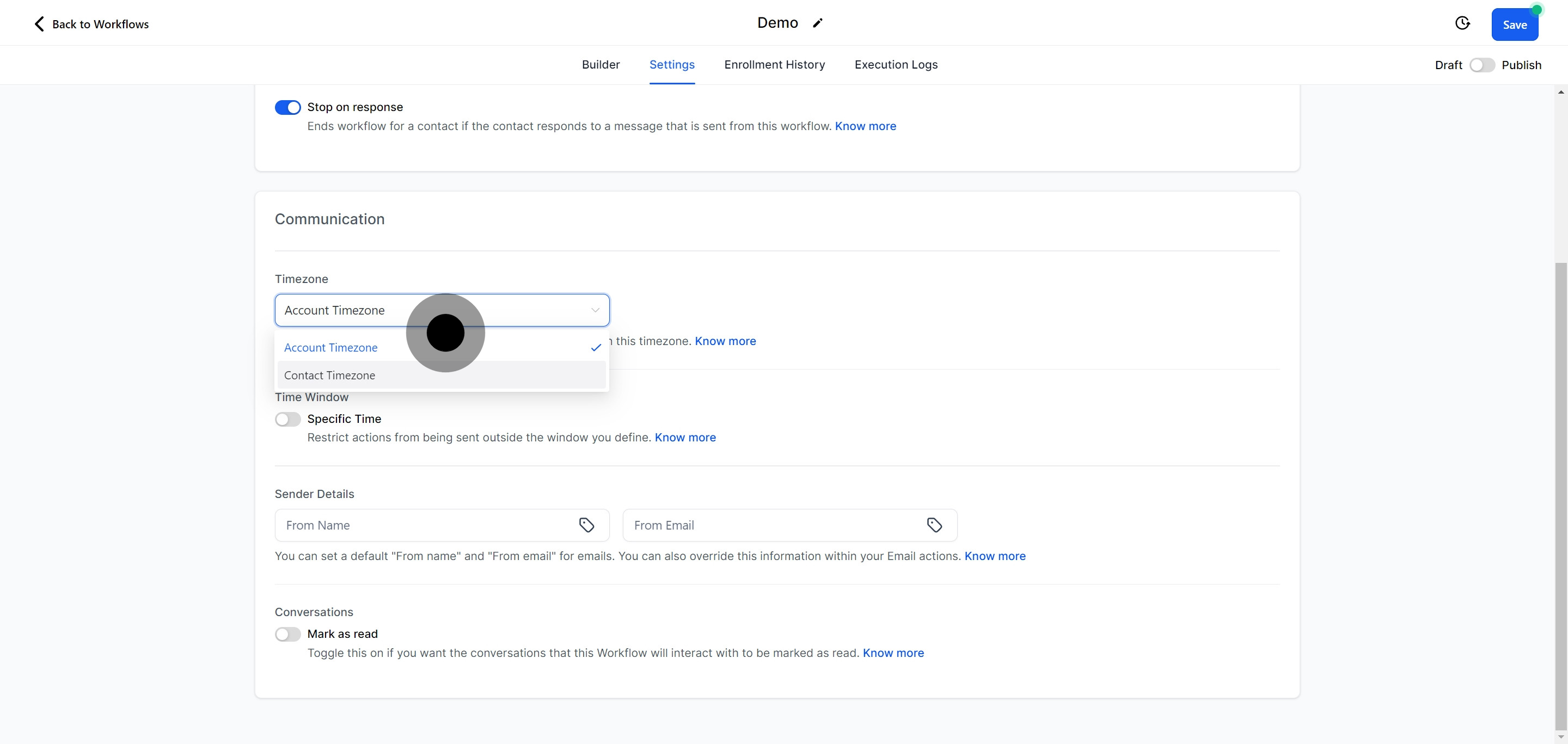
Adjust the workflow timezone according to your geographic or preferred operational timezone.
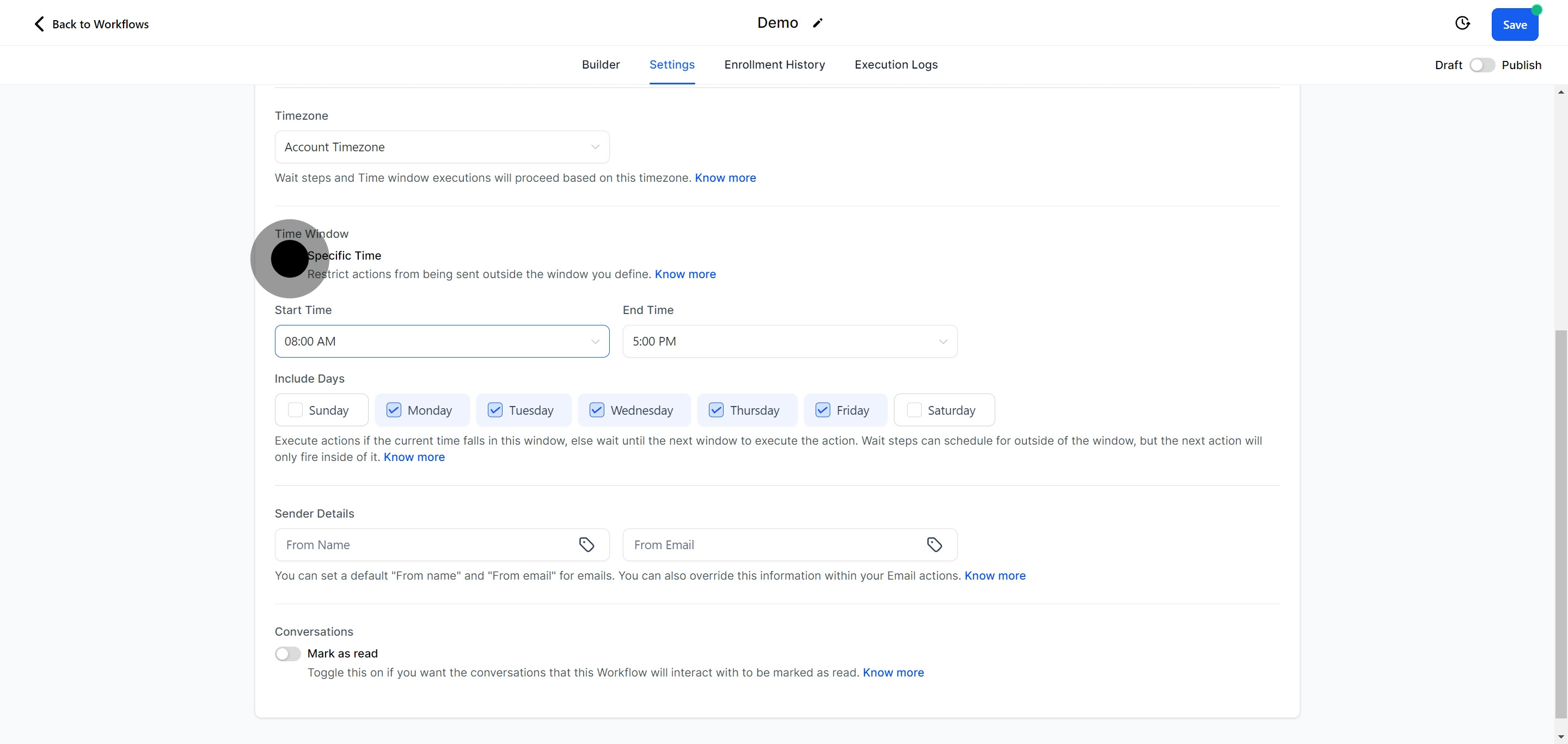
Utilize the 'Specific Time' feature to schedule when the workflow should start and stop, offering precise control over its operation.
Choose the specific starting time for your workflow’s activation, aligning with your marketing campaign’s timing.
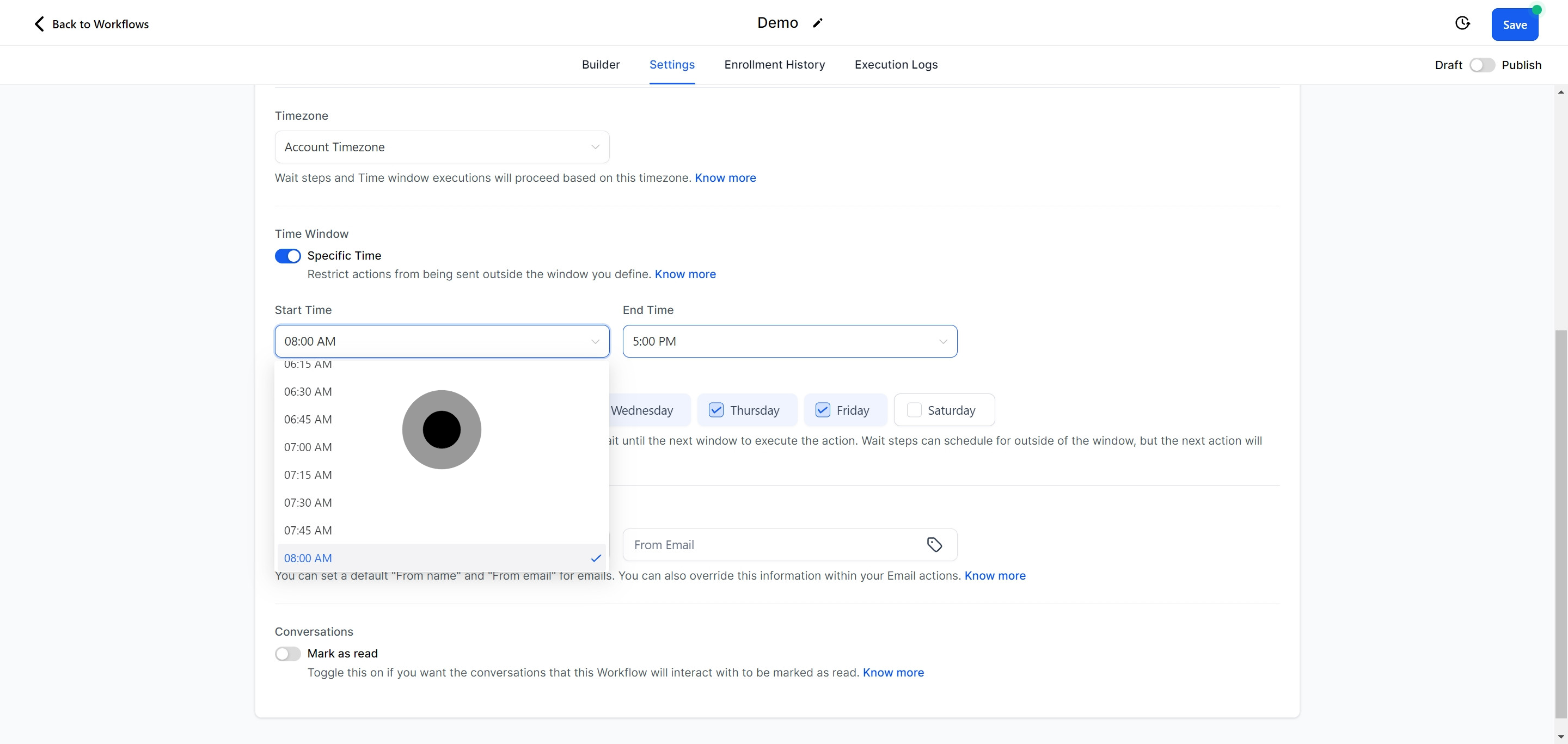
Define an appropriate ending time for your workflow, ensuring its activities are constrained to relevant periods.
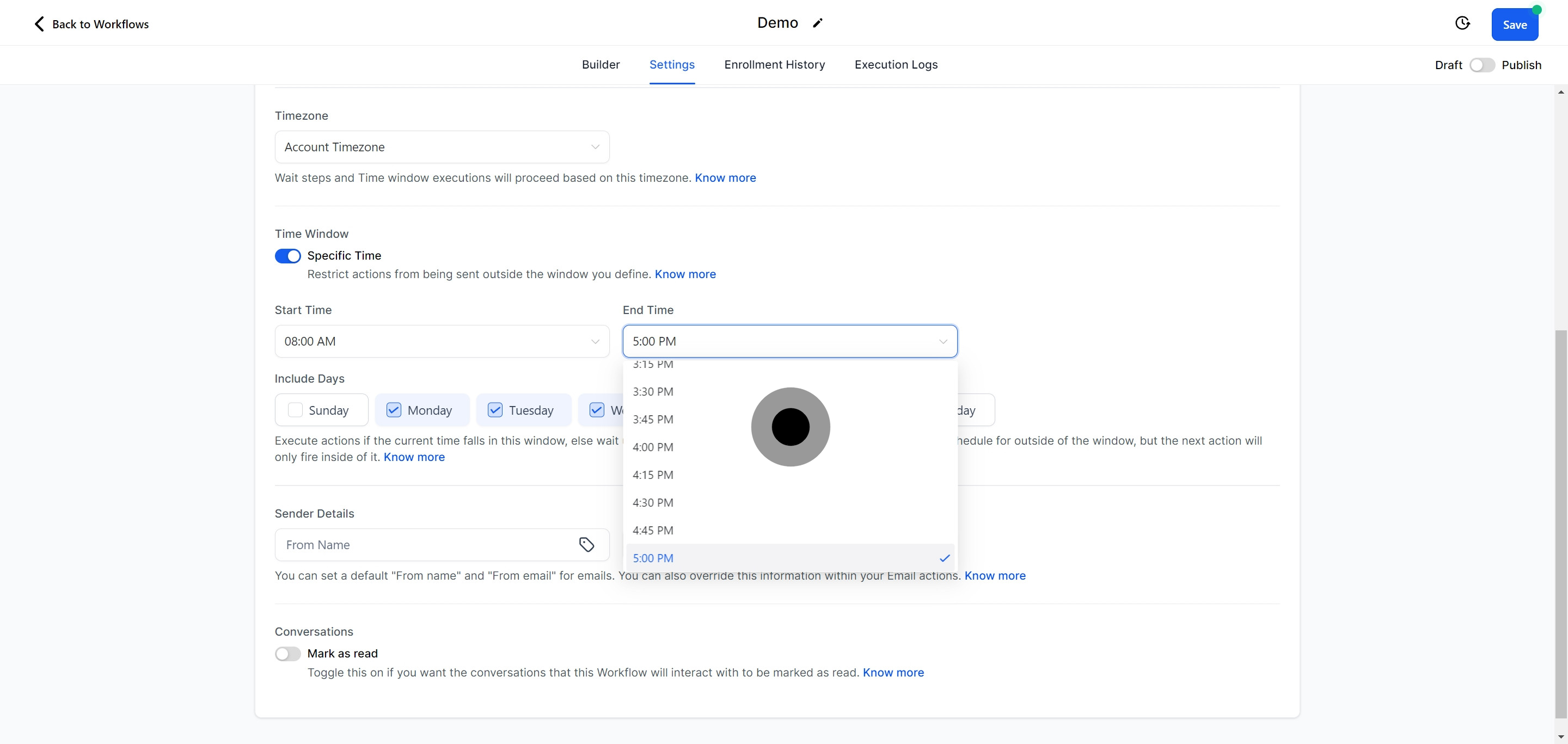
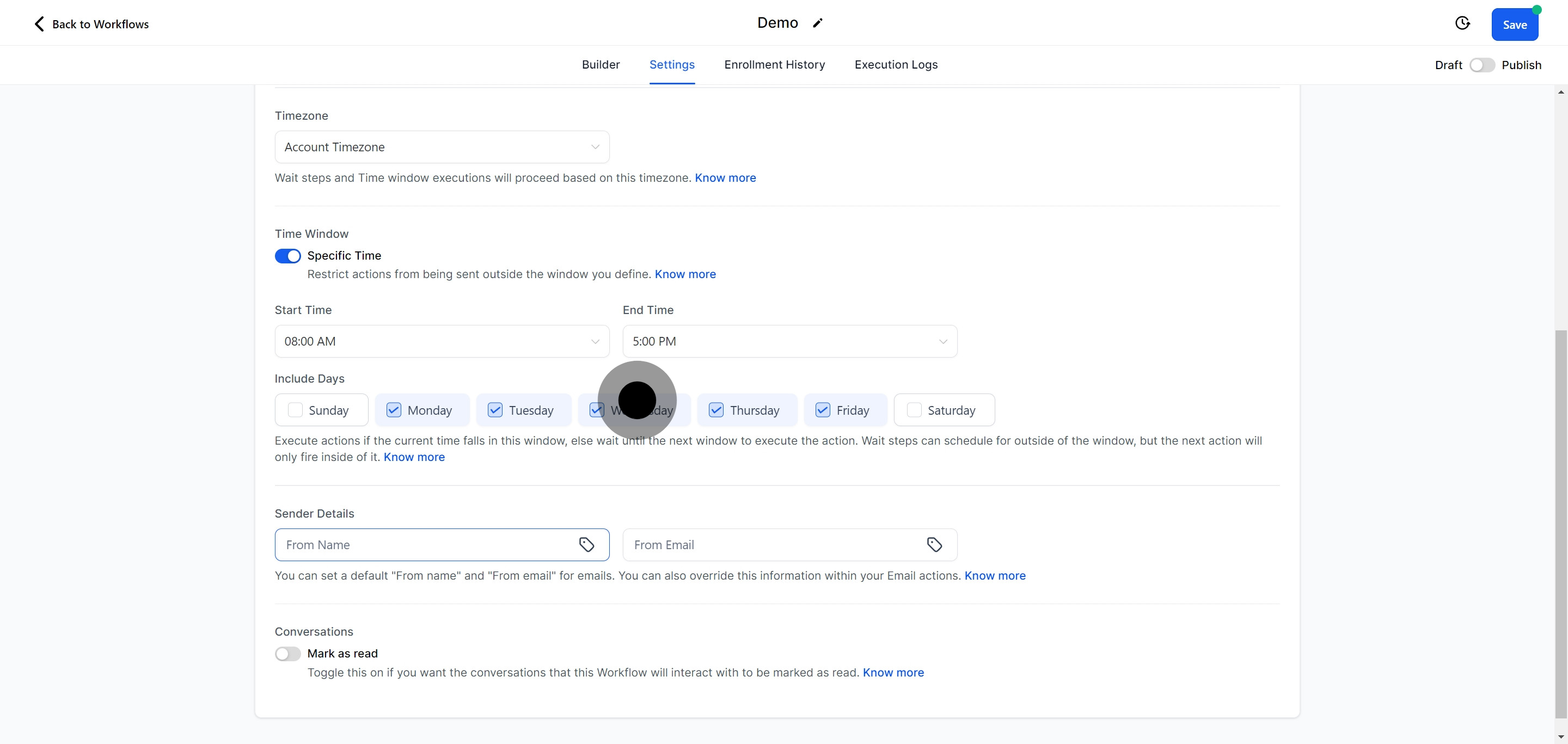
Decide on which days your workflow should be active, further tailoring its operation to match your audience’s engagement patterns.
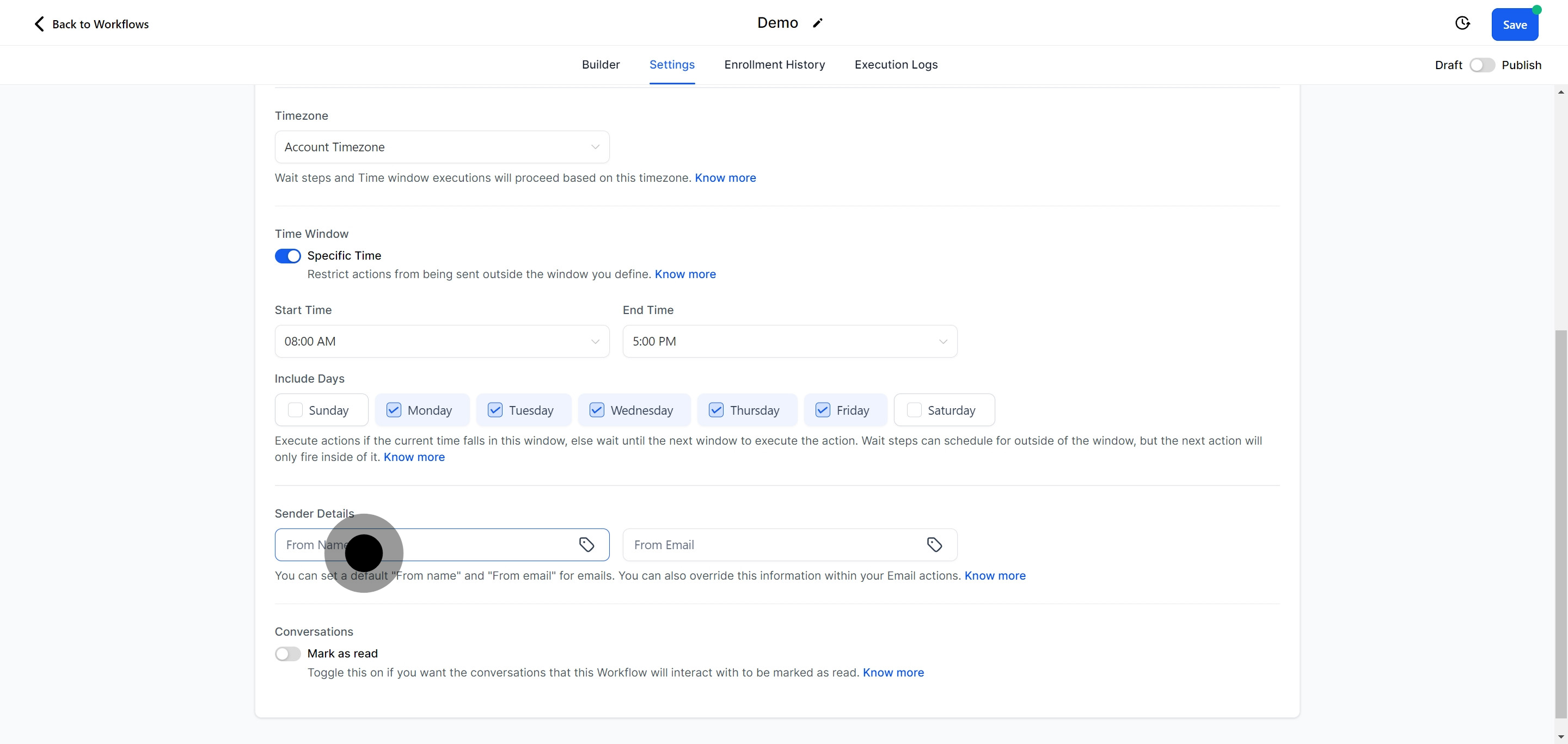
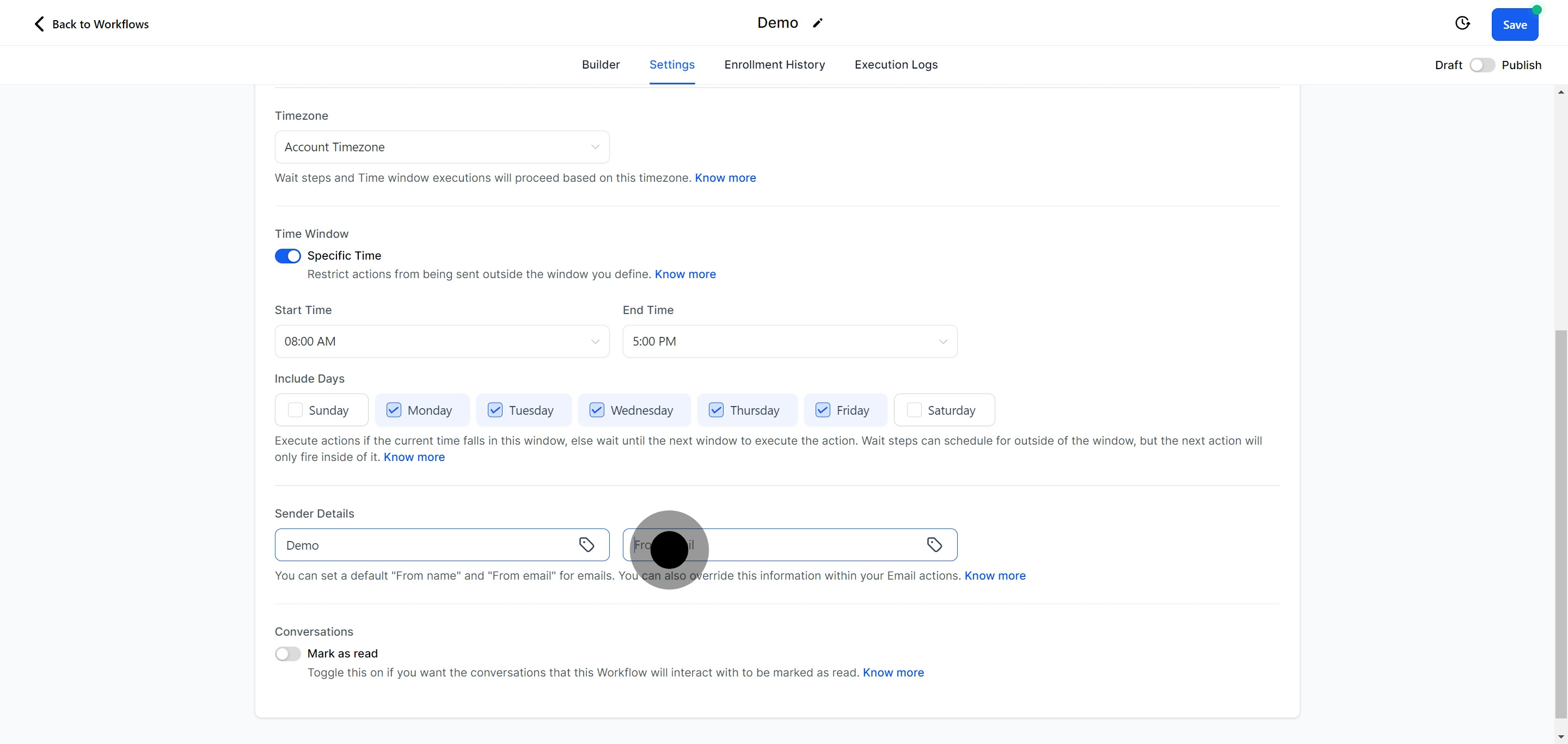
For workflows involving email activities, enter a sender name to personalize the email source.
Provide the sender's email address, ensuring recipients recognize the outreach's origin.
If using email triggers, you can choose the 'Mark as read' feature to automatically mark emails as read upon certain responses or actions.
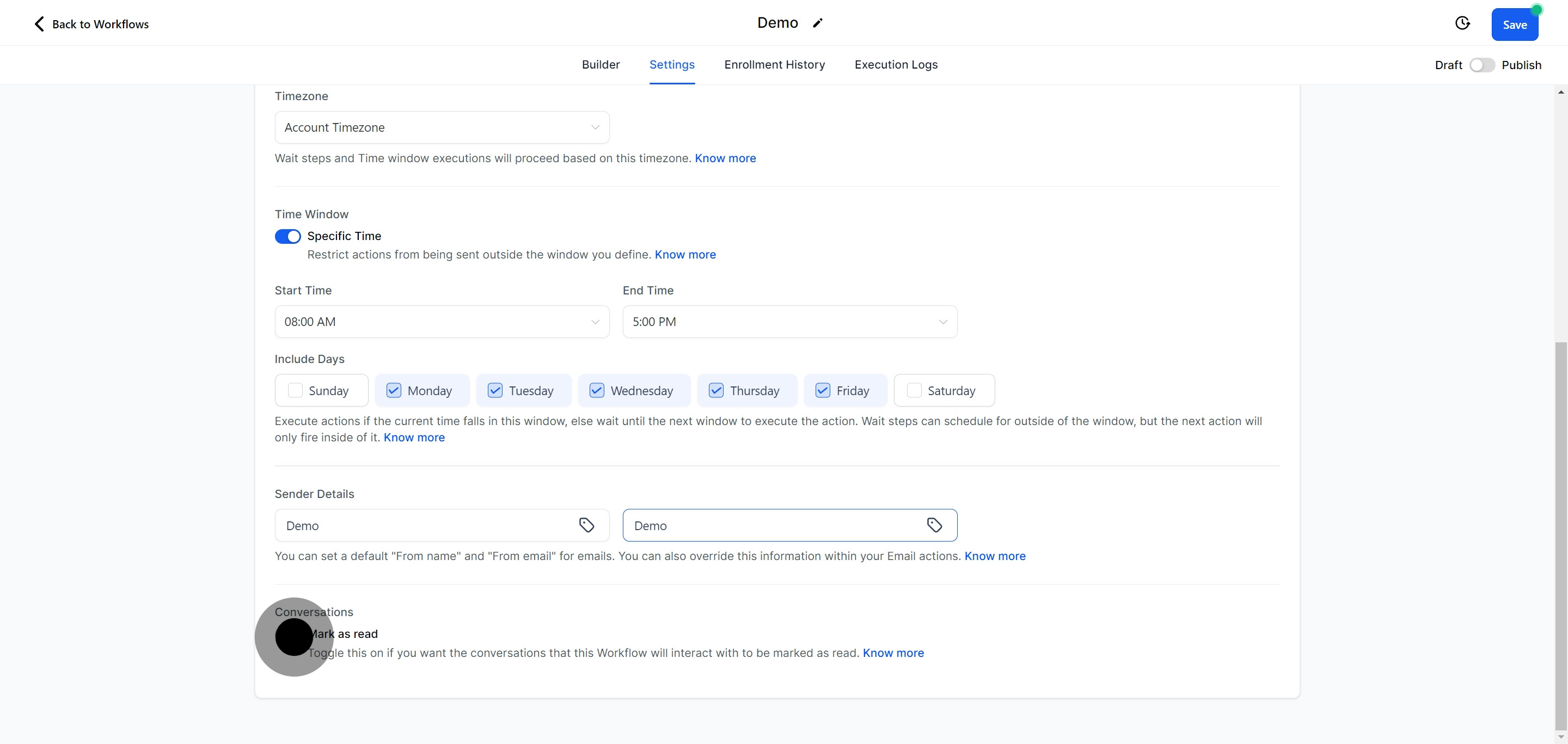
Decide whether to save your workflow as a draft for further edits or publish it immediately to activate its functions.
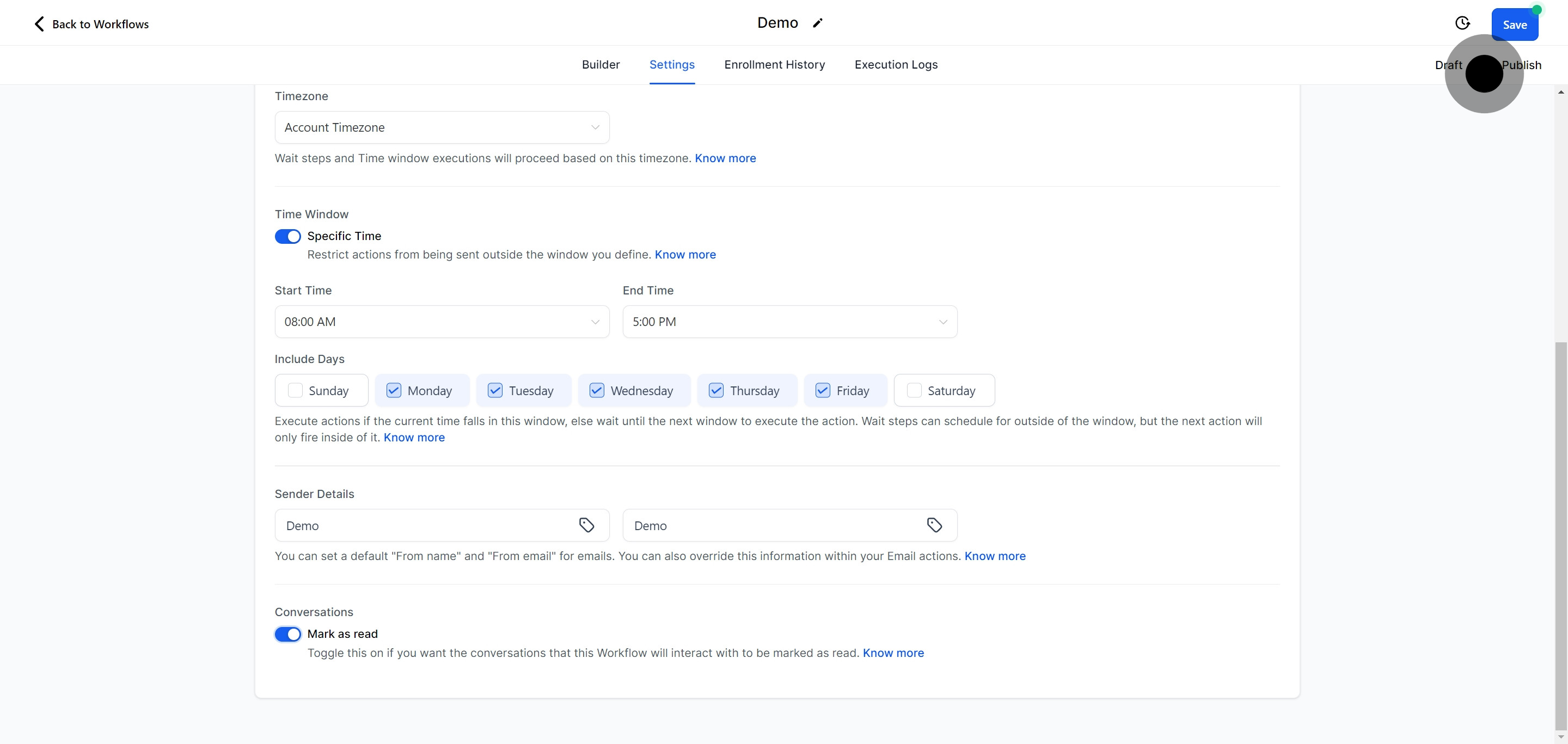
Once all settings and configurations are in place, click 'Save' to retain your changes and solidify your workflow structure.