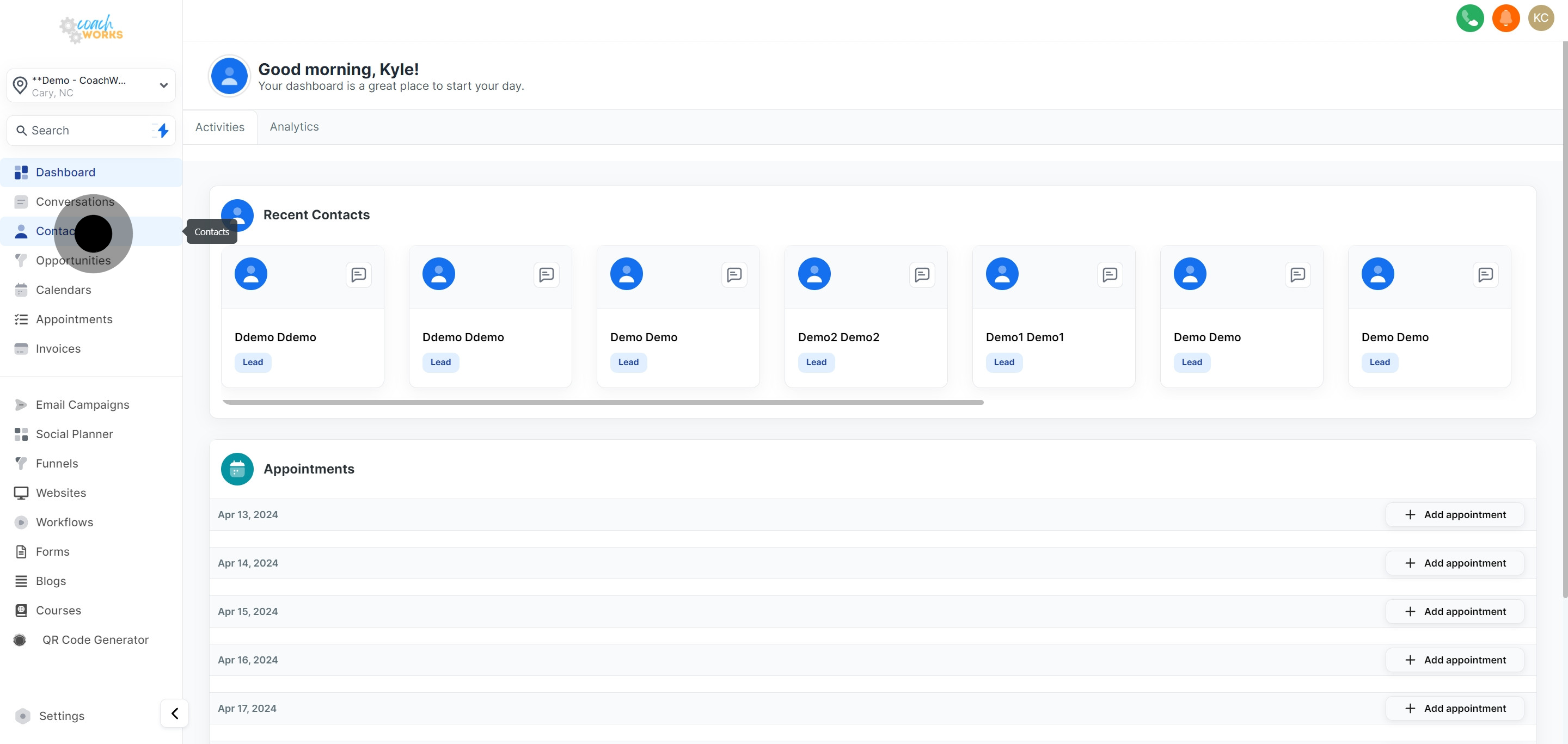
Log into your CoachWorks Marketing account and navigate to your contacts page to view your comprehensive list of contacts.
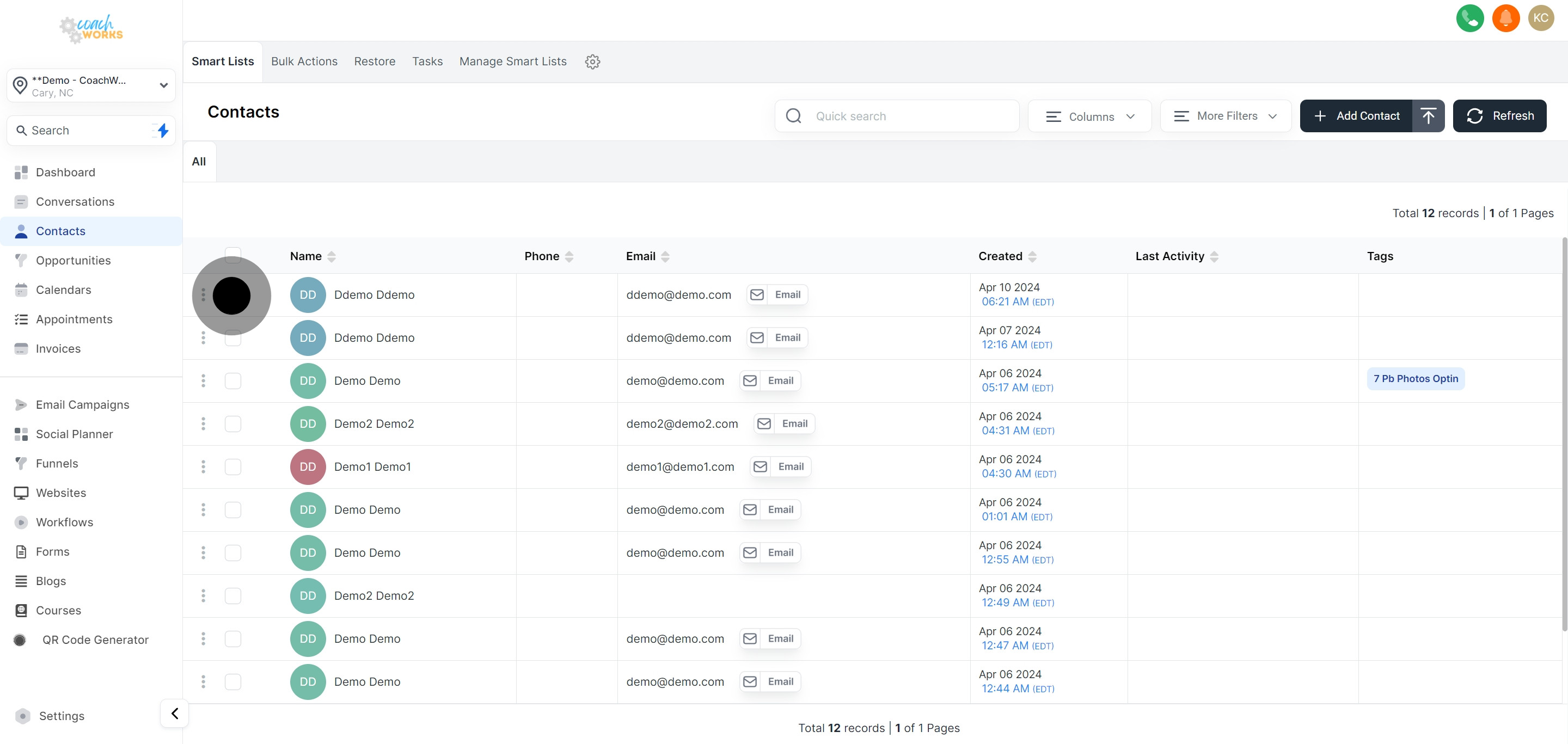
Browse through your contacts list and select a particular contact you wish to add to a workflow by clicking on their respective checkbox.
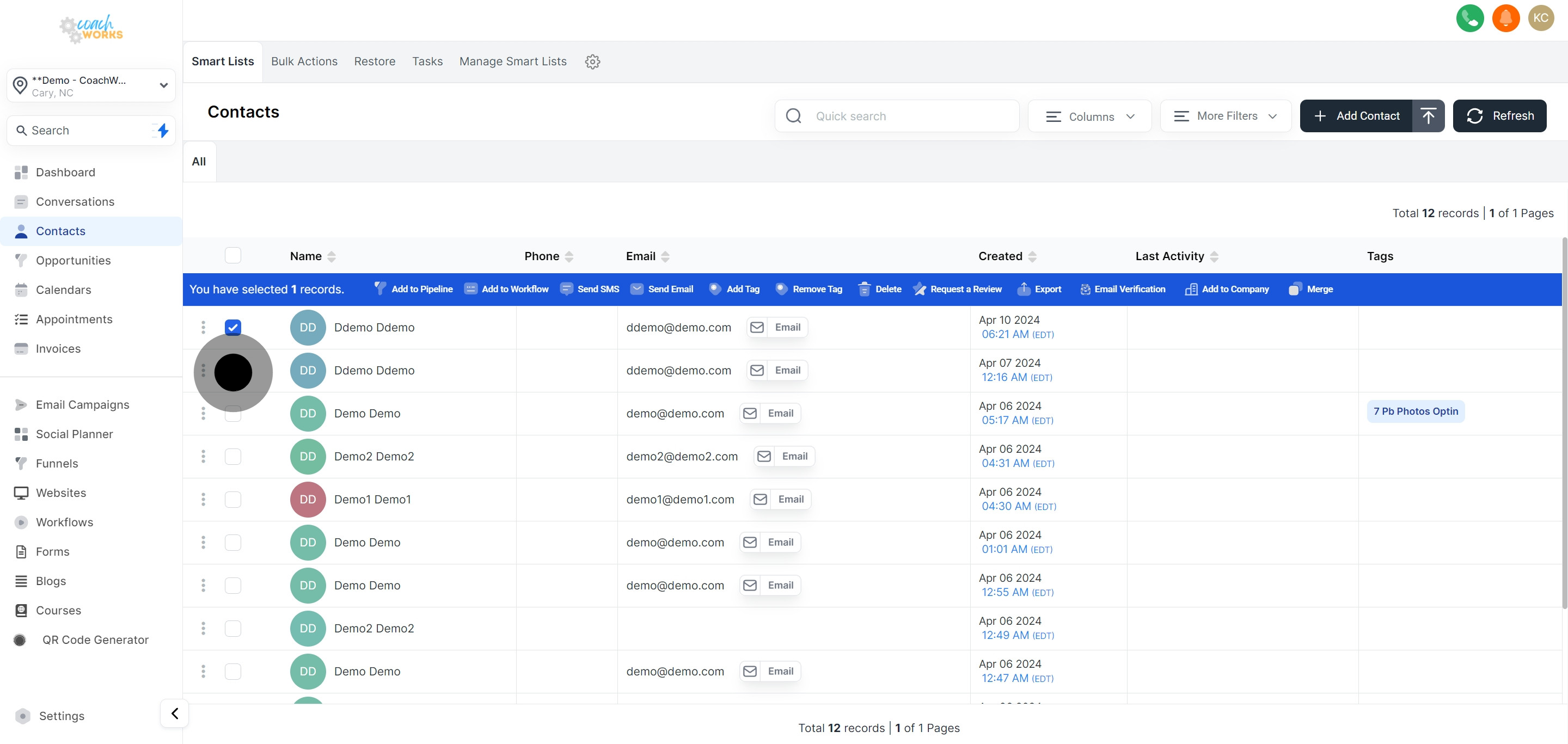
If you aim to include more than one contact, continue selecting additional contacts as needed.
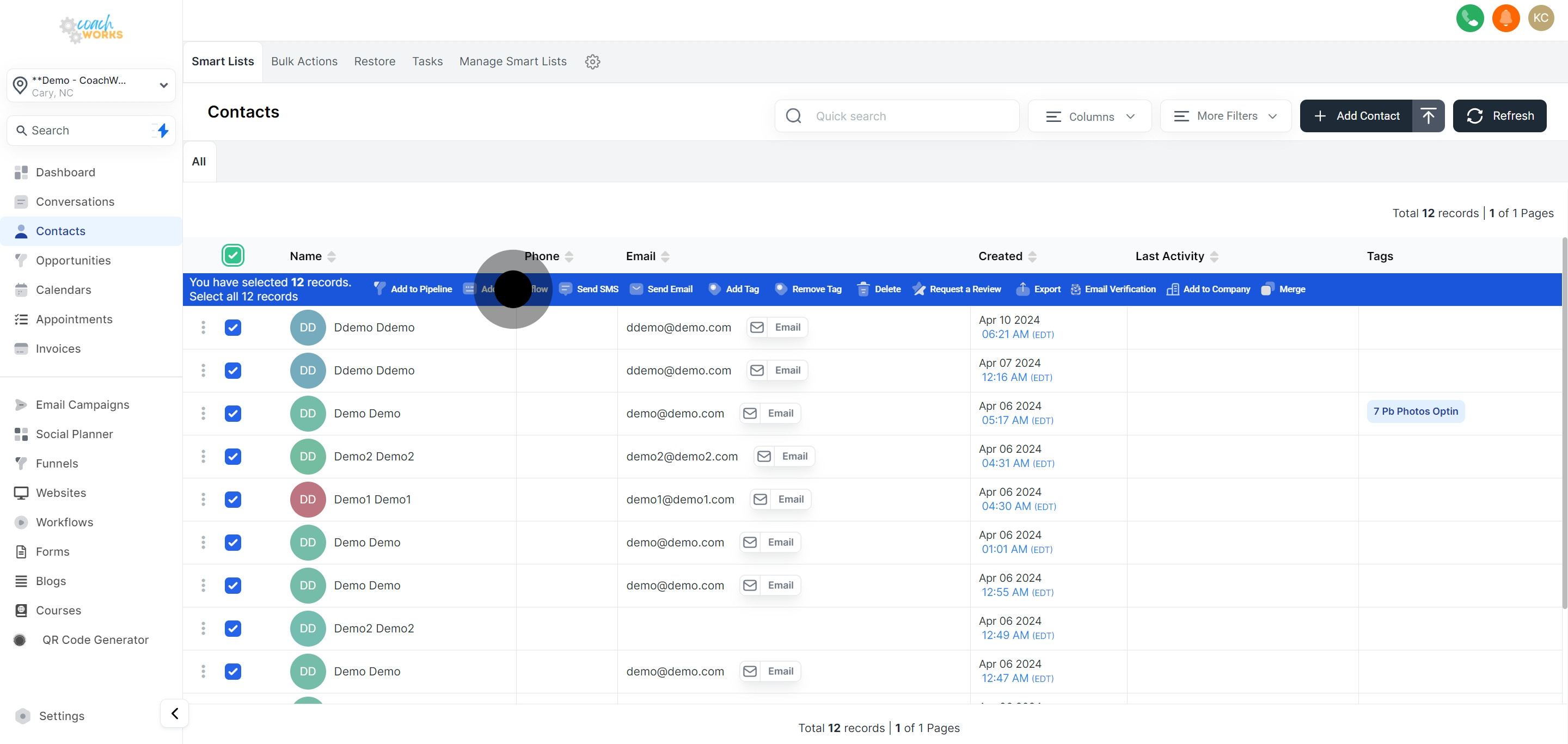
For efficiency, especially when dealing with large lists, utilize the option to select all contacts at once.
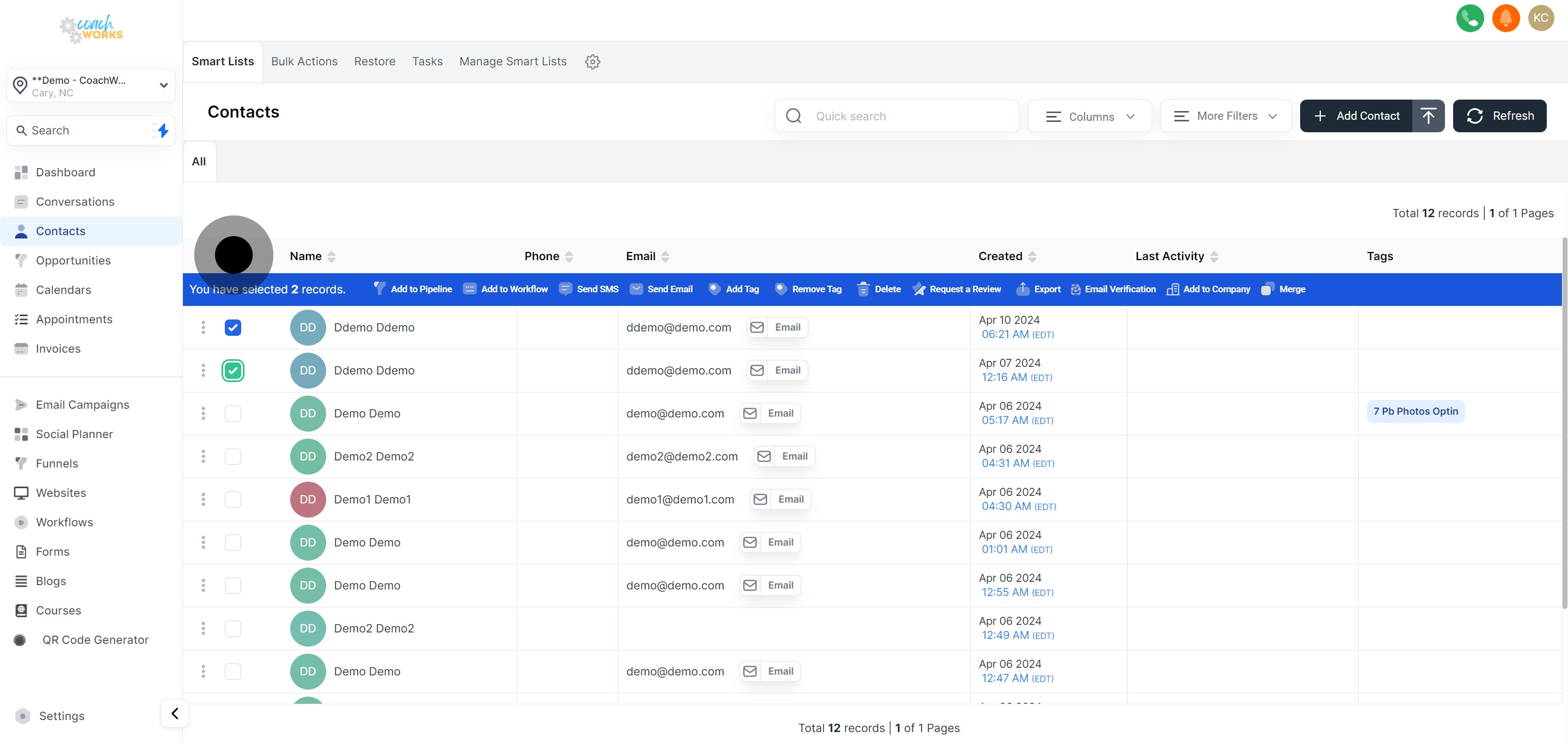
With your contacts selected, click on 'Add to Workflow' to start the process of integrating them into your chosen automation sequence.
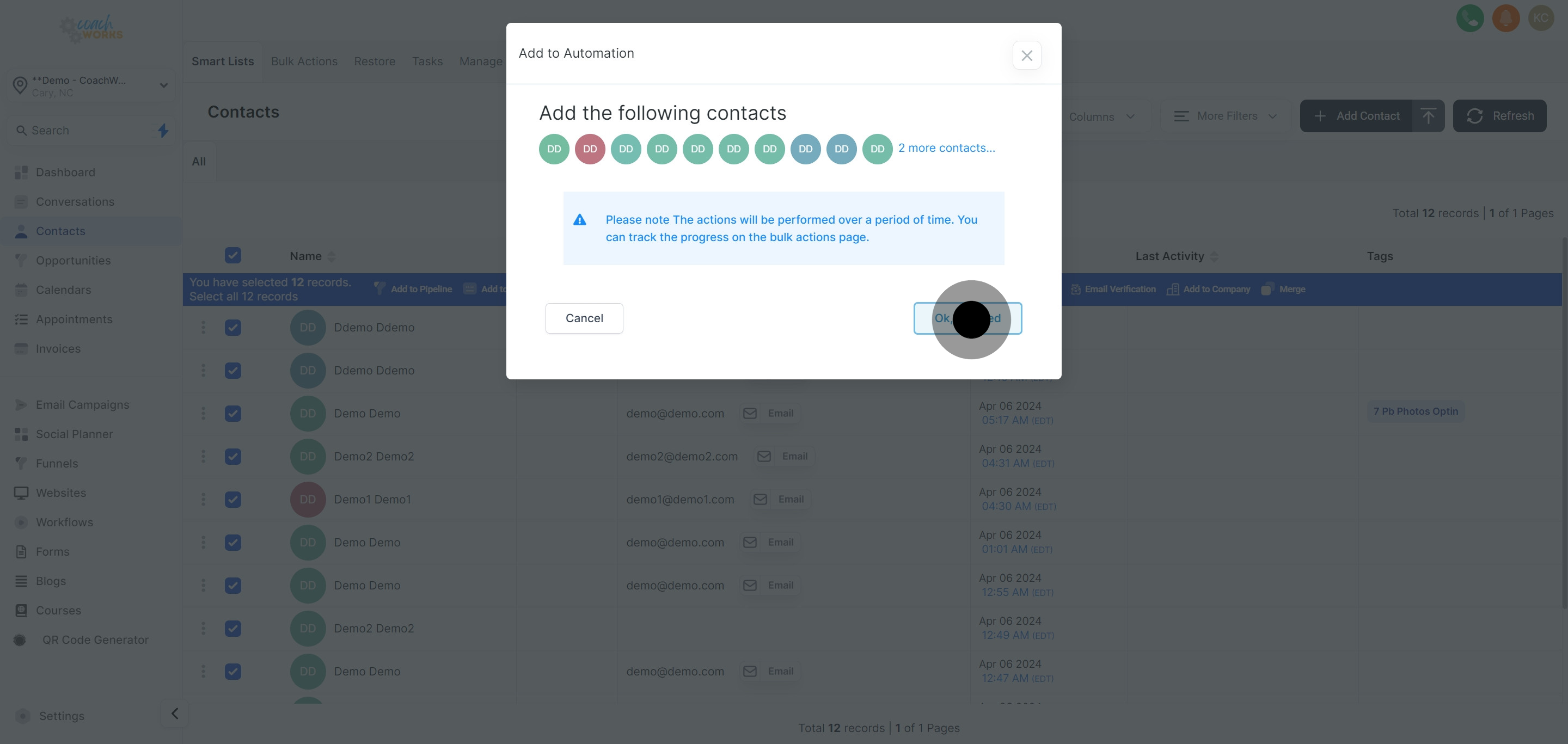
A prompt will appear; confirm your intention to add the selected contacts to a workflow by clicking 'Ok, proceed'.
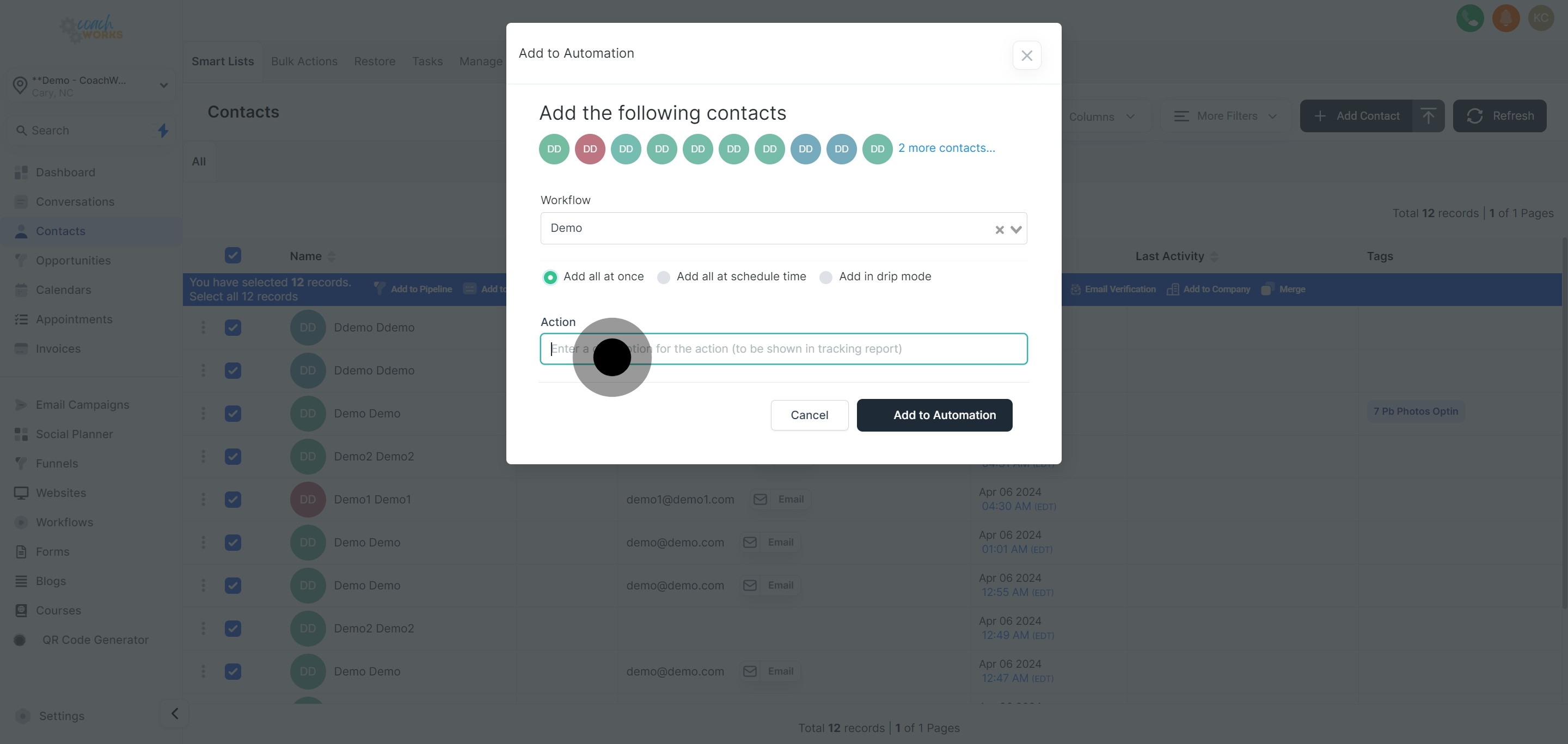
Select the predefined workflow from the dropdown list to which you wish to add the contacts. Ensure this workflow aligns with your marketing objectives for the selected contacts.

Opt for the 'Add all at once' option if you're working with multiple contacts, streamlining their addition to your chosen workflow.
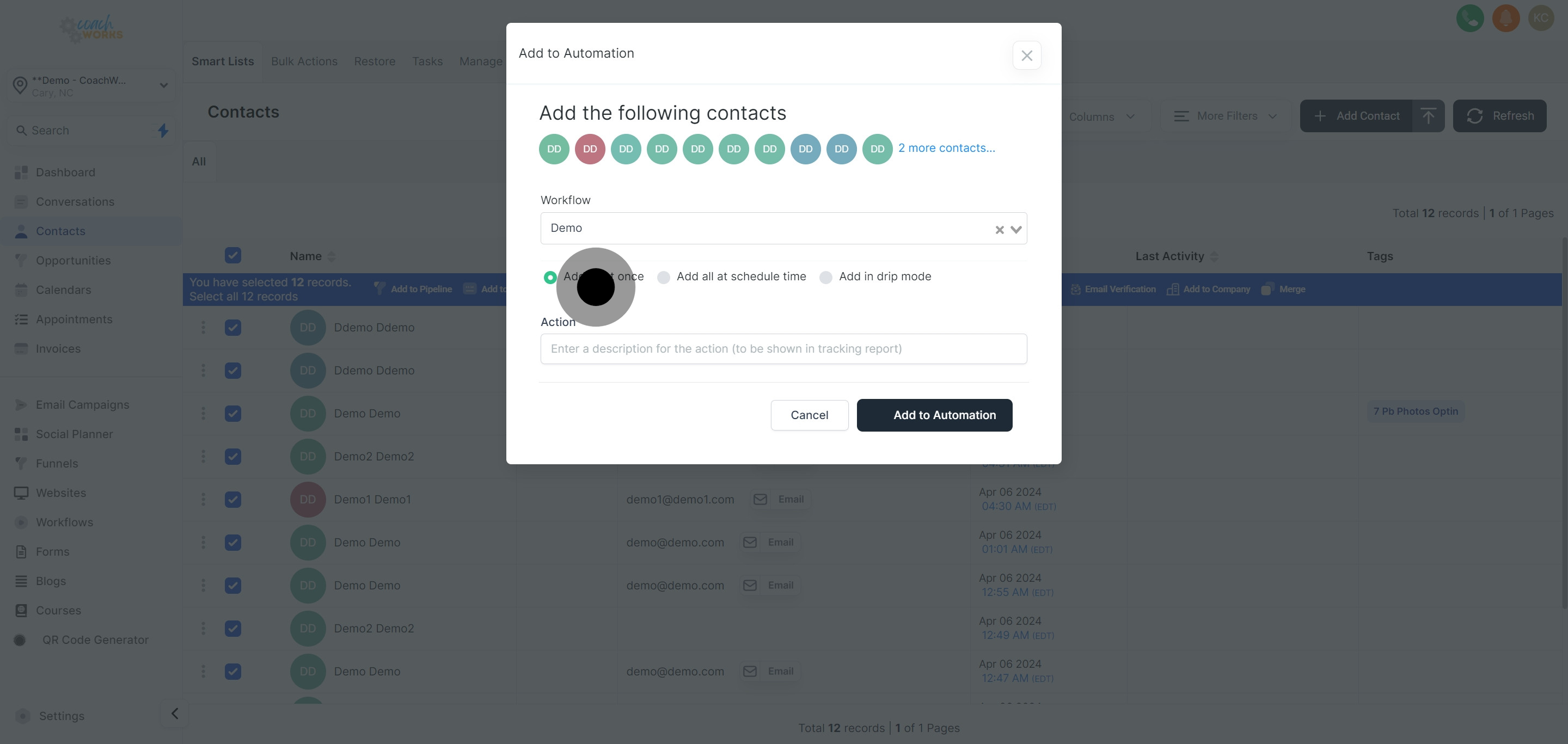
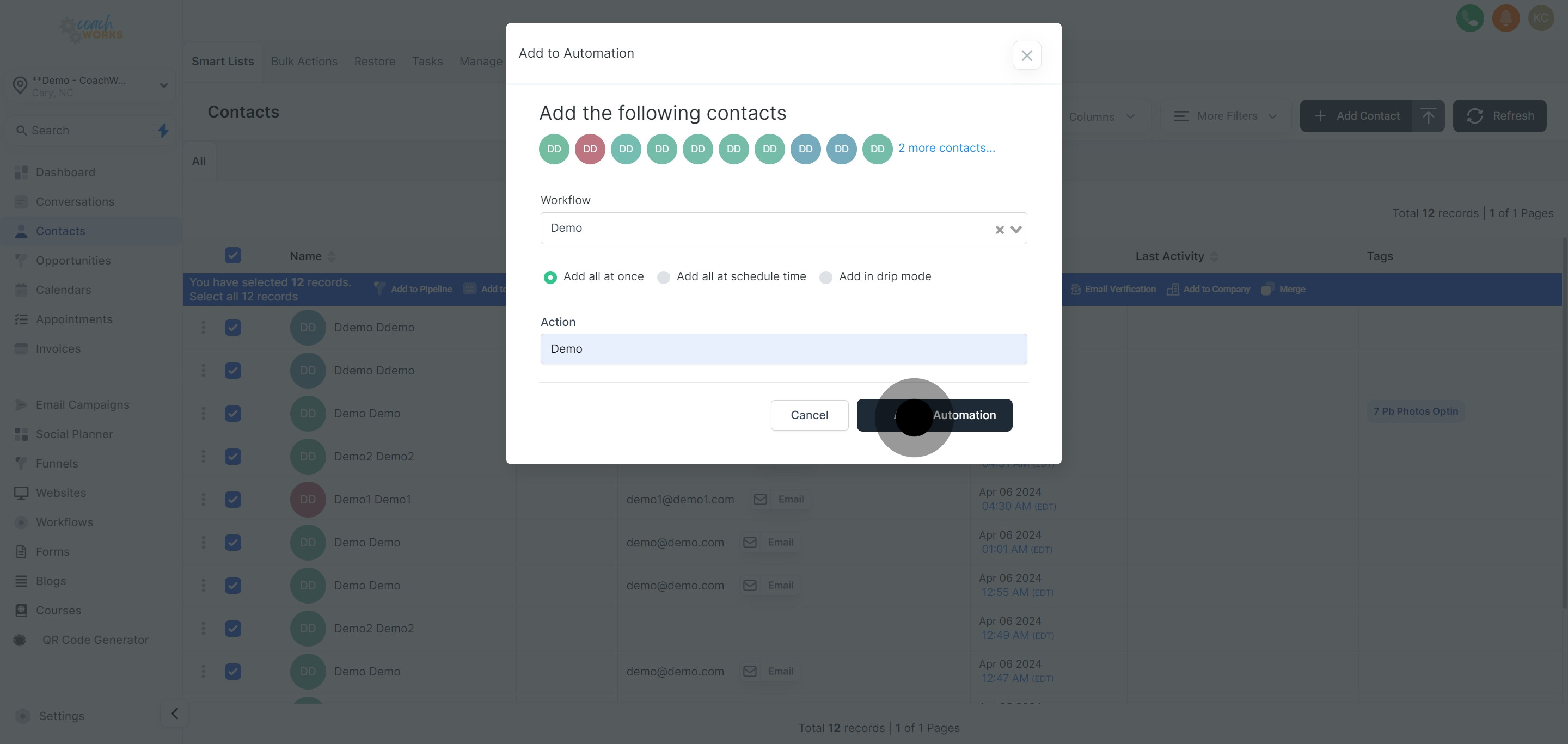
Input a brief description for this action. Descriptive tracking will aid in future reference, allowing for easy identification of the activity in your logs.
Click 'Add to Automation' to complete the process. This action formally incorporates the selected contacts into the specified workflow.
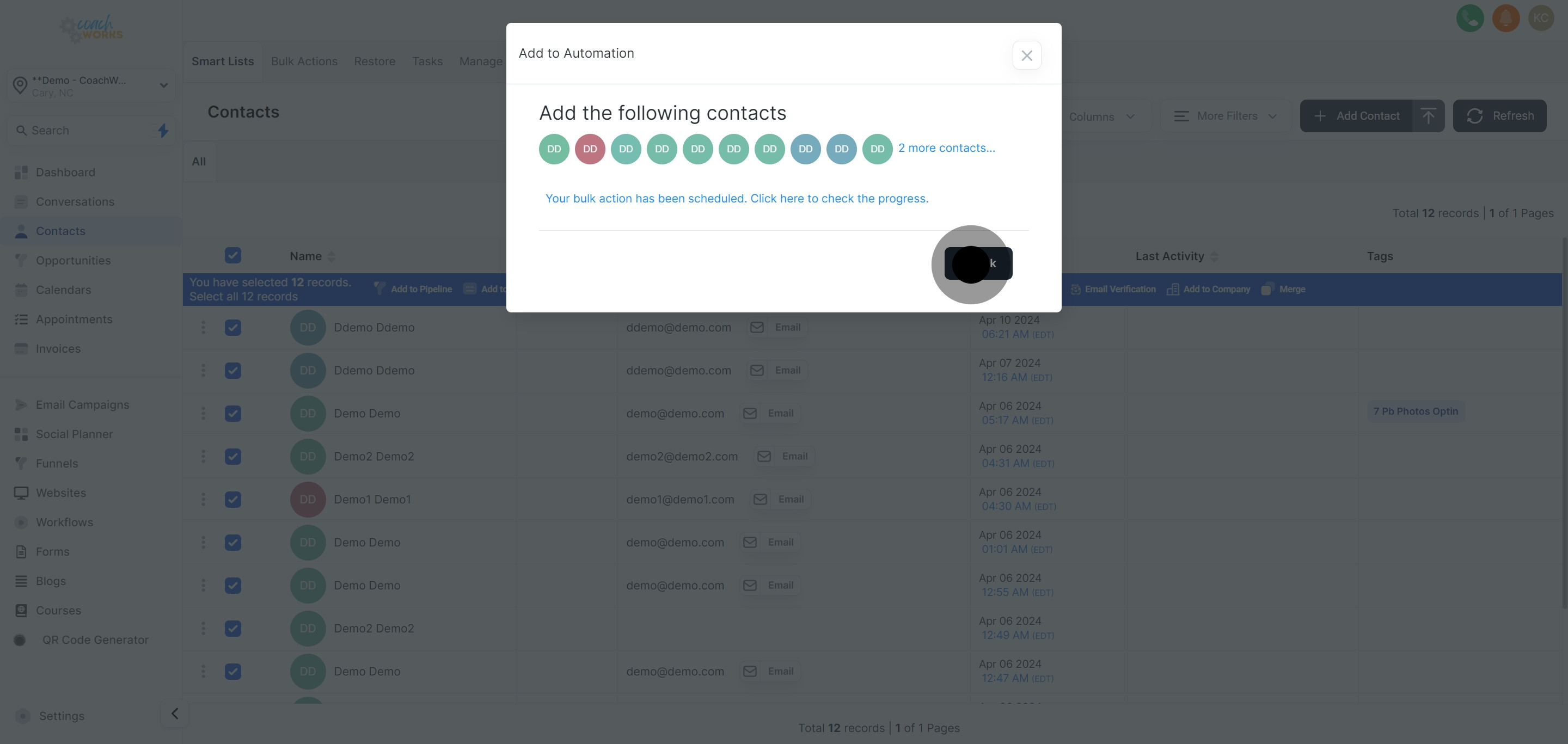
To ascertain the success of your action or to monitor the progress, click on the provided link which directs you to an overview or detailed log.
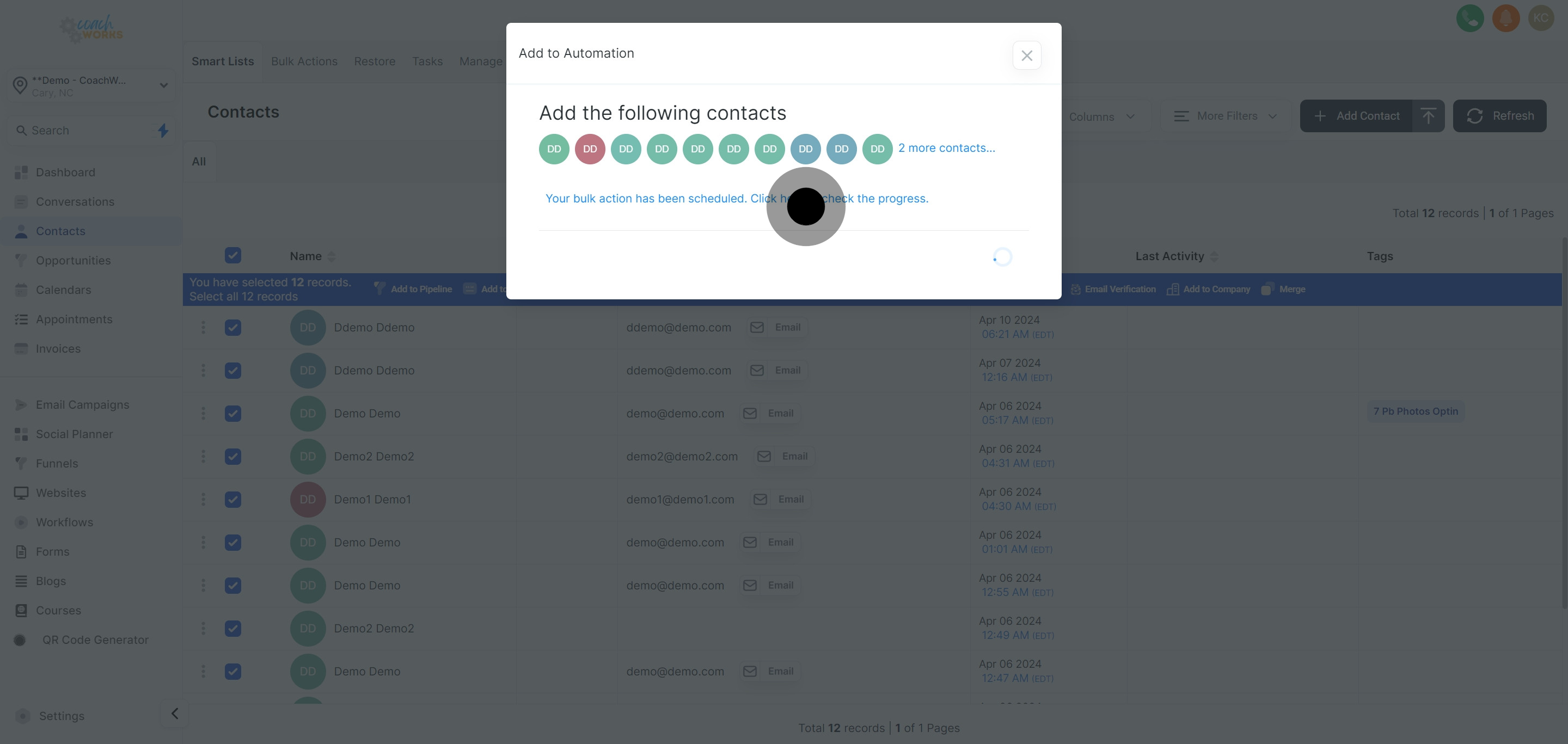
Once satisfied, conclude the task by clicking "Ok".