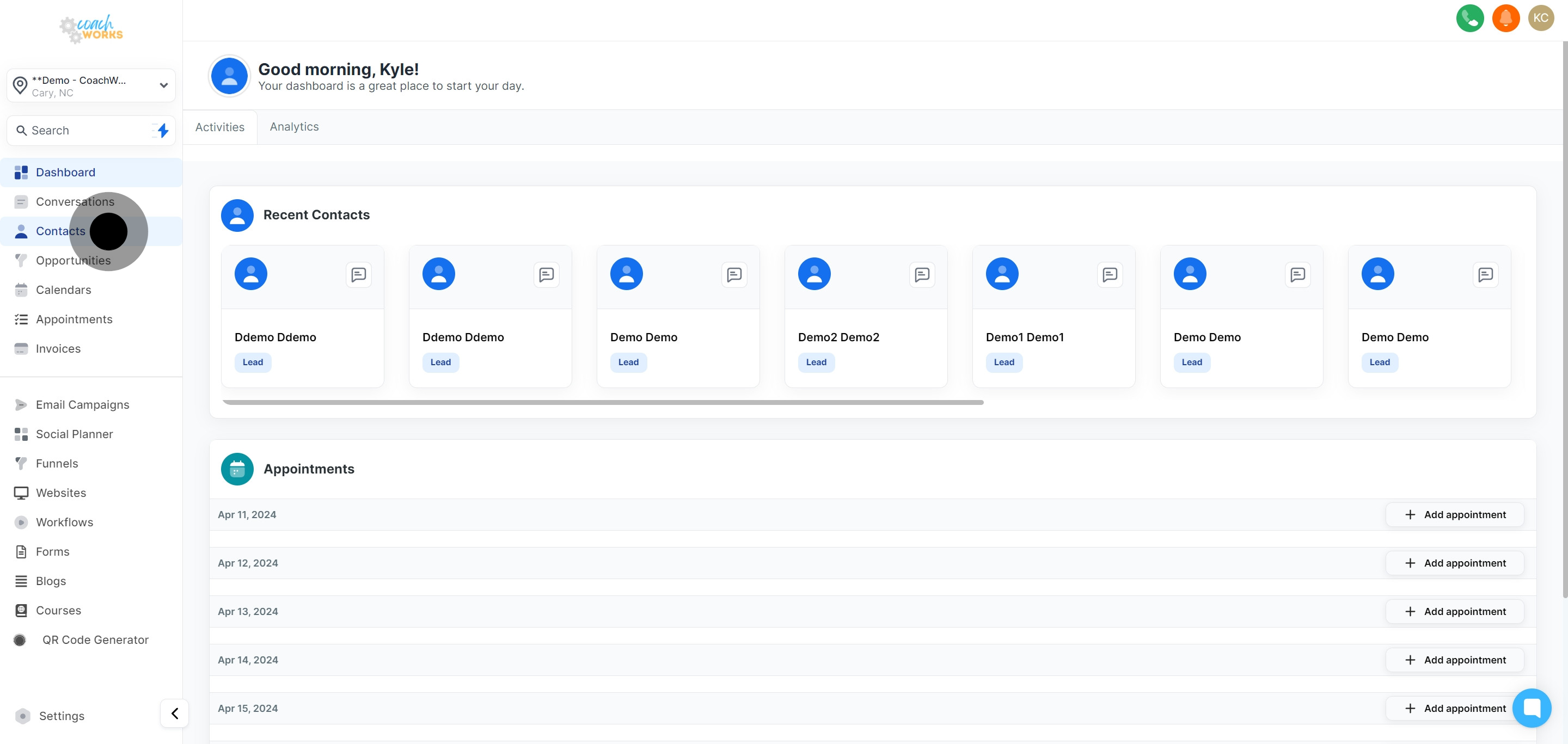
Start by navigating to the contacts section of your CoachWorks Marketing account.
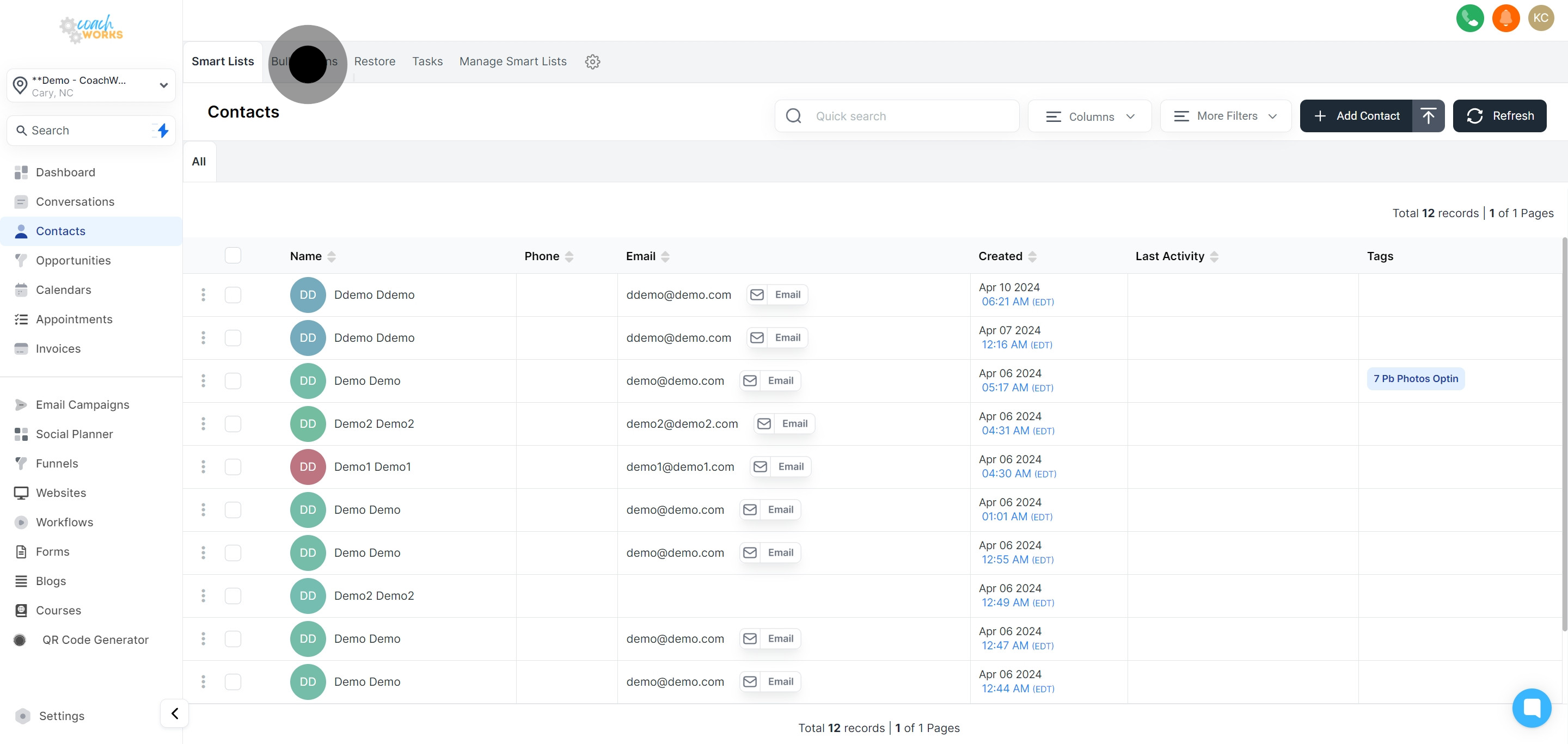
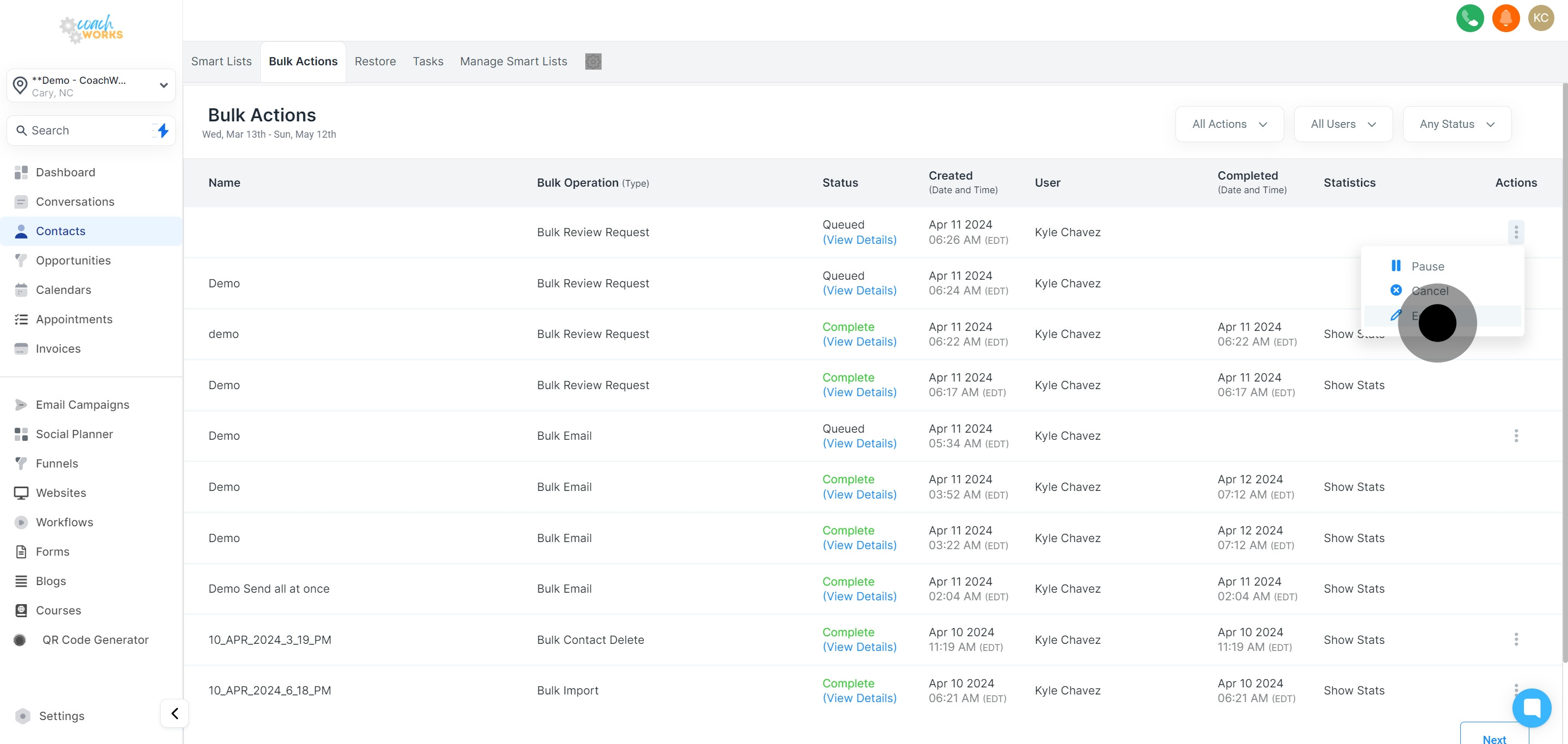
Locate and select the 'Bulk Actions' feature to view and manage your bulk operations.
In the dropdown menu of the 'Bulk Actions' feature, set your sorting preference. This will help you organize the list of actions according to your needs.
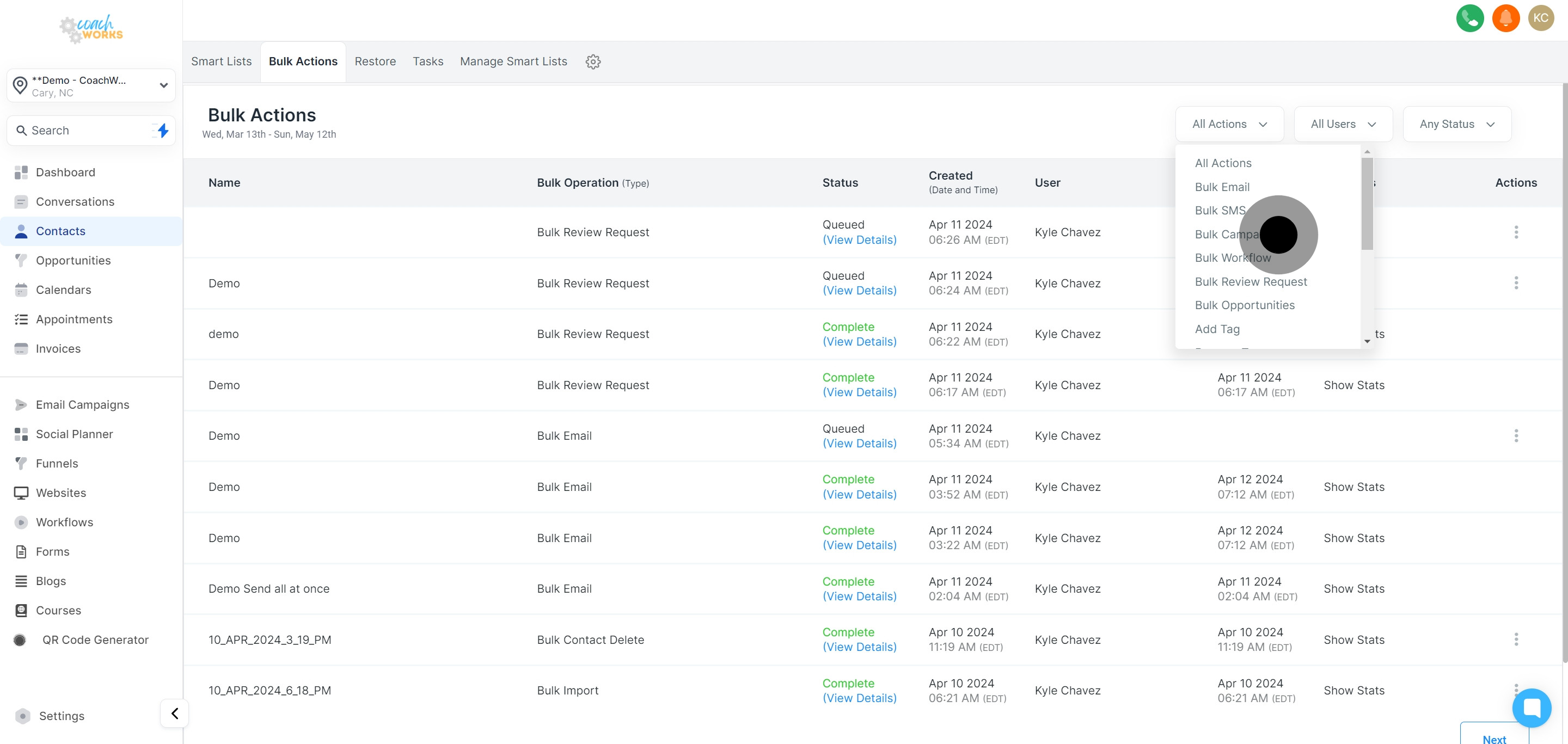
Choose to sort your actions by User if you wish to see actions performed by specific team members or users.
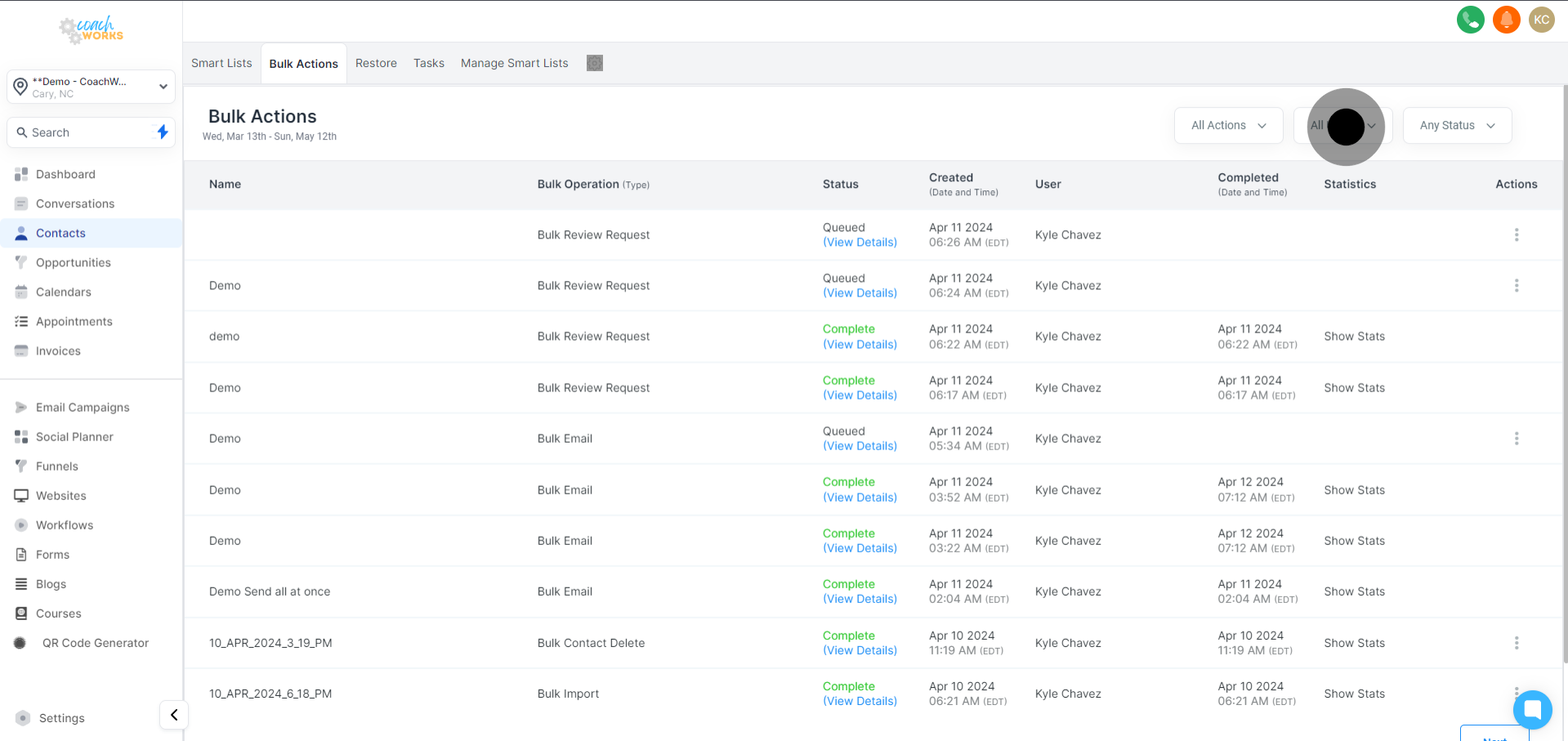
Alternatively, you can sort your actions by Status to group them based on their completion stage.
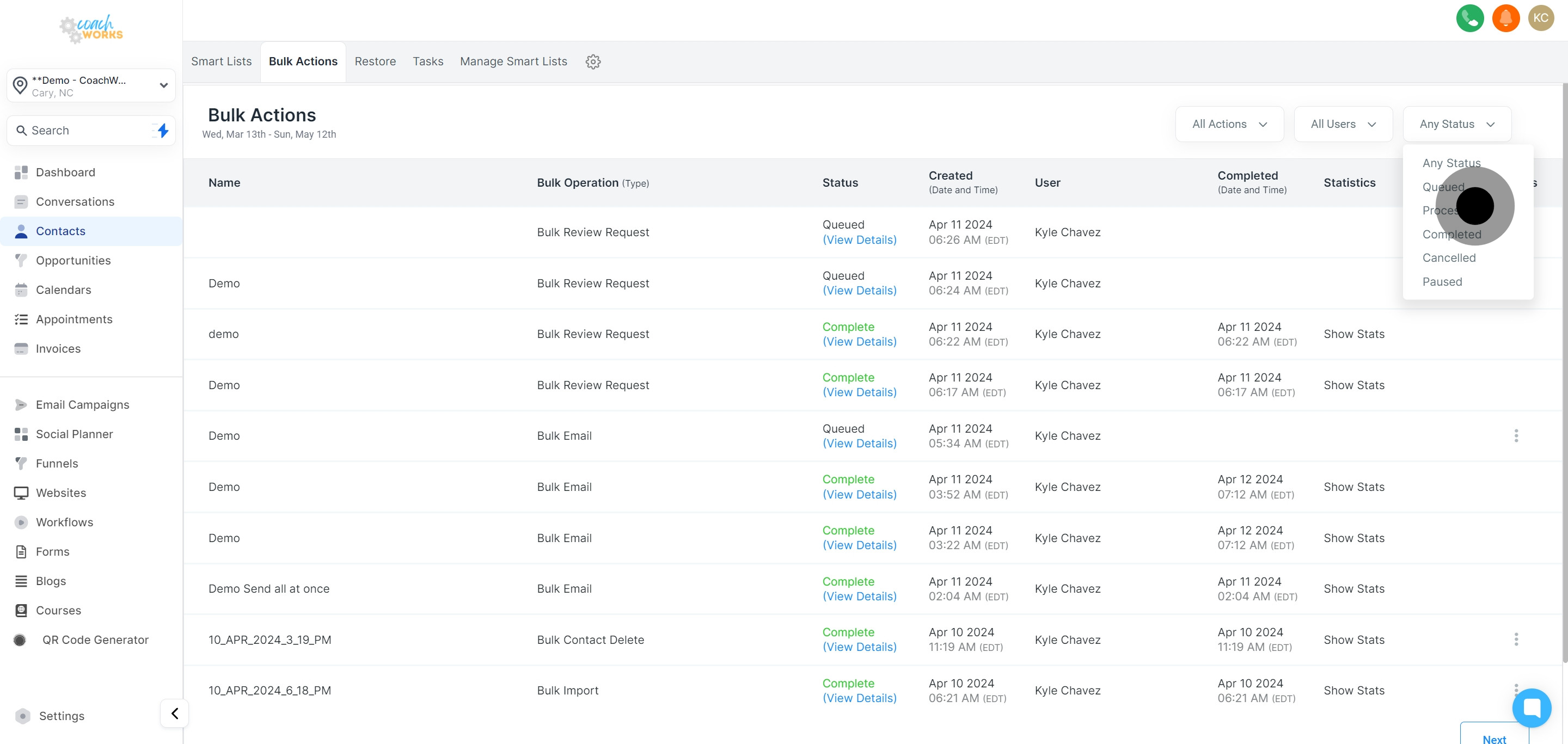
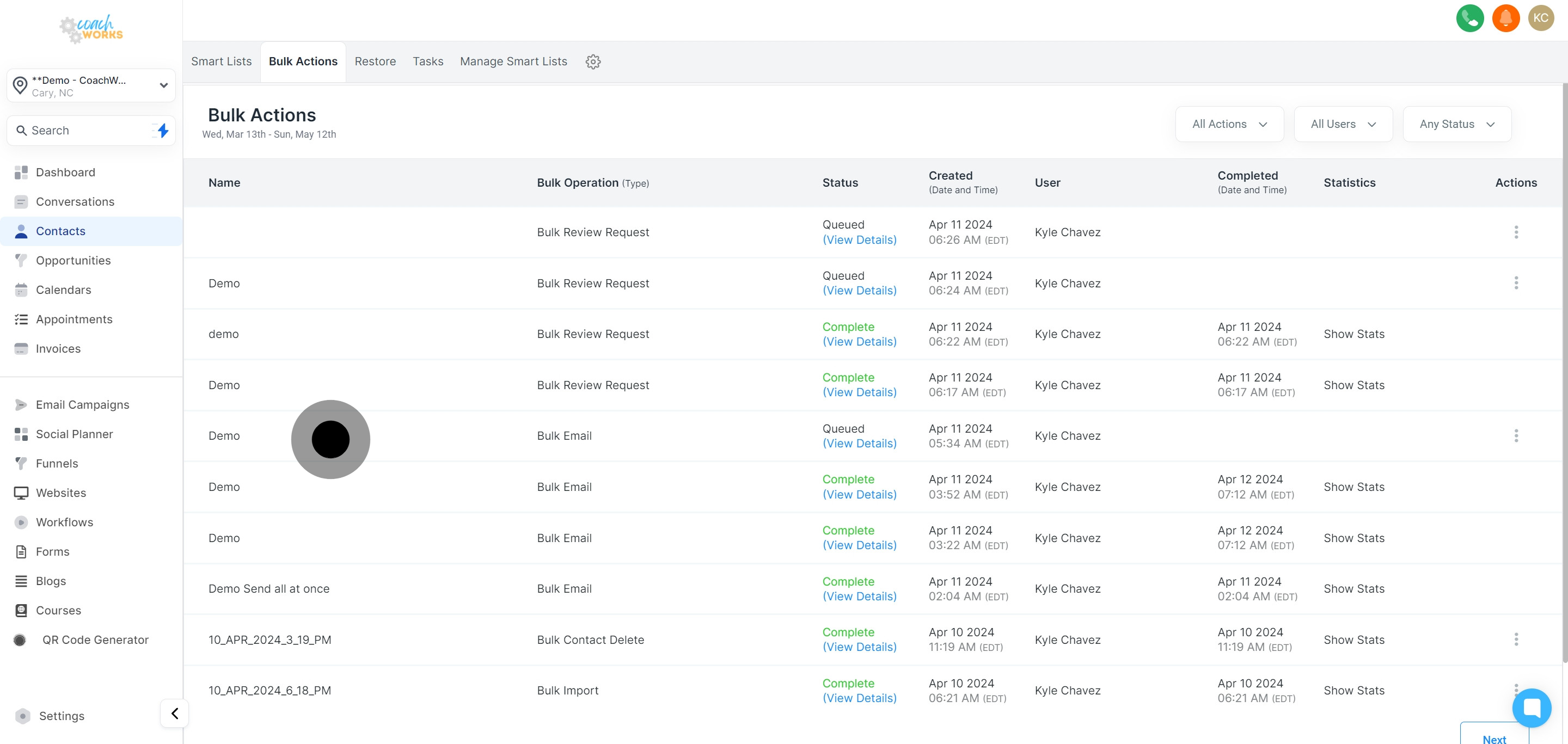
Examine the specific names of your Bulk Actions to identify them easily.
Take a moment to thoroughly review the bulk operations available to you. Understanding each operation's function is crucial for effective management.
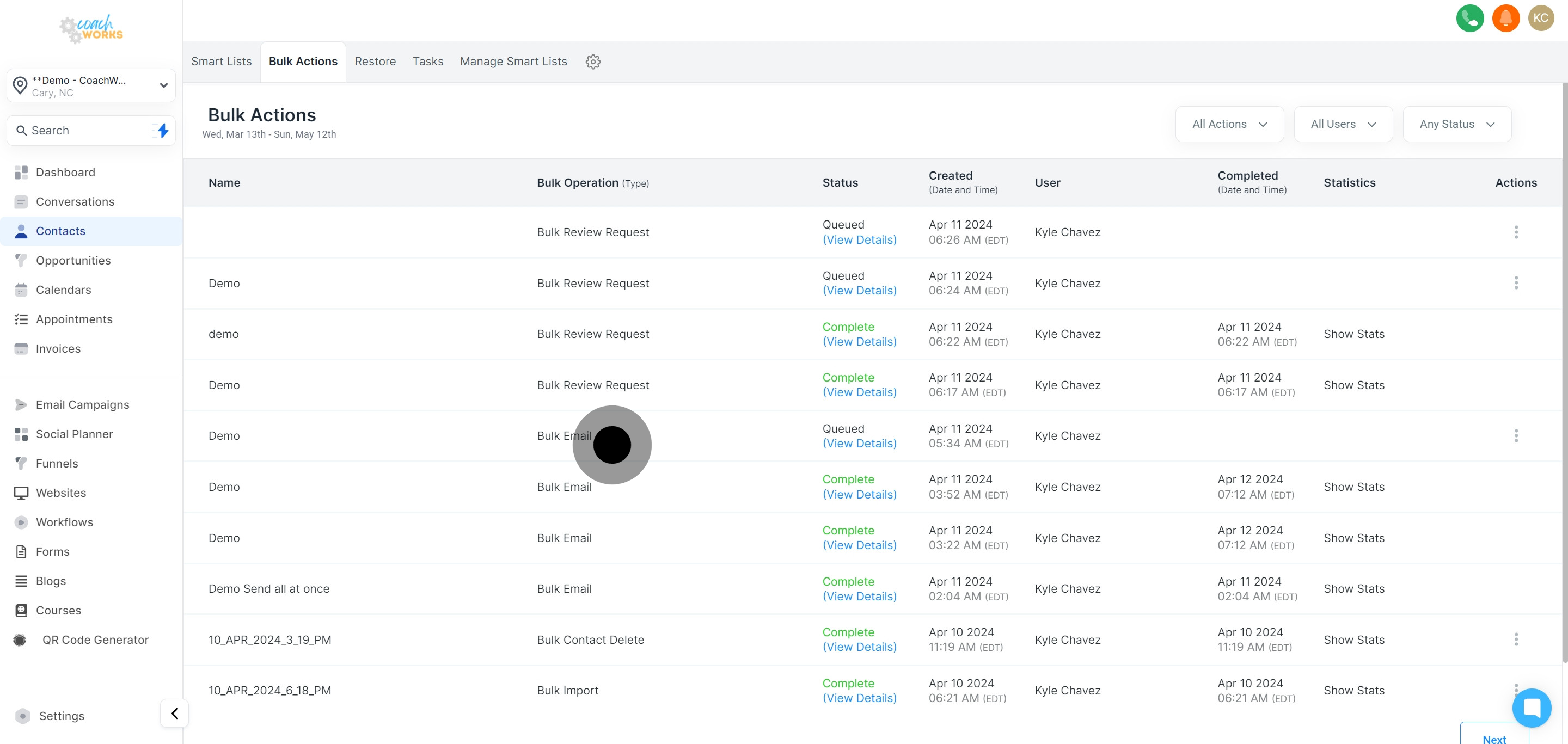
Regularly check on the status updates for your bulk actions to monitor progress and identify any issues early on.
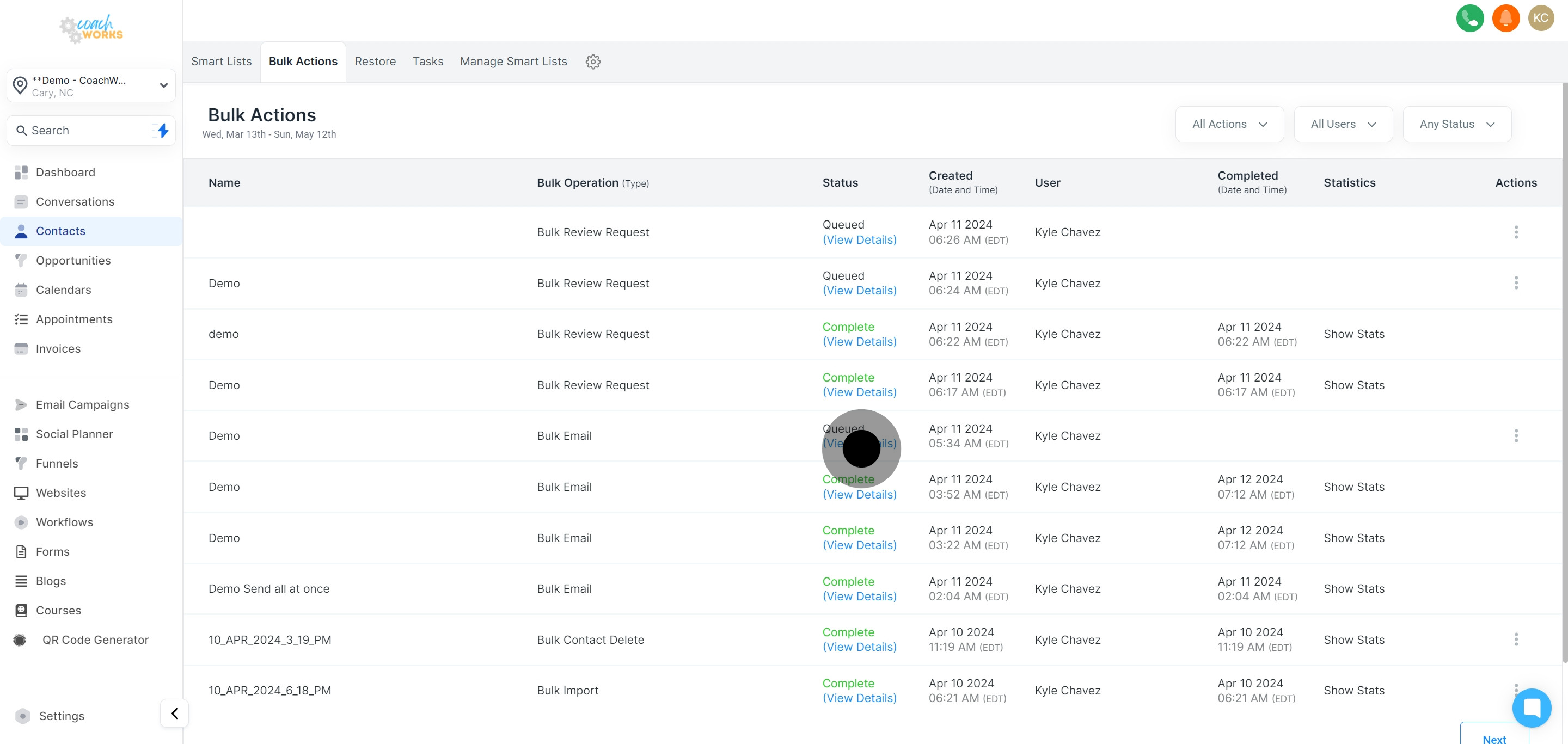
Expand and view additional action details by clicking on 'View Details'. This will provide insights into specific operations, such as the number of contacts affected.
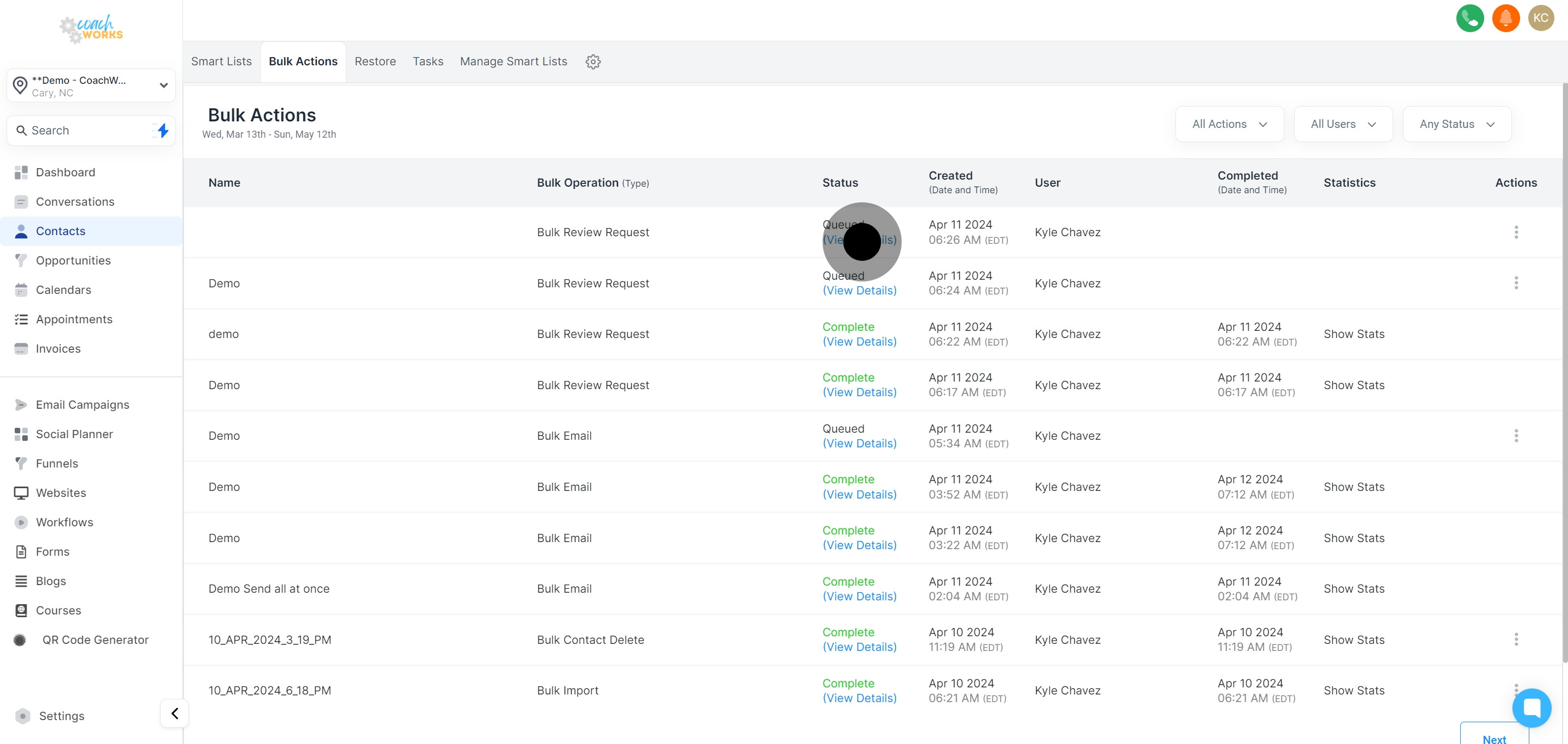
Ensure to note the date each bulk action was created for record-keeping and future reference.
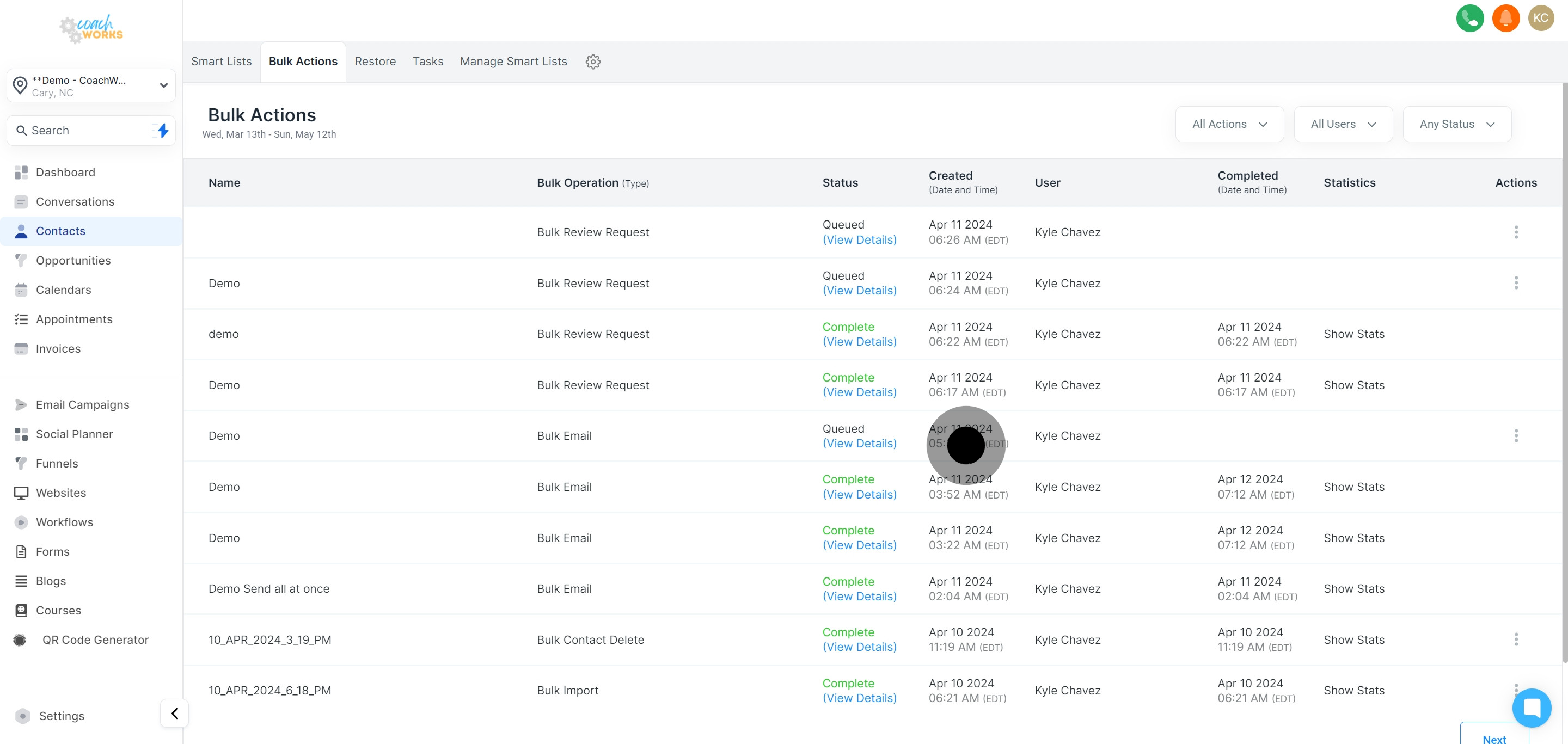
See which user initiated the bulk action. This is helpful for accountability and tracking purposes.
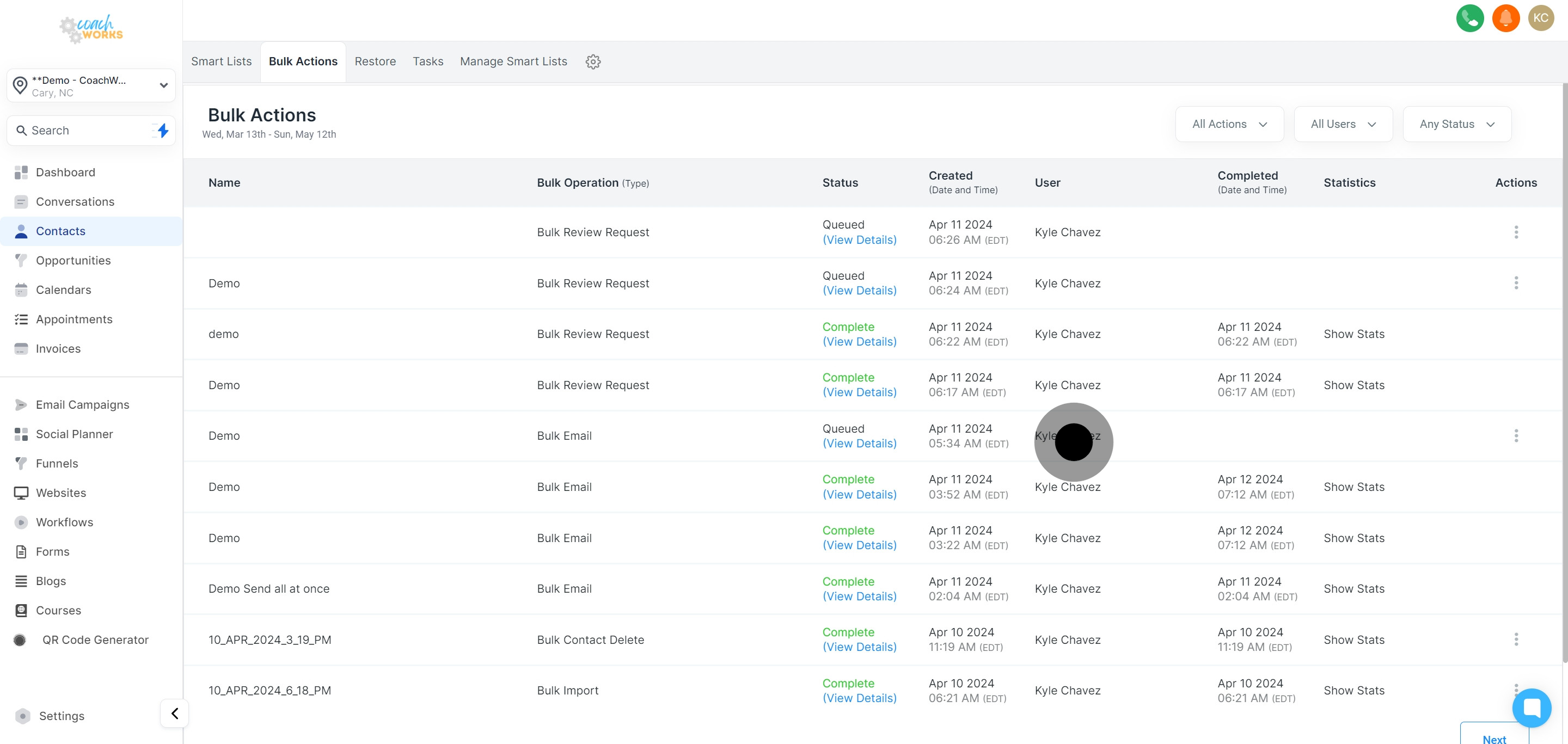
Review the details for the date of action completion to ensure timely follow-ups and evaluations.
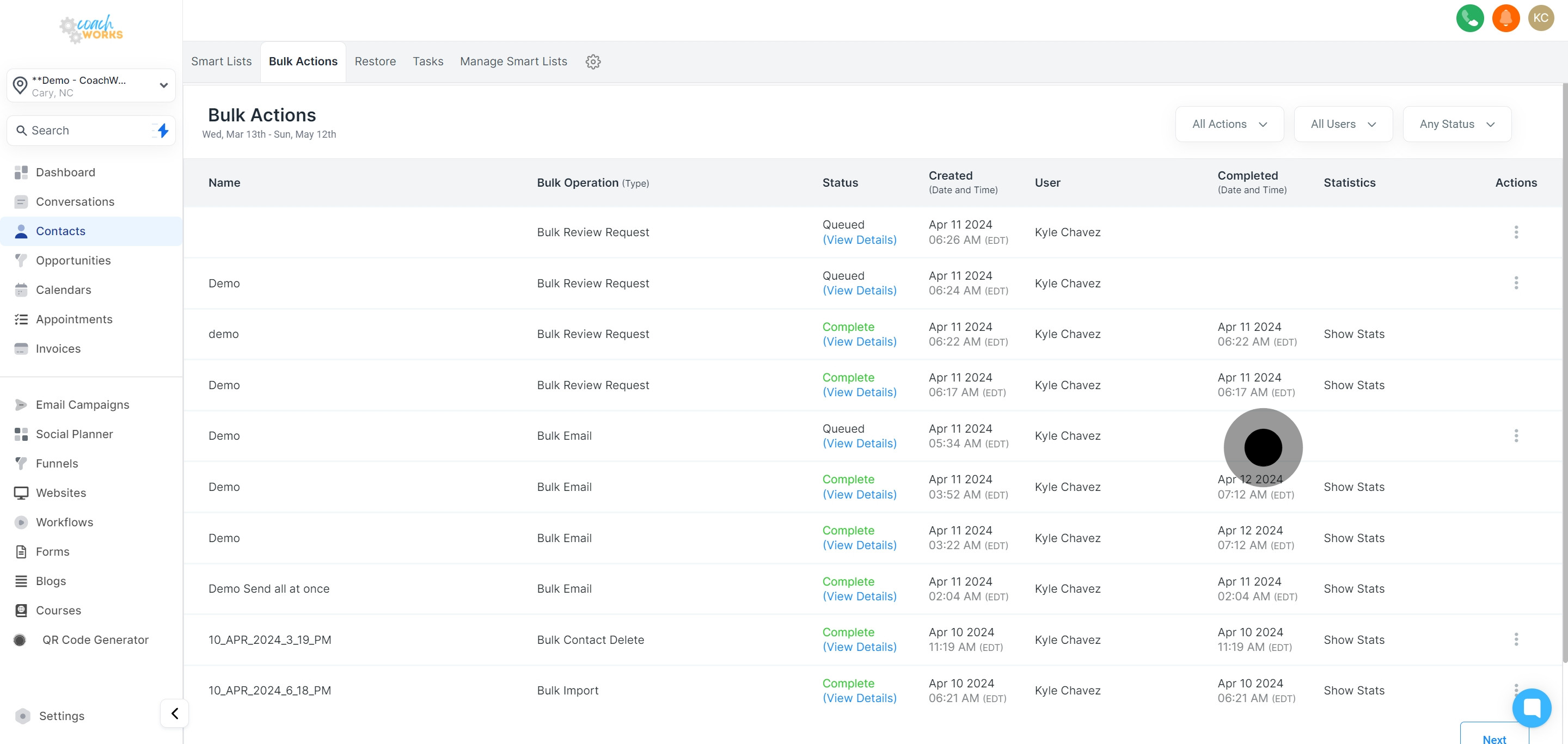
Get comprehensive statistics for completed actions in the details view for a deeper understanding of each operation’s impact.
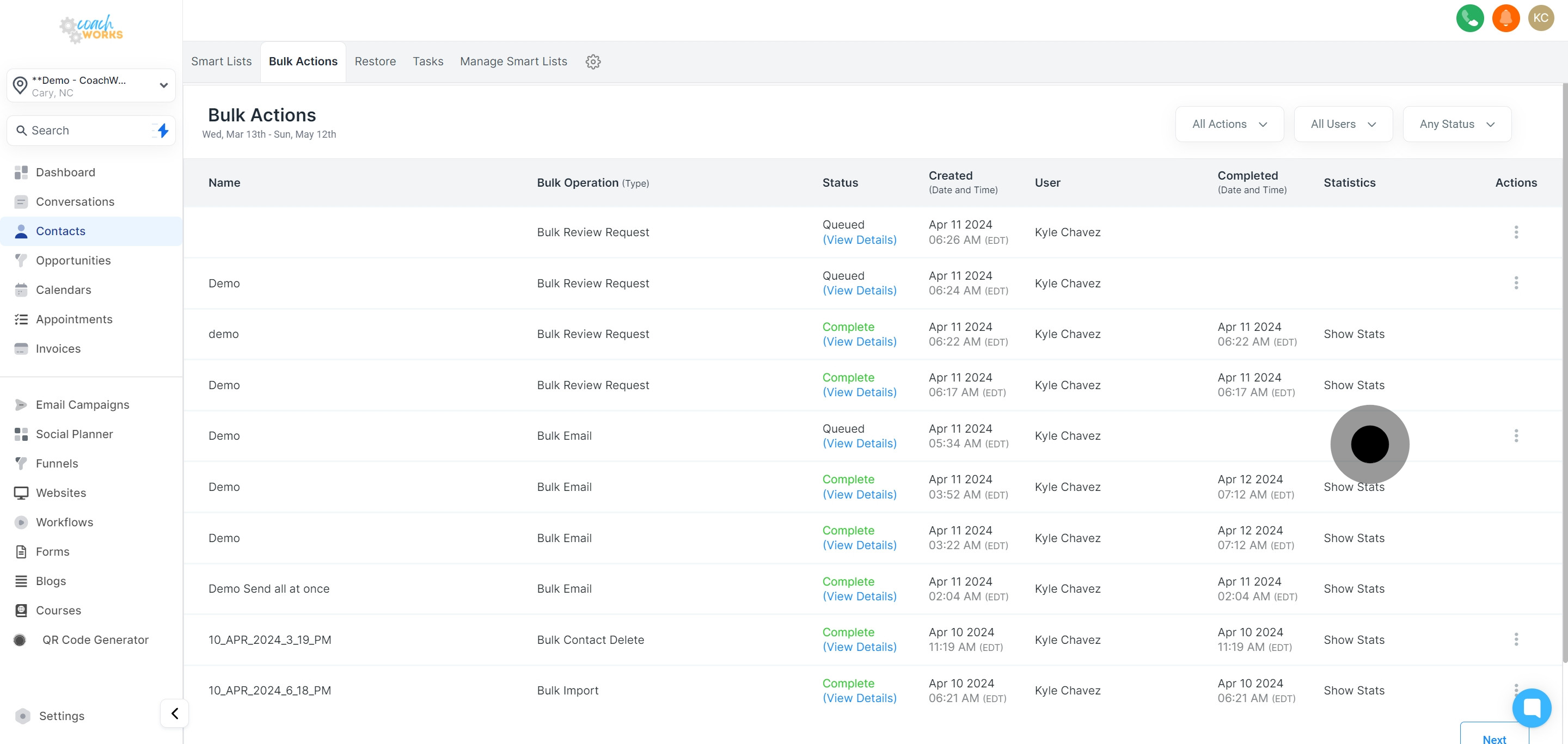
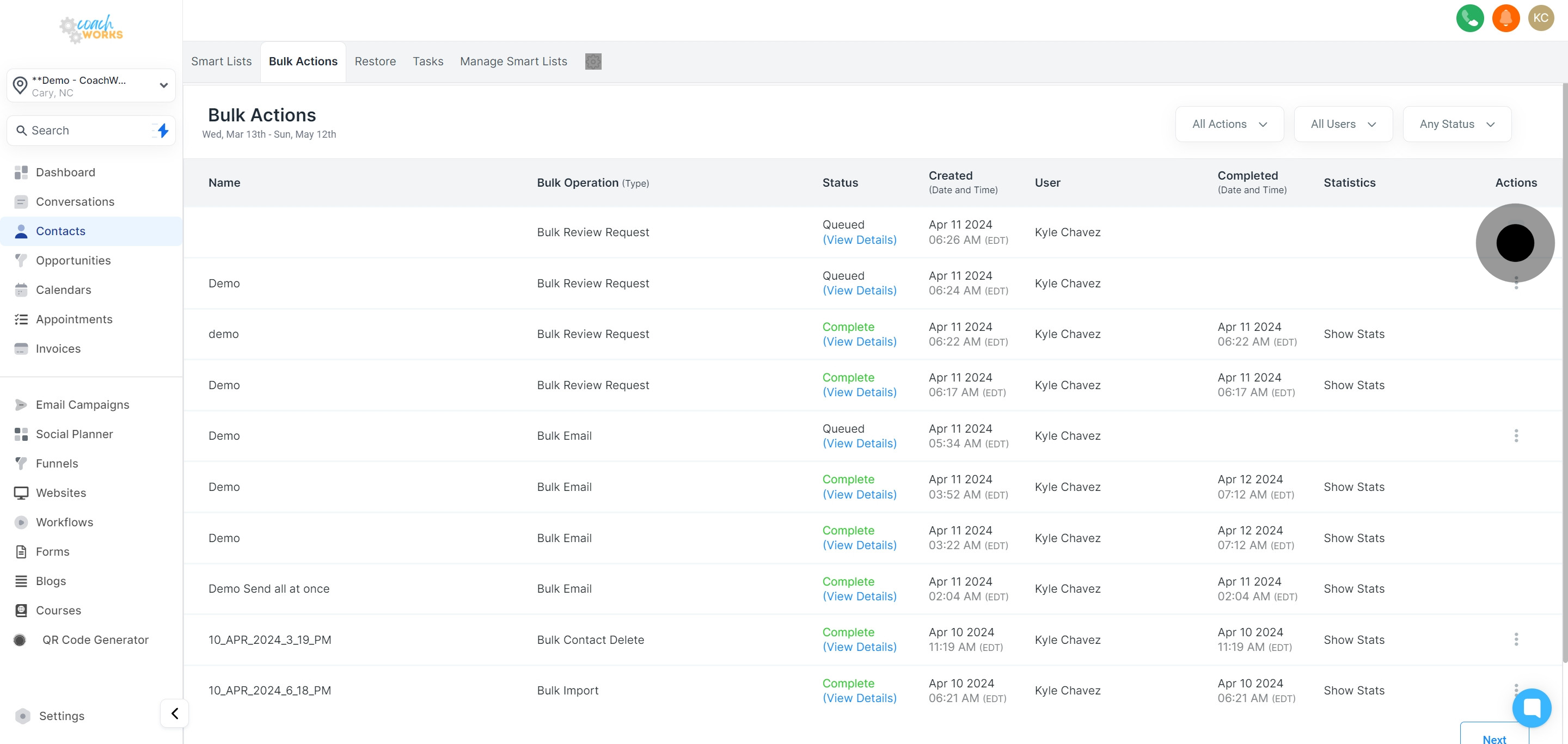
Head over to the dropdown for more options and features related to each bulk action. This can include actions like Pause and Cancel
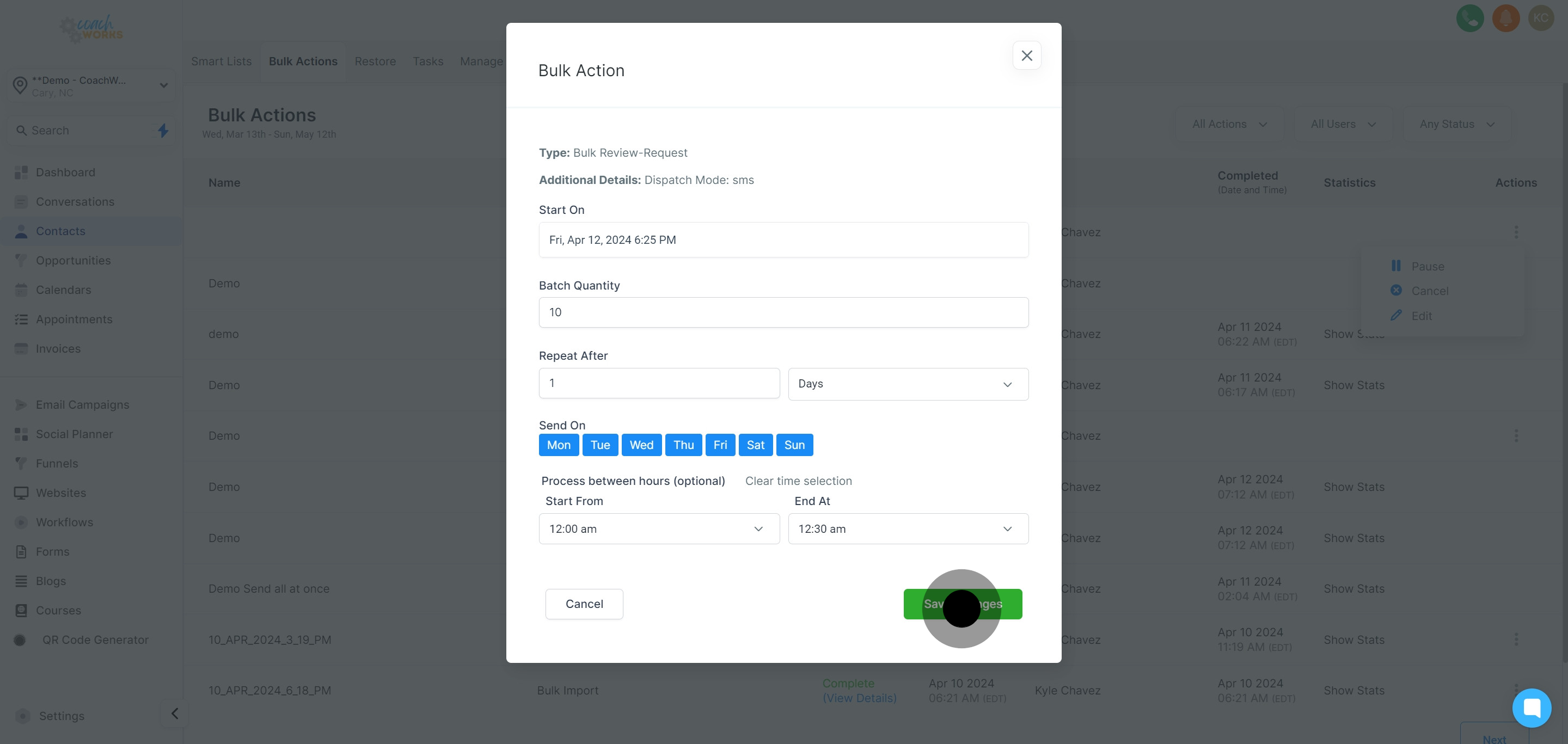
Feel free to edit or modify any action if necessary. This may involve adjusting the parameters or the set of contacts affected.
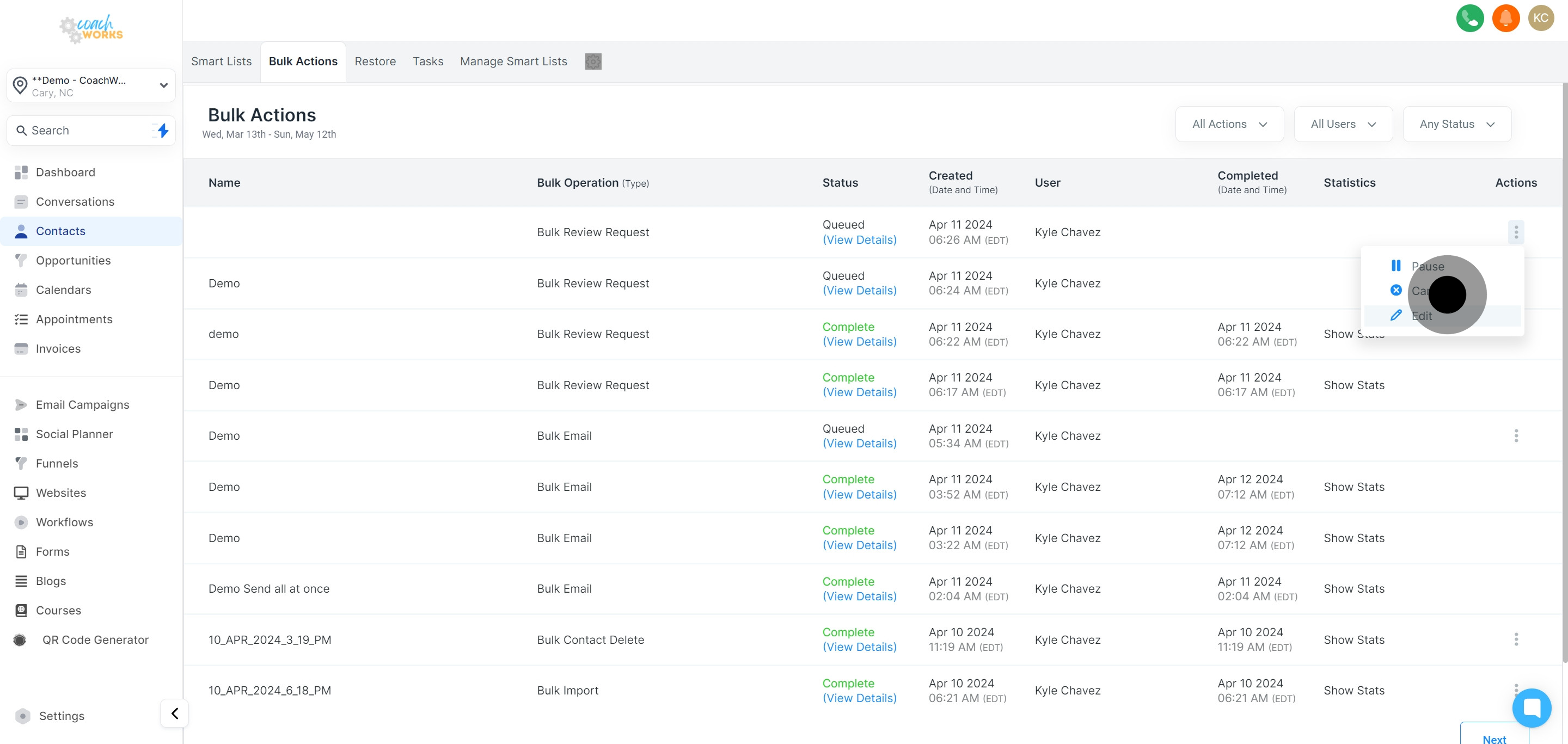
You can also access and edit actions directly from their detailed view, providing a seamless way to make quick adjustments.
Lastly, ensure all changes made are saved before exiting the bulk actions feature to apply your modifications effectively.