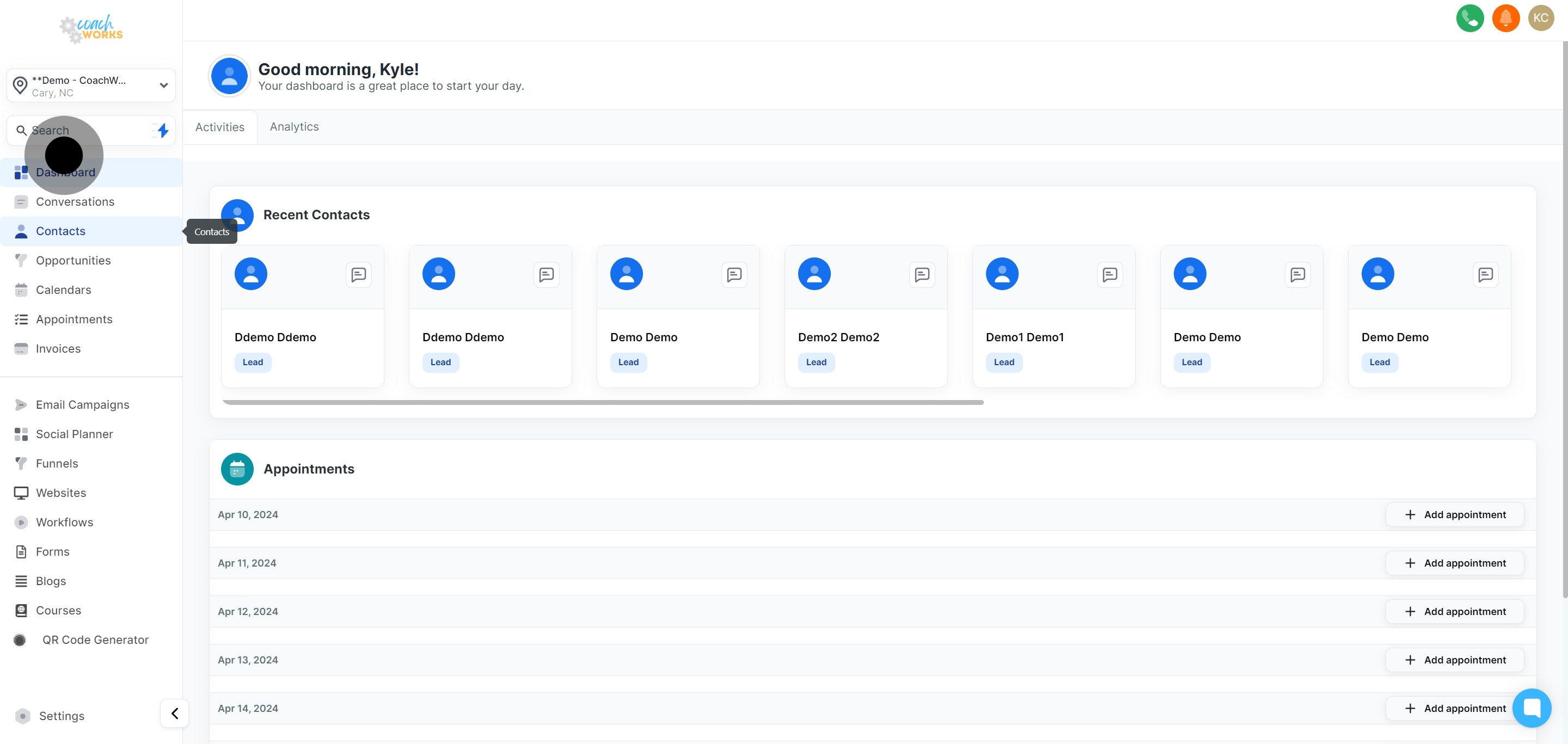
Begin by locating and selecting the 'Contacts' section on the CoachWorks Marketing webpage.
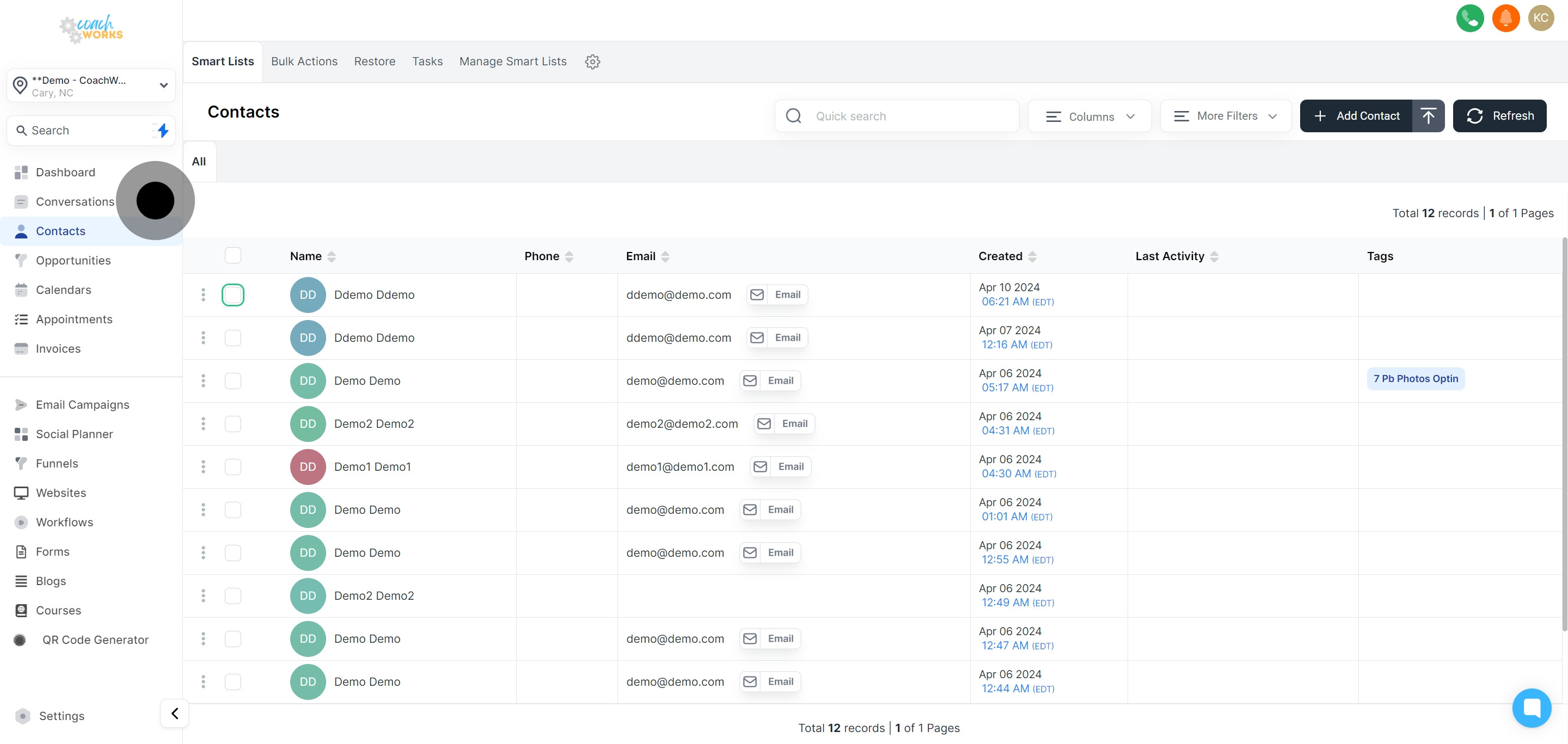
Identify and click the checkbox of a specific contact you wish to send a review request to.
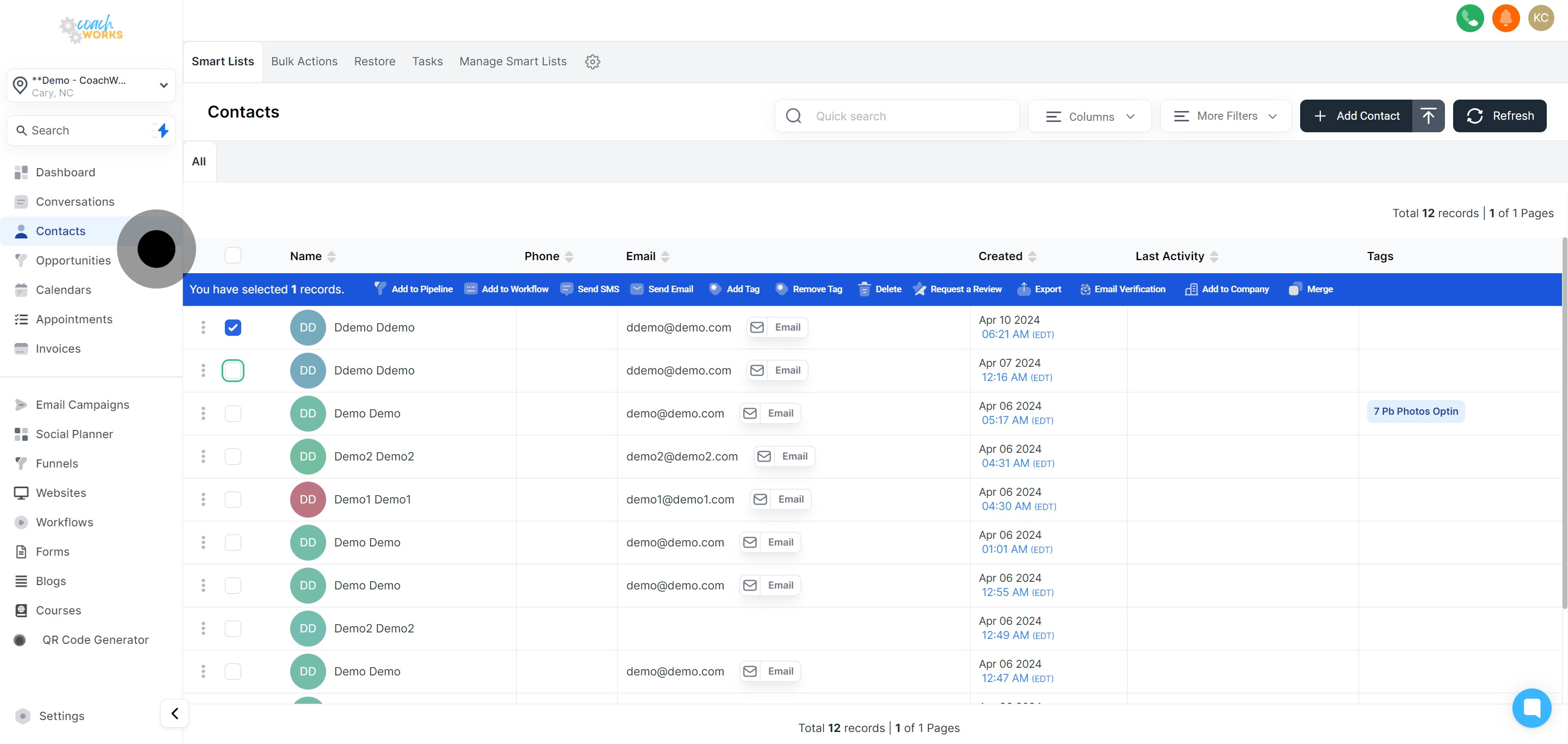
For broader outreach, feel free to tick additional checkboxes to select multiple contacts at once.
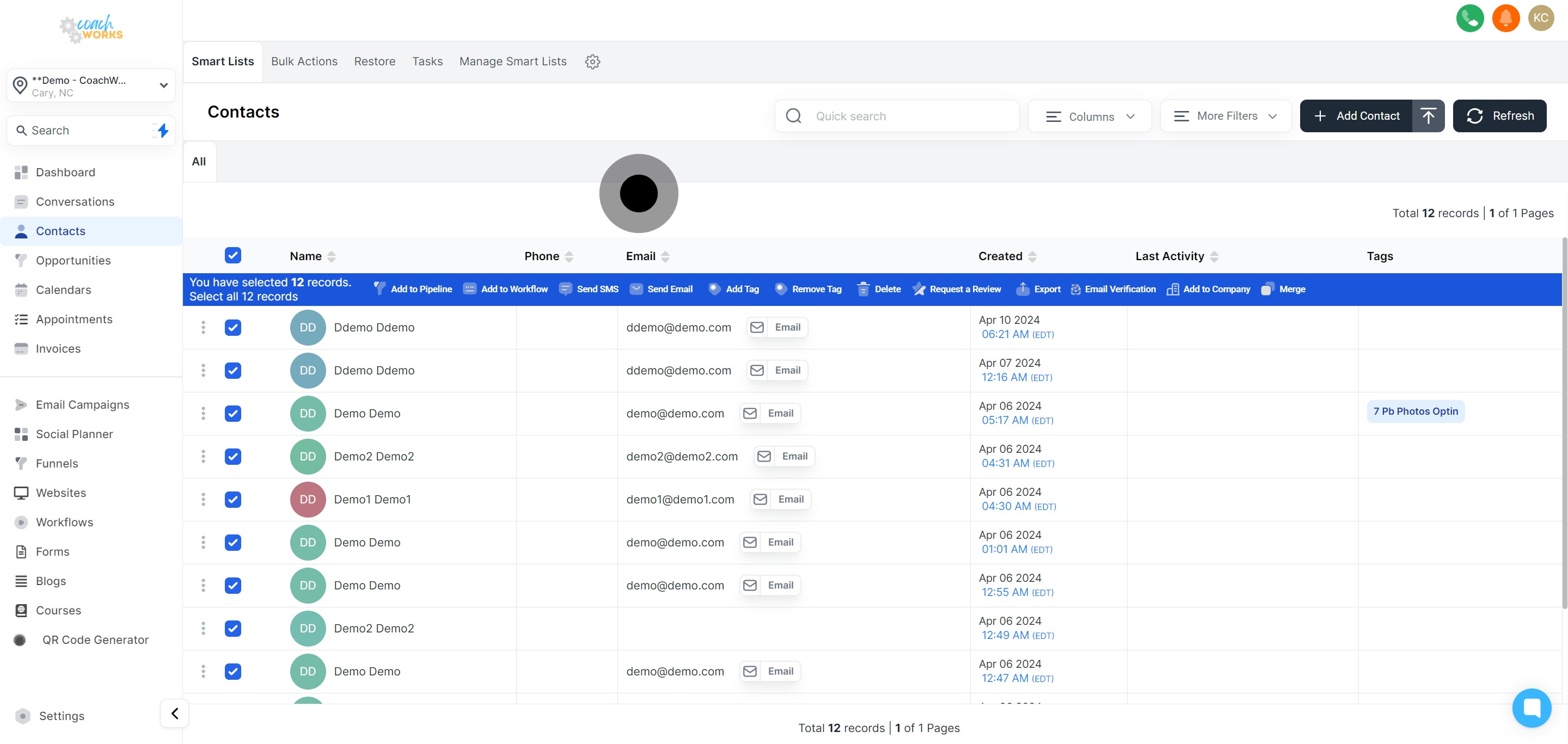
If you're aiming for a widespread request, press the 'select all contacts' option to include everyone in your list.
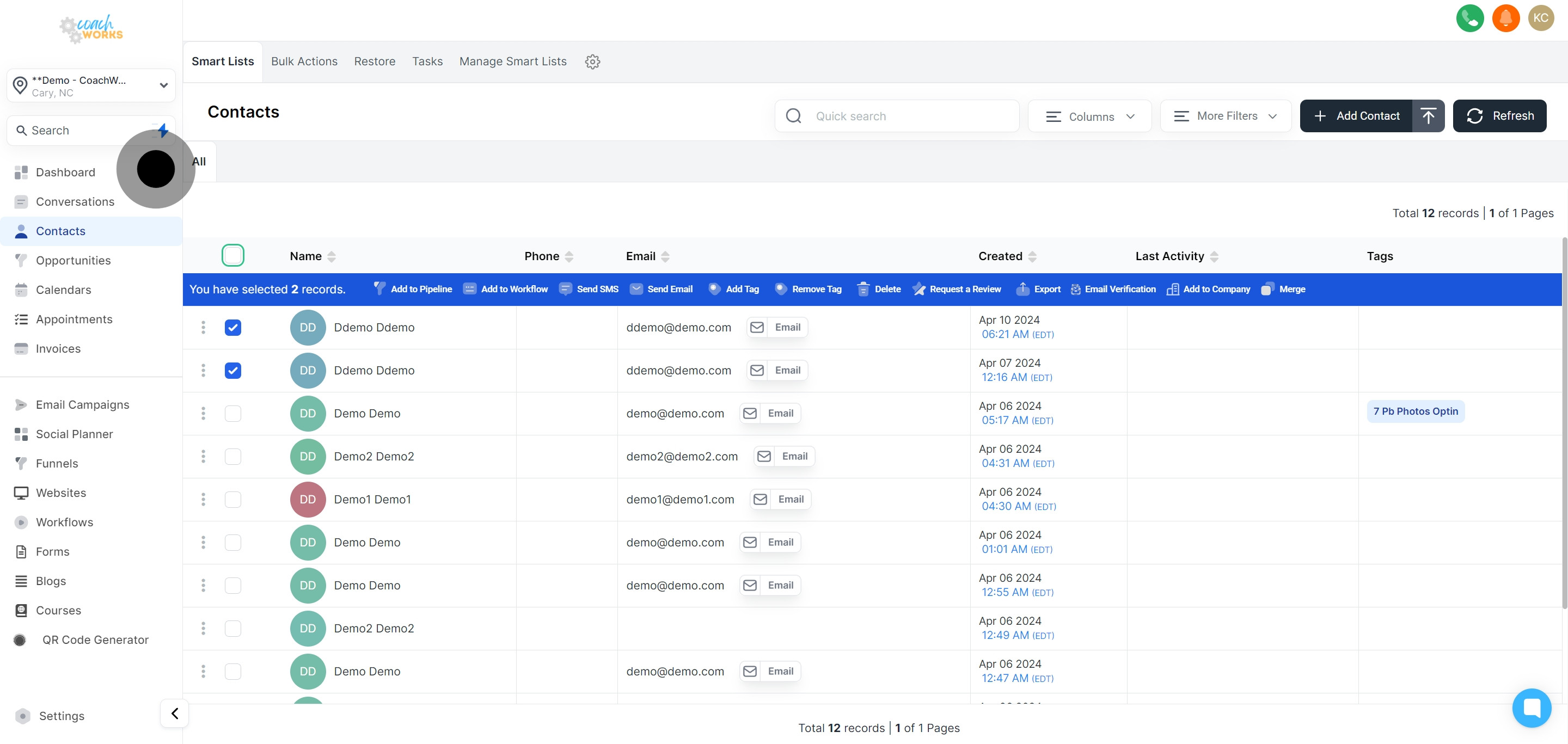
With your contacts chosen, proceed to initiate a review request by selecting the appropriate option.
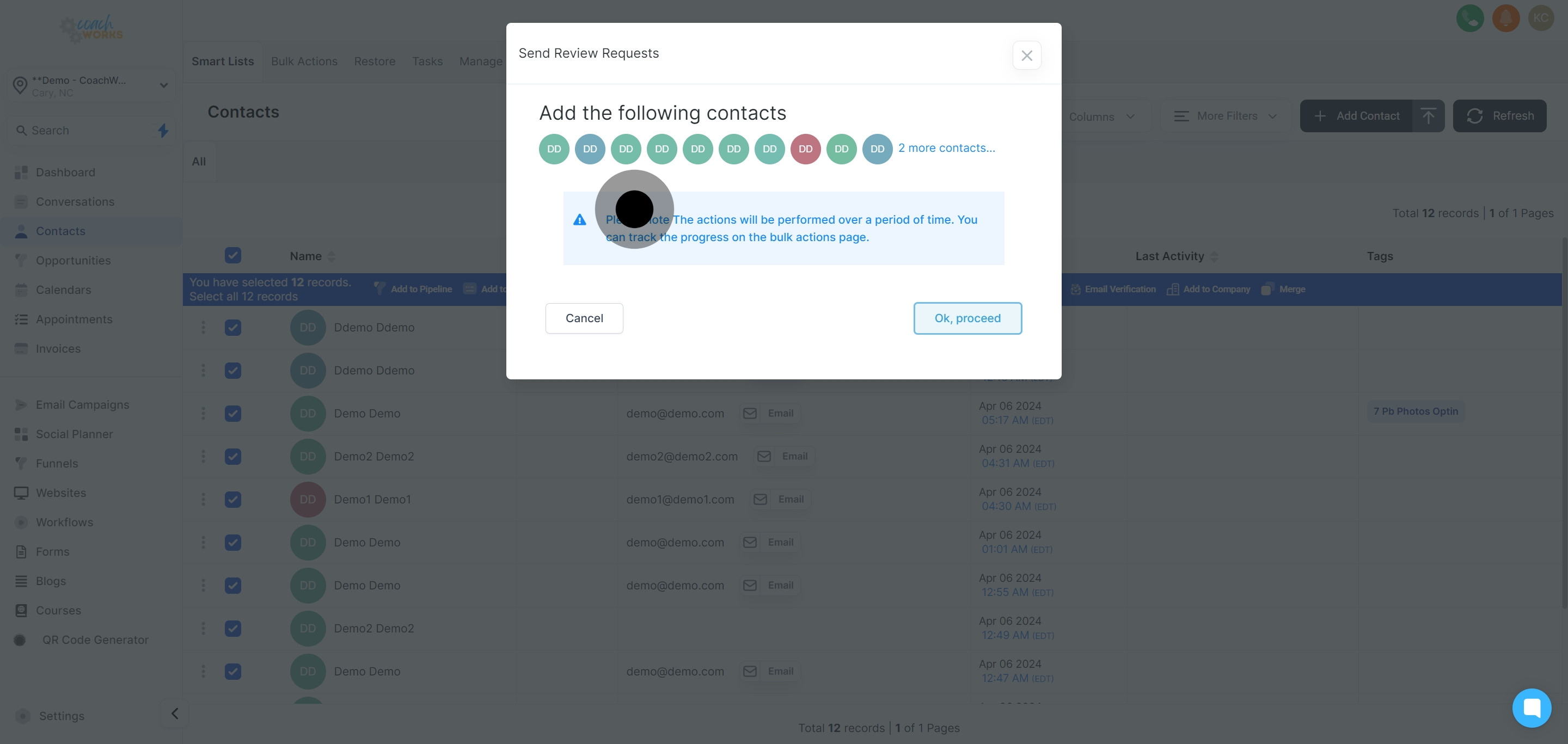
Confirm your decision to send out a review request by clicking 'Ok, proceed'.
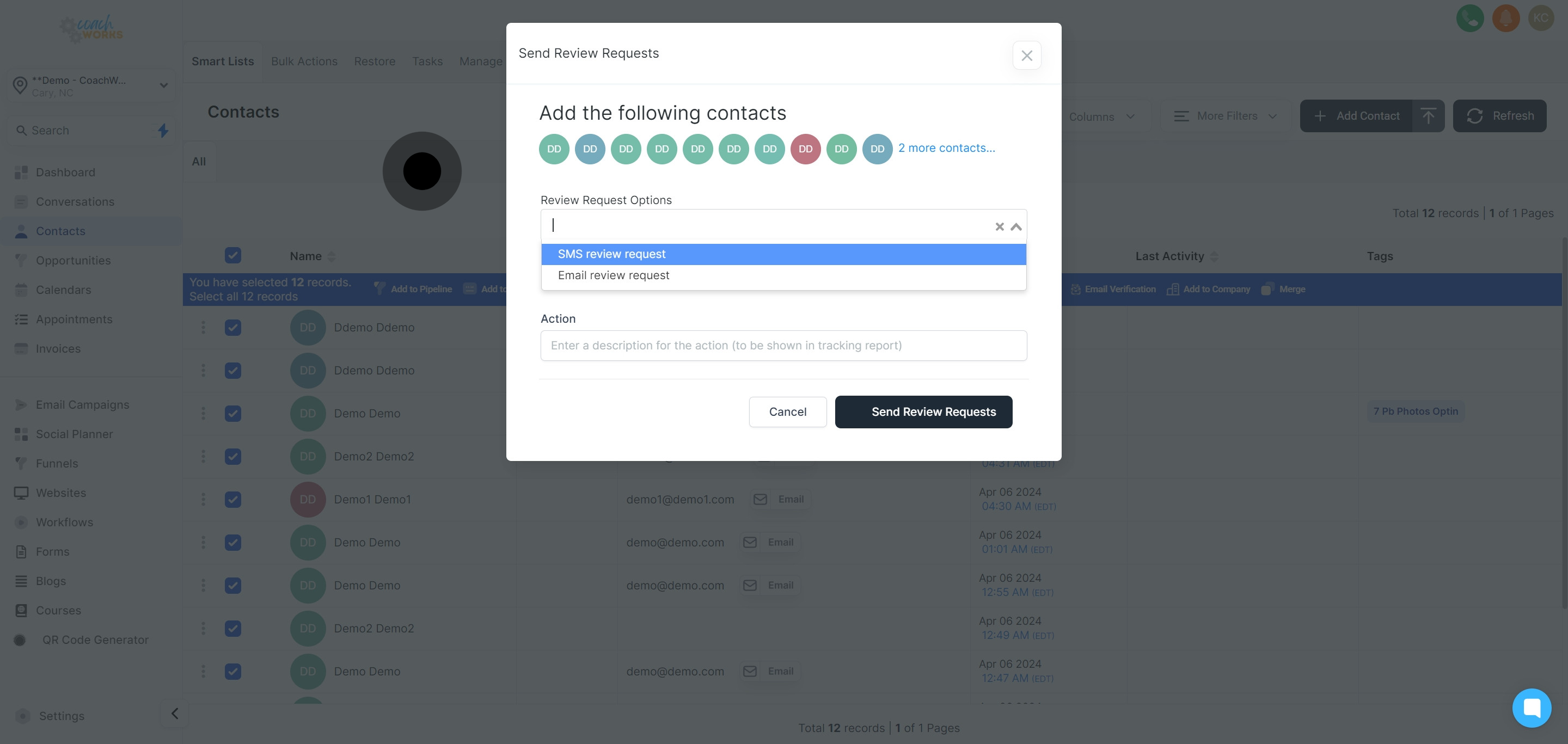
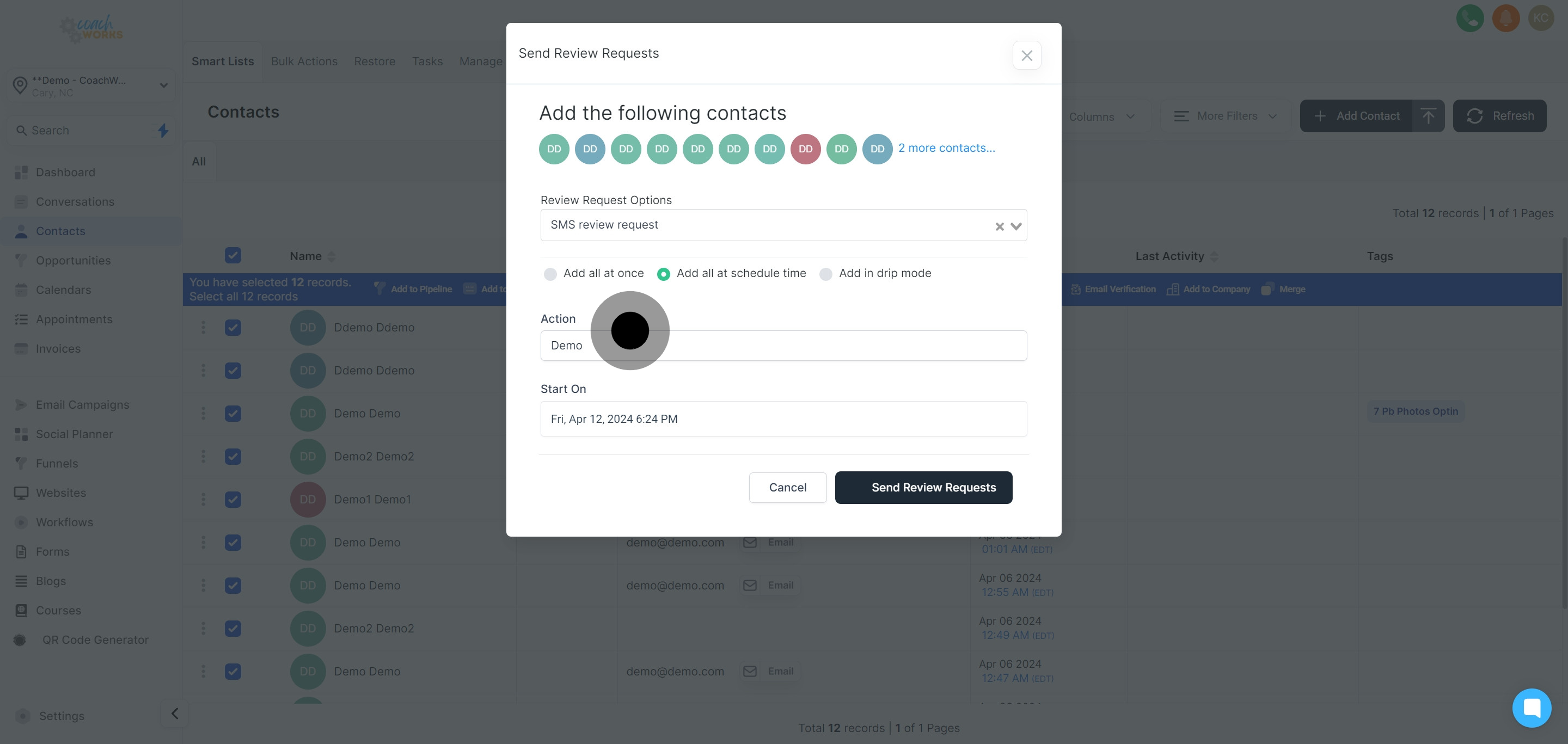
Specify your preferred method for sending the review request, opting between email and SMS.
For efficiency, choose the 'Add all at schedule time' option to streamline the sending process.
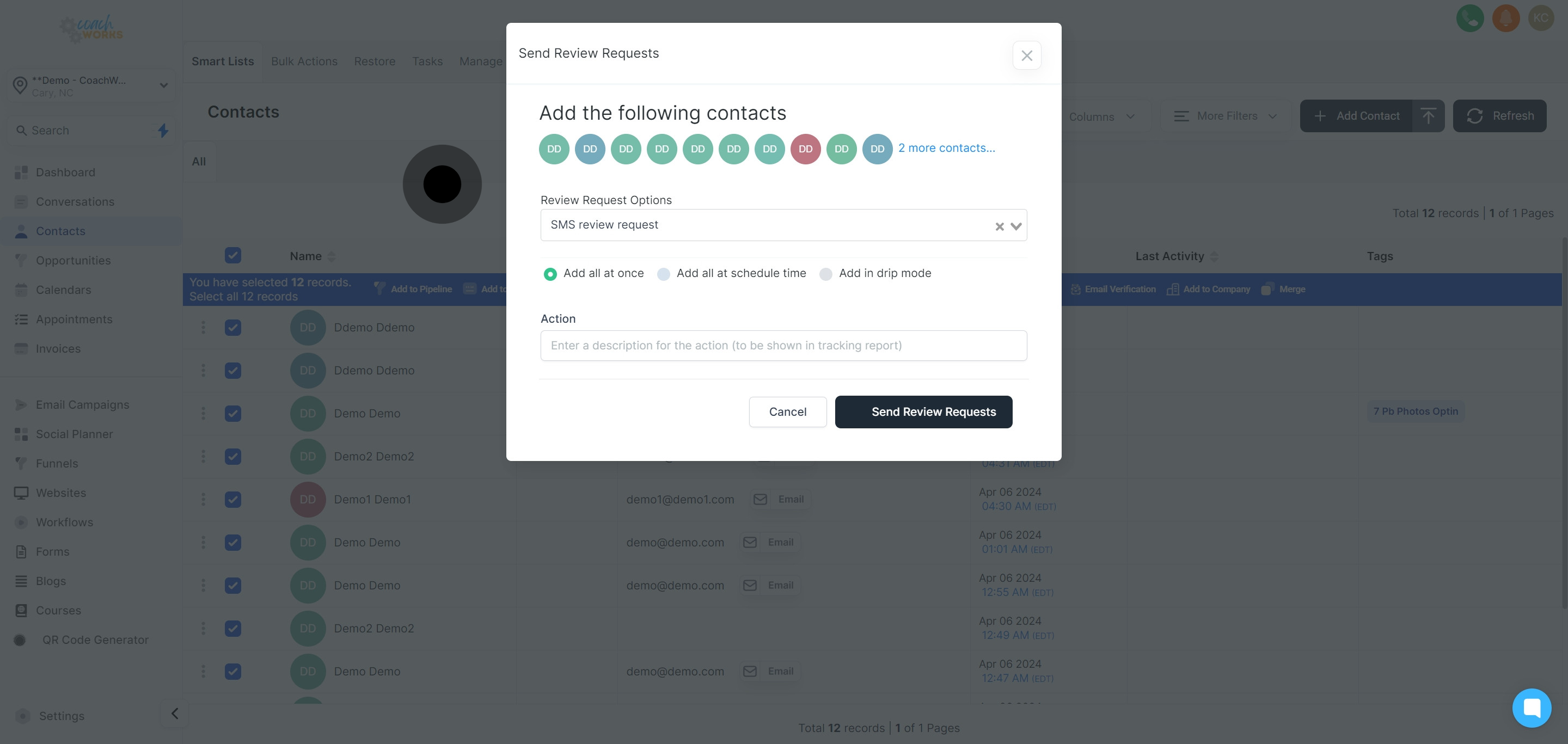
Input a brief description to facilitate easy tracking of your review request campaign.
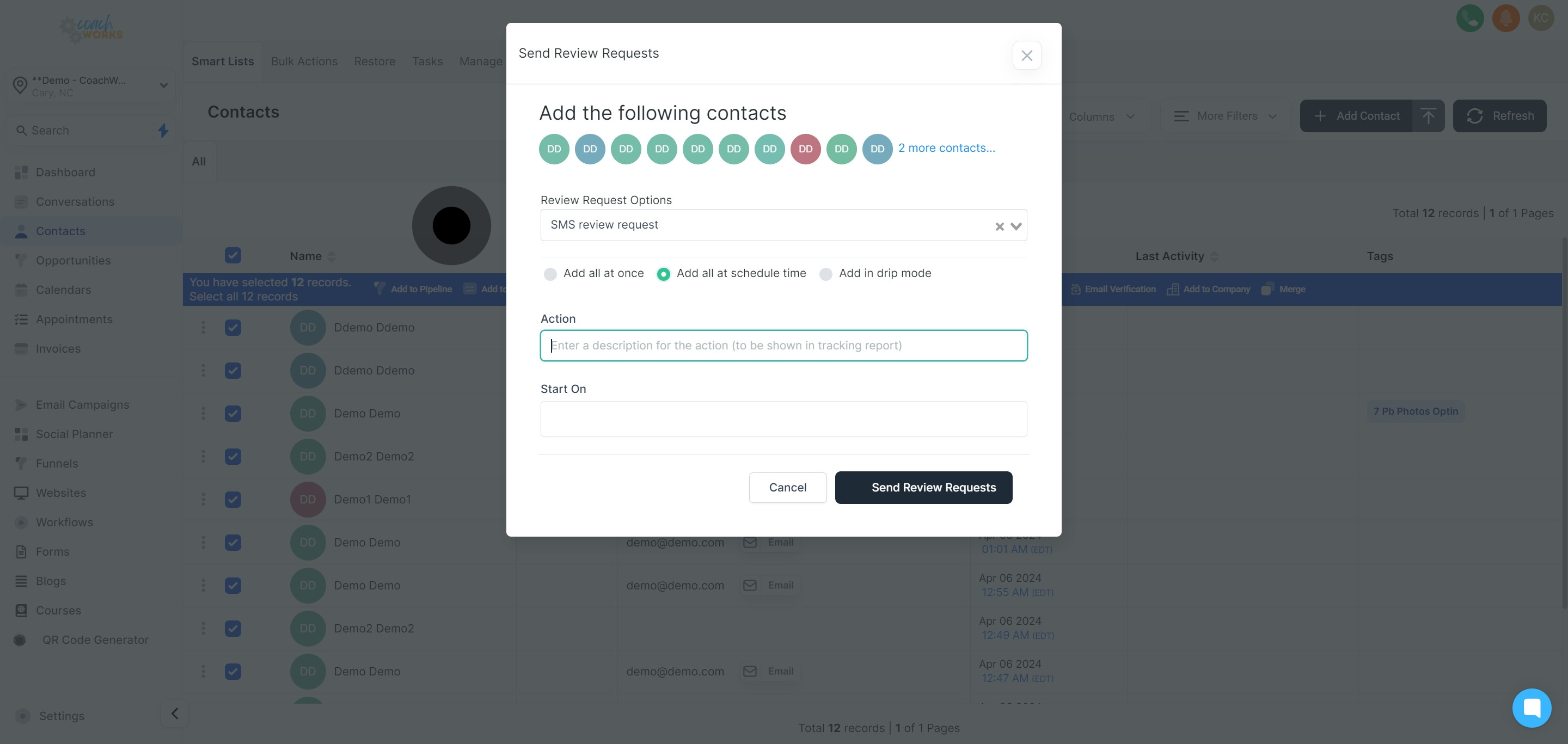
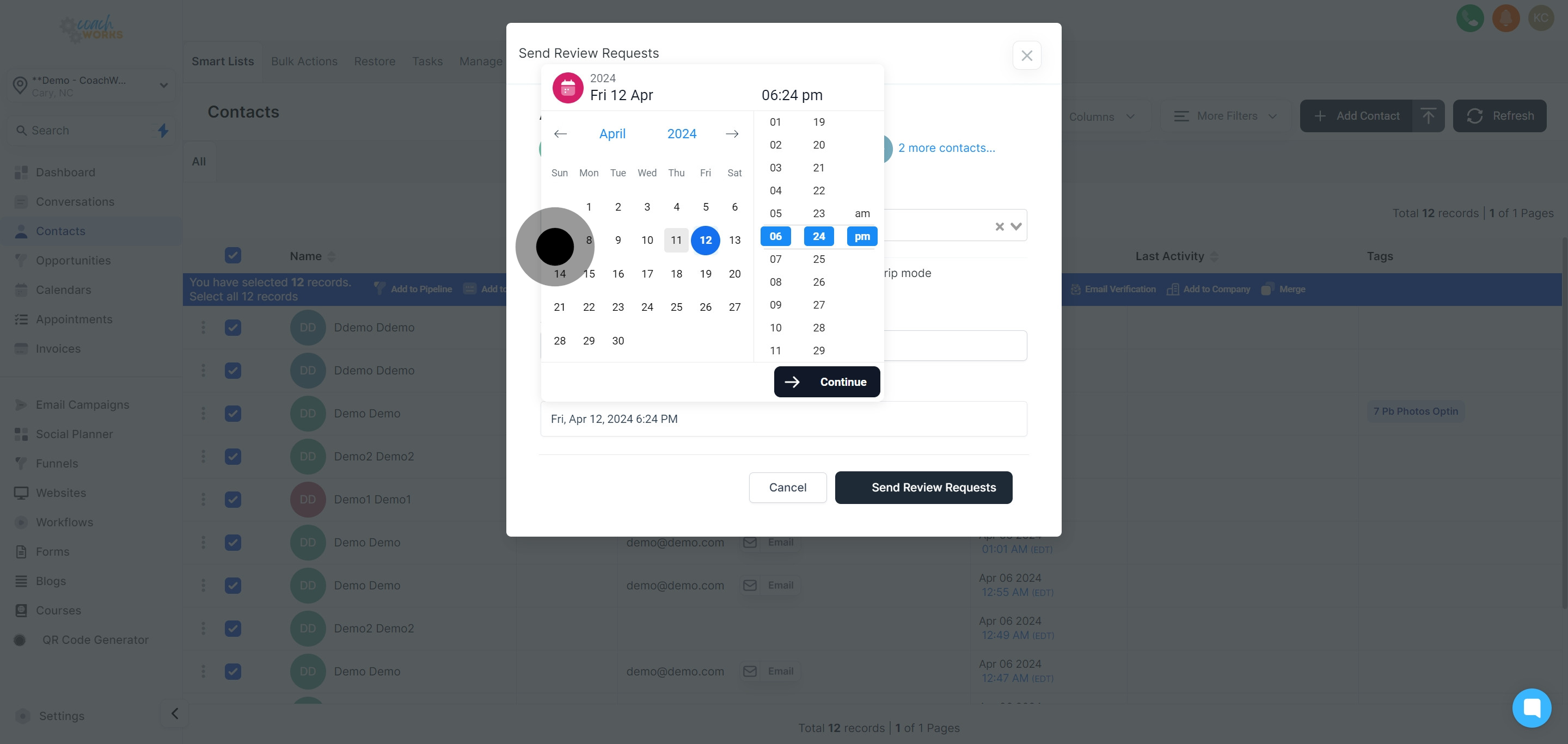
Click on the date field to set a start date for dispatching the review requests.
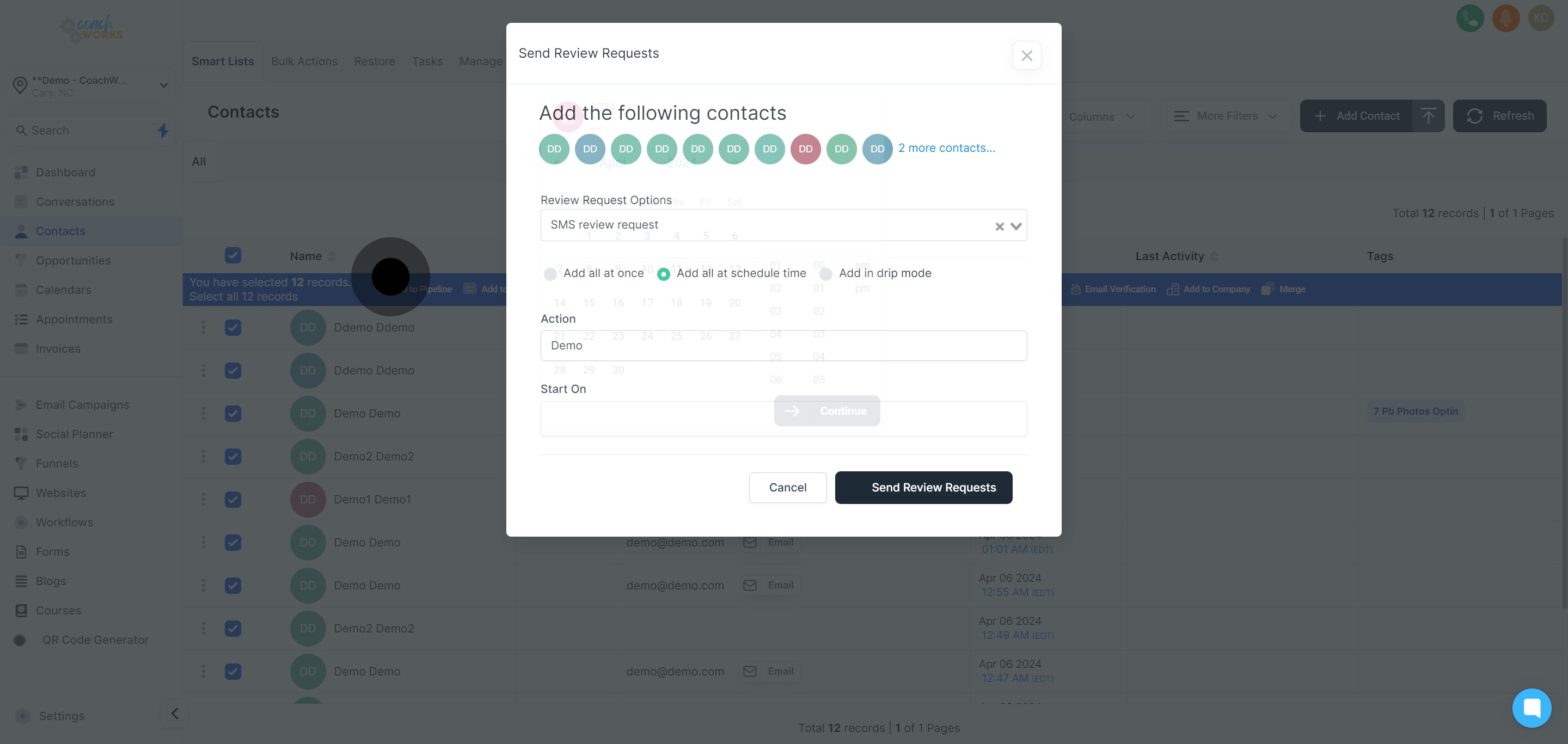
Choose a specific date and time that aligns with your campaign schedule.
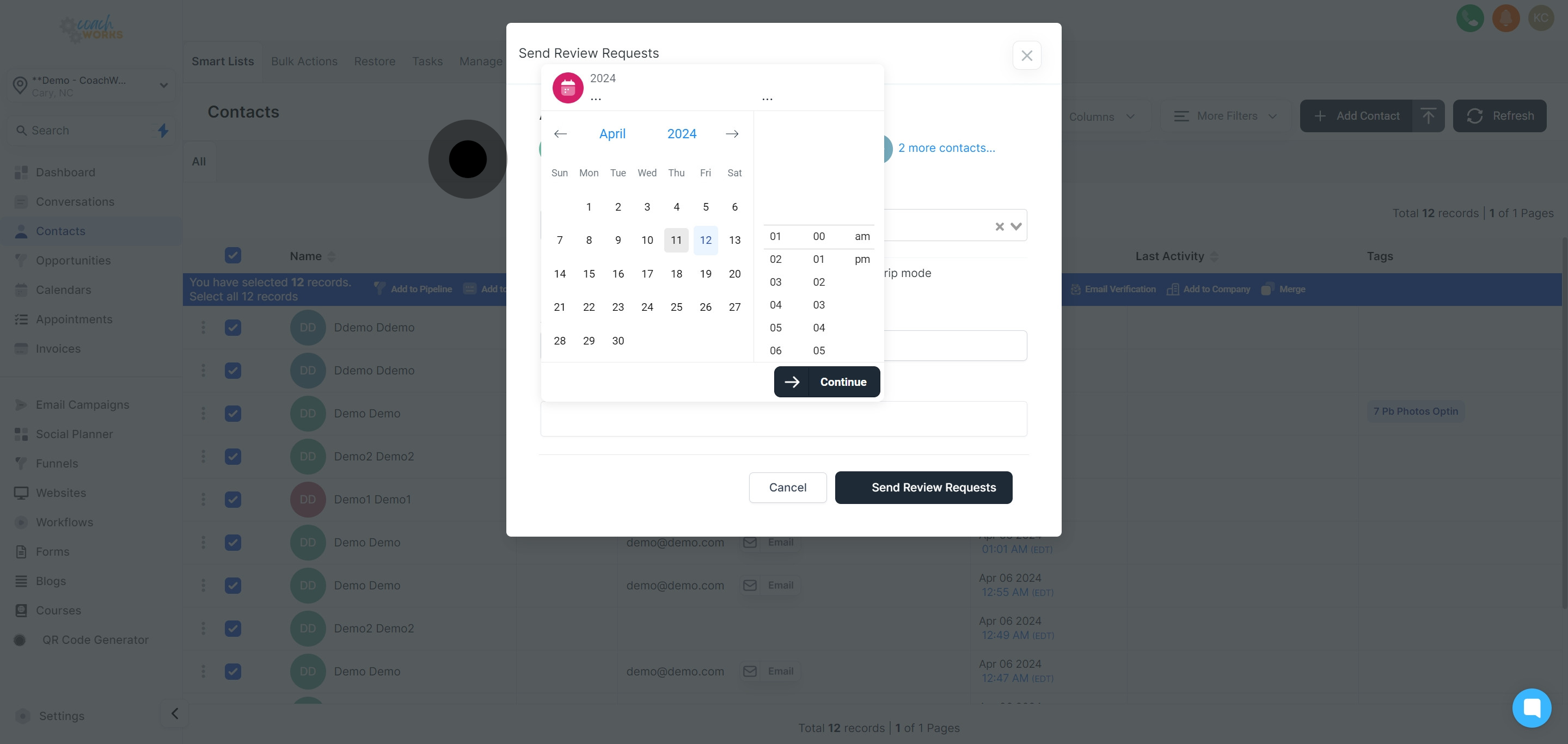
Confirm your selected timing by clicking 'Continue'.
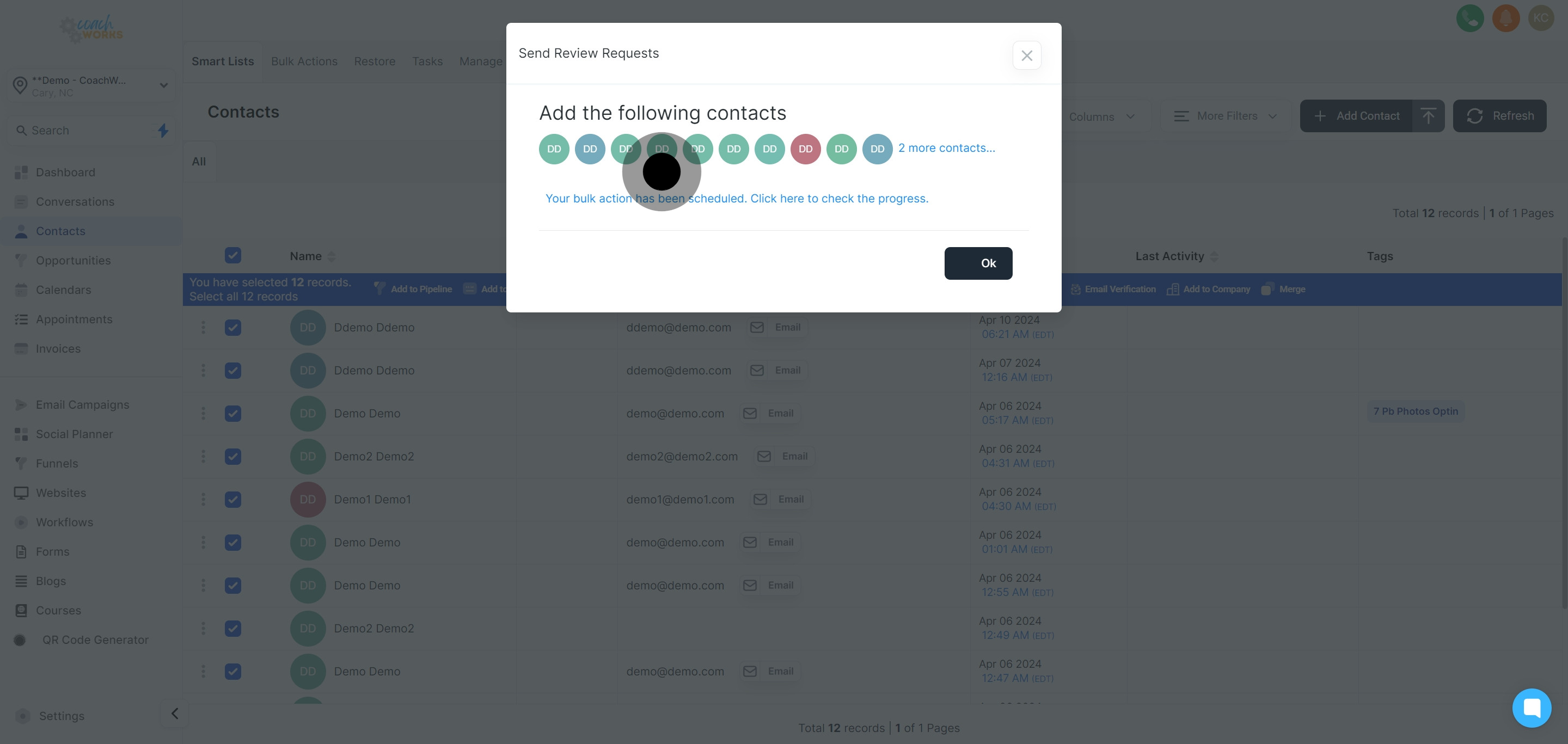
Before completion, ready the campaign for initiation by selecting 'Send Review Requests'.
Finalize the process by pressing 'Ok'. You've now successfully set up your review requests to be sent out.