Disabling the Unsubscribe Link in Emails in Content Copilot CRM
Manage email preferences by disabling the unsubscribe link in Content Copilot CRM. This guide outlines the steps to update settings, ensure client approval, verify compliance, and confirm that emails are sent only to subscribed contacts.
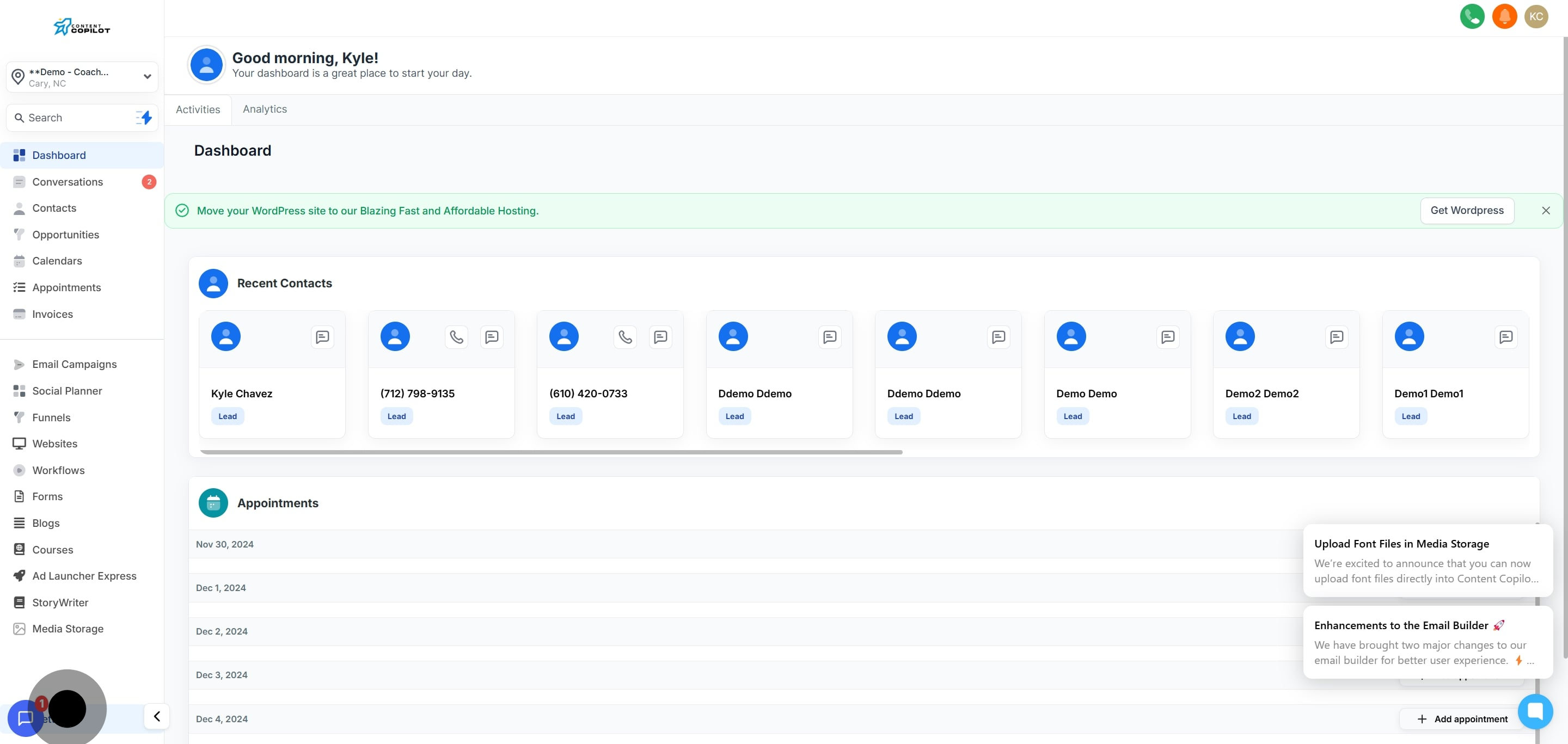
1. Click 'Settings' to start configuring your preferences.
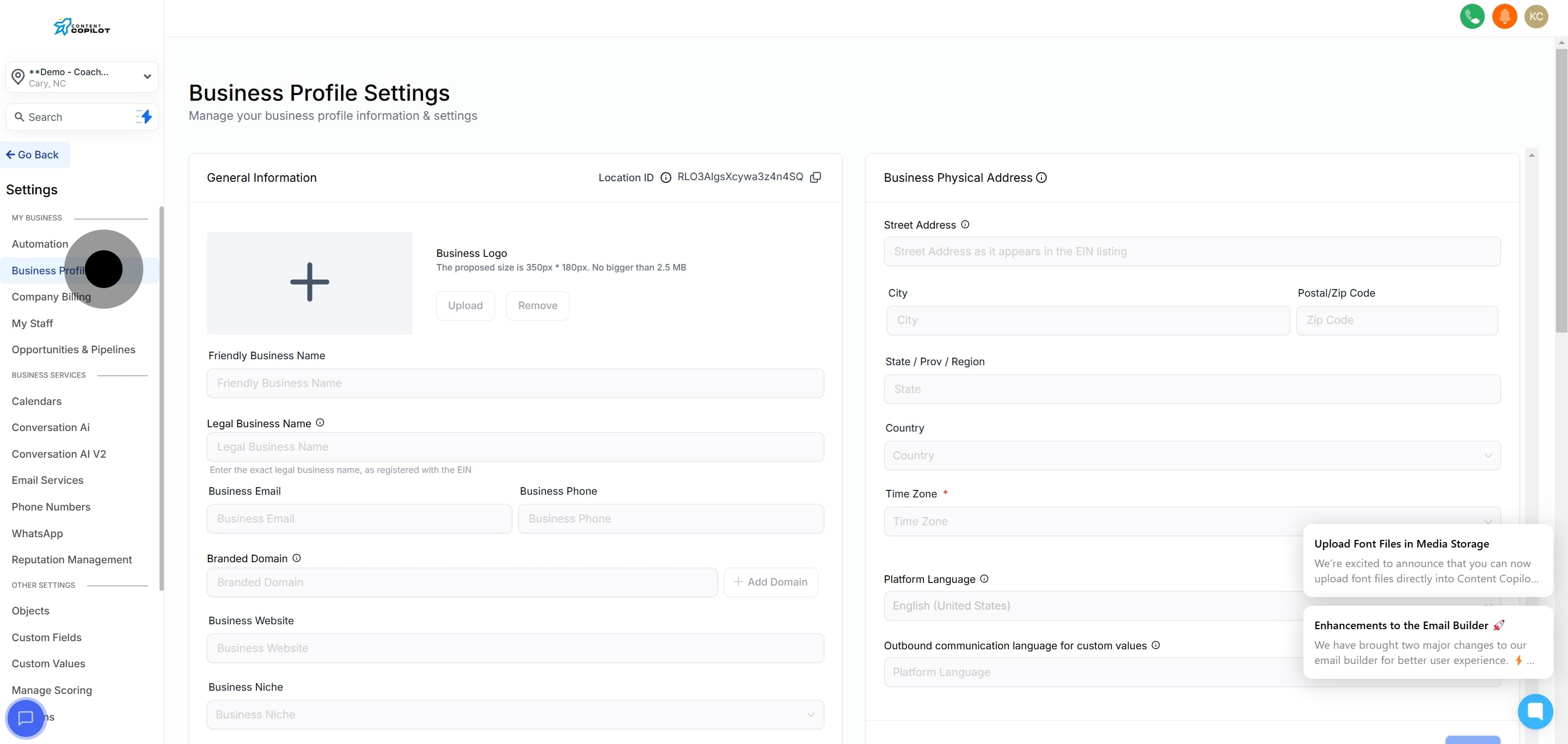
2. Next, select 'Business Profile' to update company information.
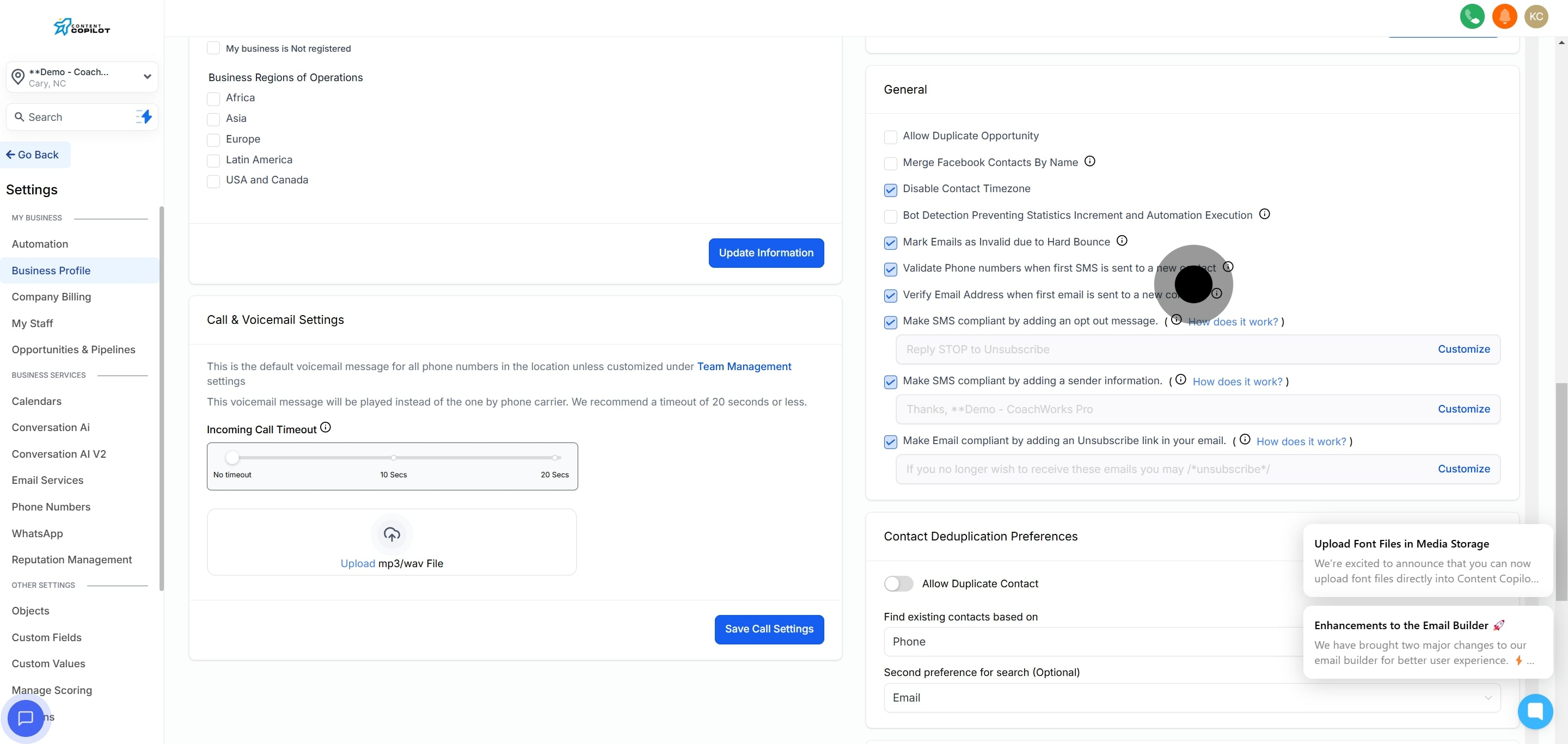
3. Now, switch to the General tab for more settings.
4. Uncheck the box if emails should not include an unsubscribe link.
5. Check the box to confirm discussion and approval with your client.
6. Ensure compliance is verified for all outgoing emails.
7. Confirm that only subscribed contacts will receive emails.
8. Click 'Disable Unsubscribe' to apply and save your settings.