Sending Bulk SMS to Contacts in Content Copilot CRM : Send all at schedule time.
Learn how to schedule bulk SMS messages in Content Copilot CRM. This guide walks you through selecting contacts, customizing or creating SMS templates, setting a specific time and date, and adding a description for effective action tracking.
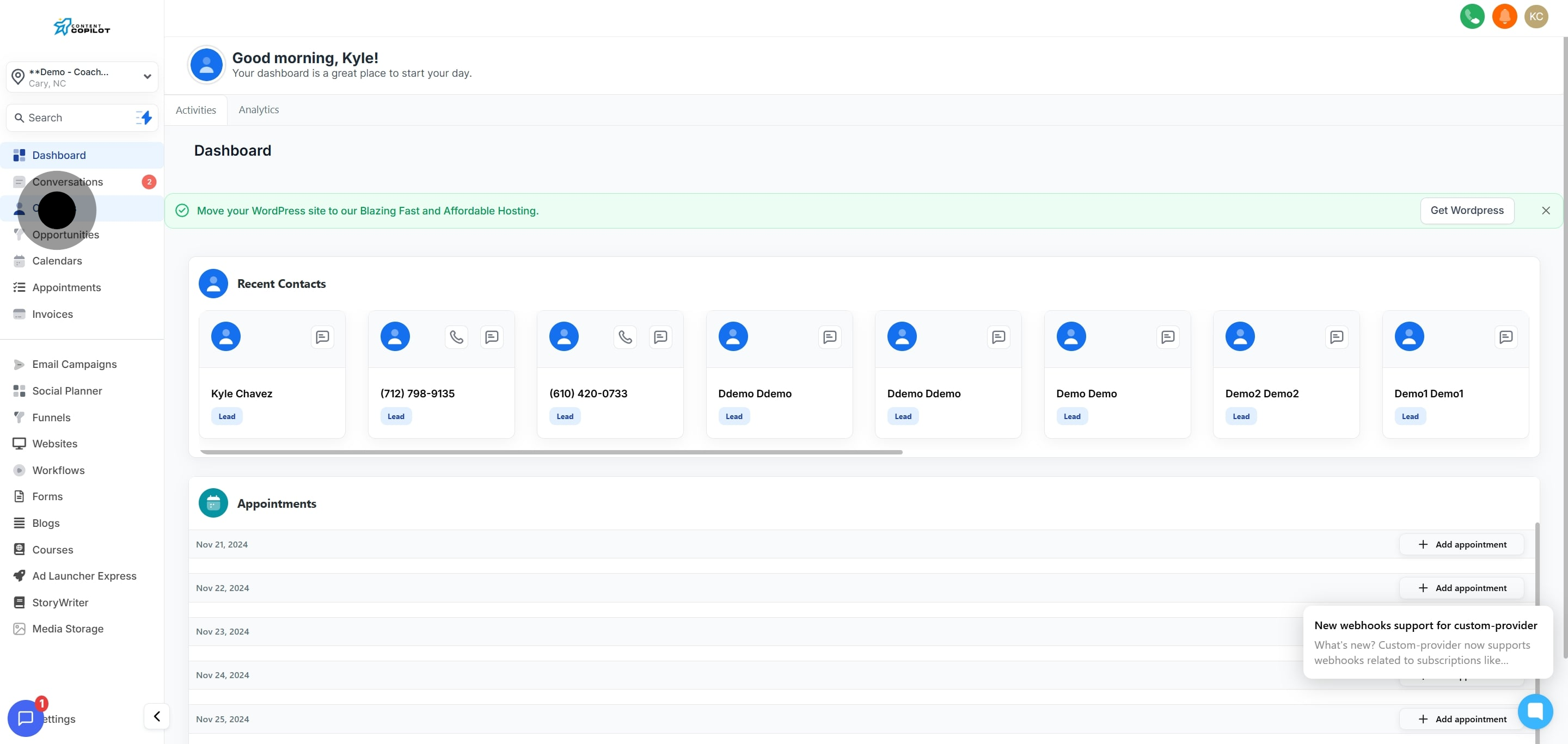
1. Begin by selecting 'Contacts' to access your list.
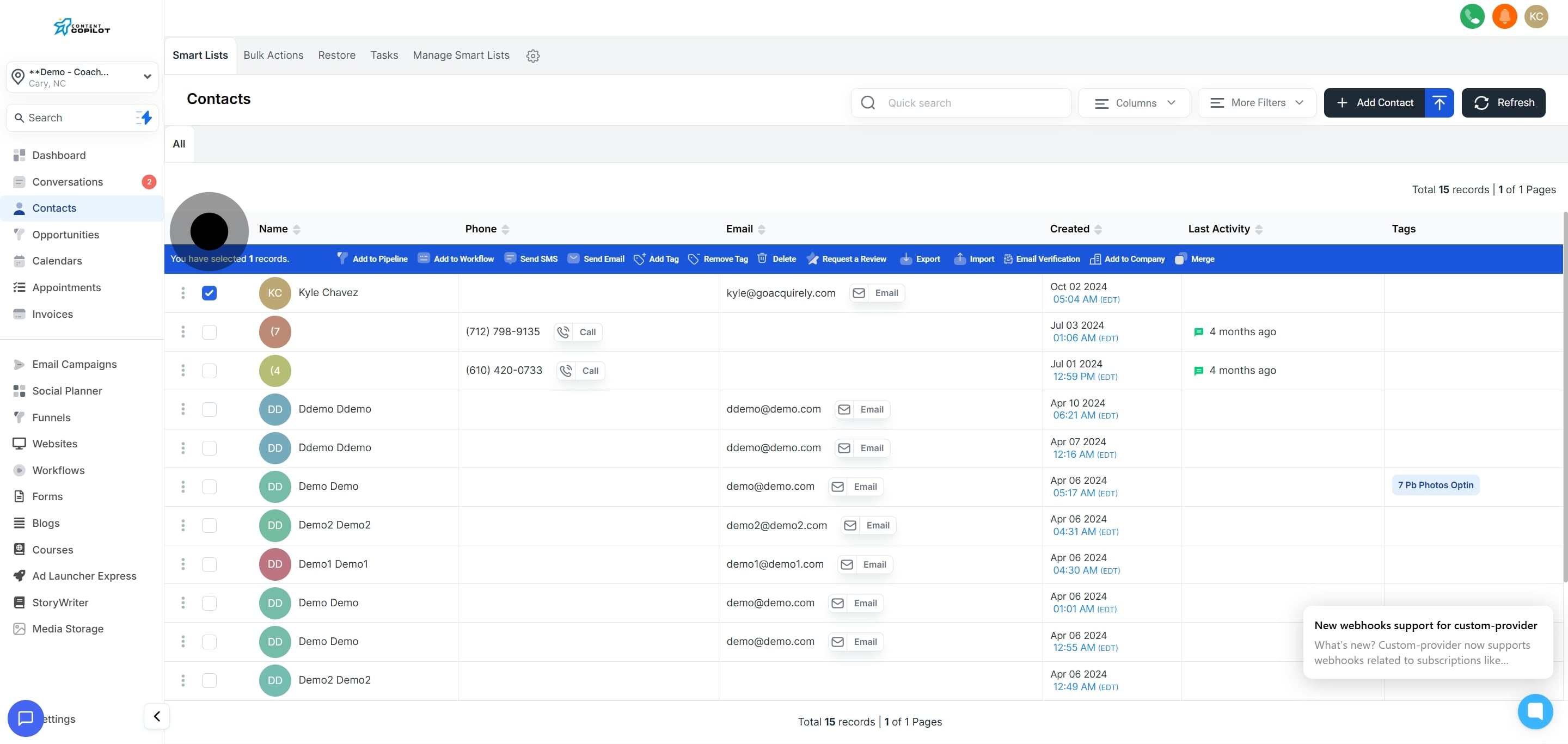
2. Now, check the box next to an individual contact.
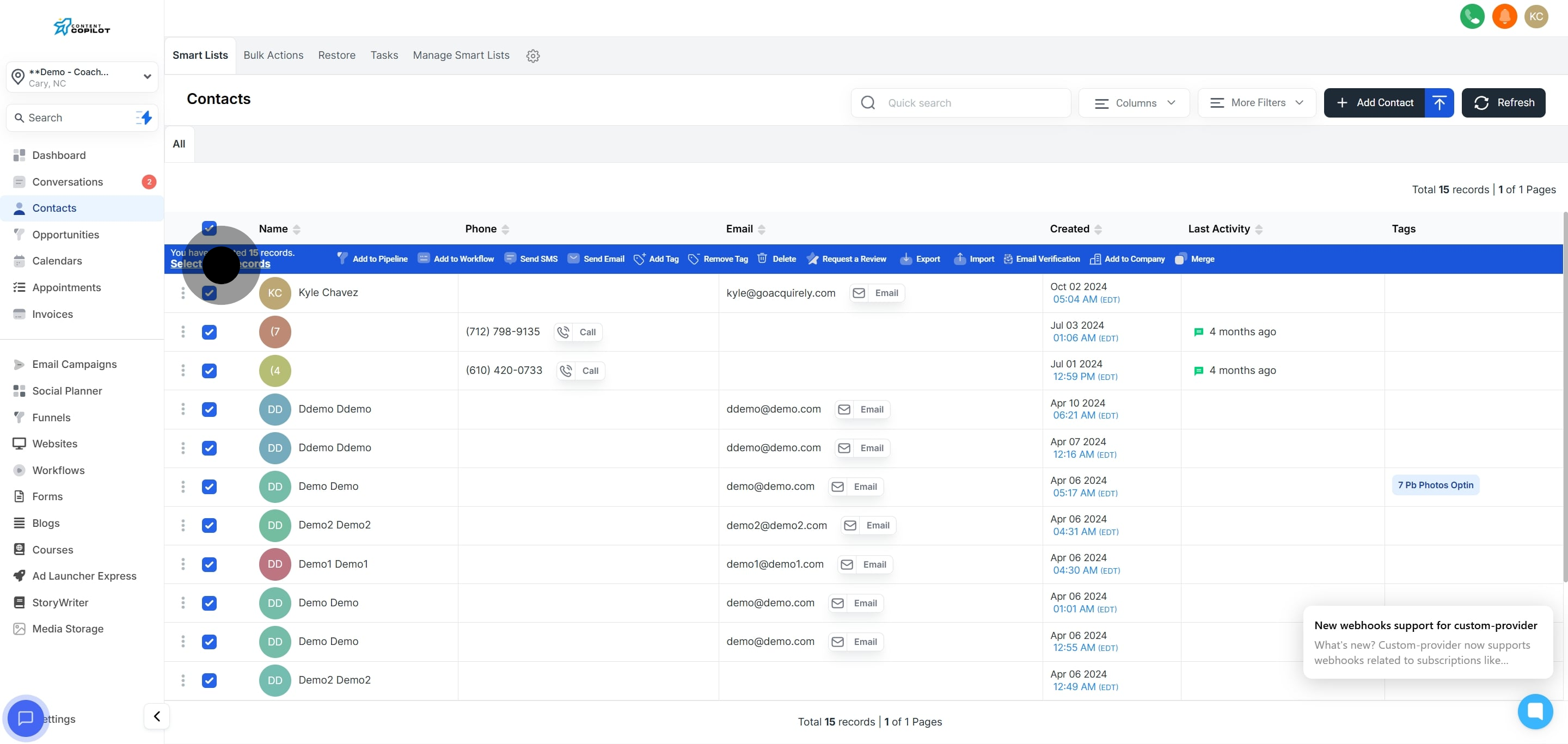
3. Then, select all contacts on this page by checking the top box.
4. Next, choose to select every contact by clicking here.
5. Go ahead and initiate messaging by clicking on 'Send SMS'.
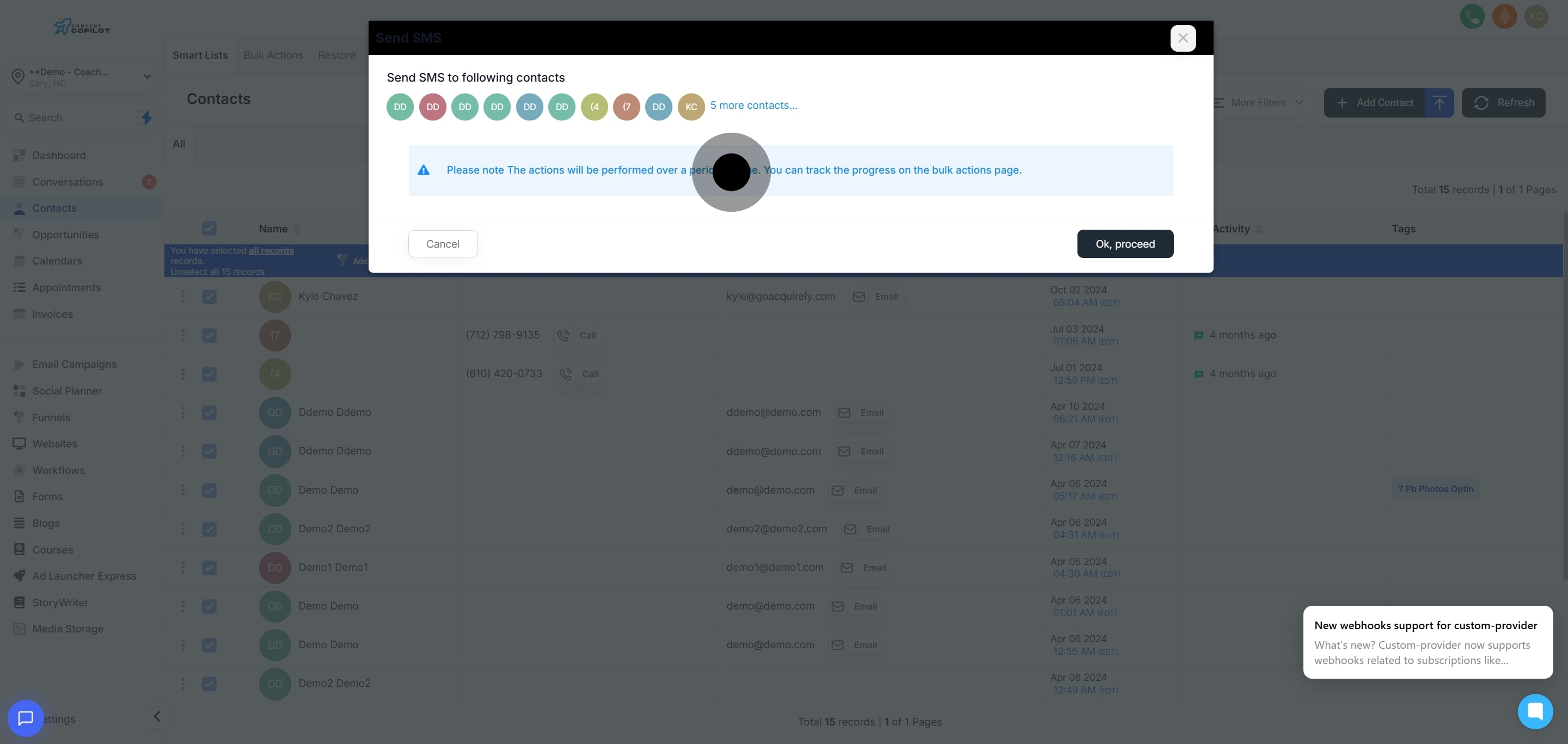
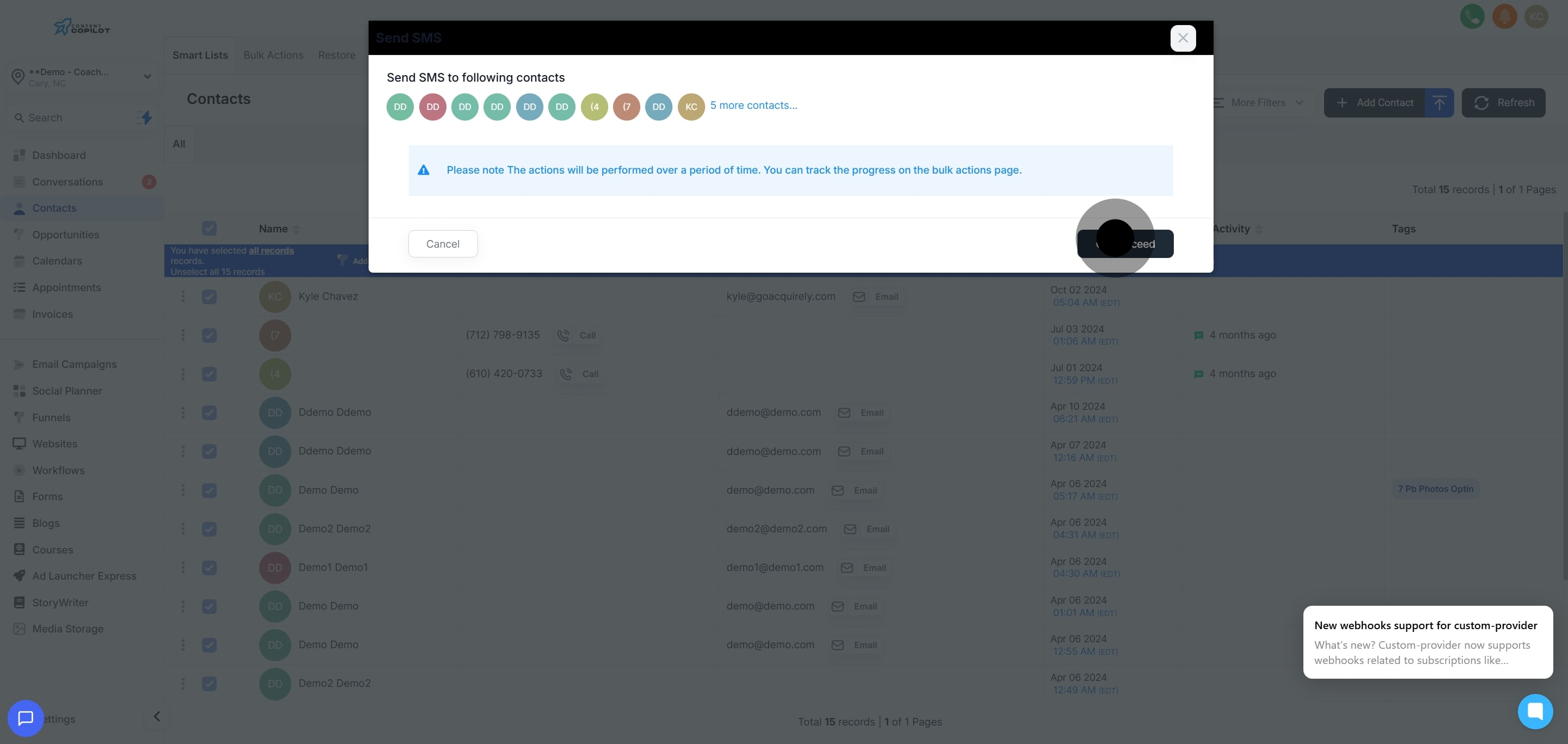
6. Acknowledge the process duration reminder displayed on screen.
7. Confirm your actions by clicking 'Ok, proceed'.
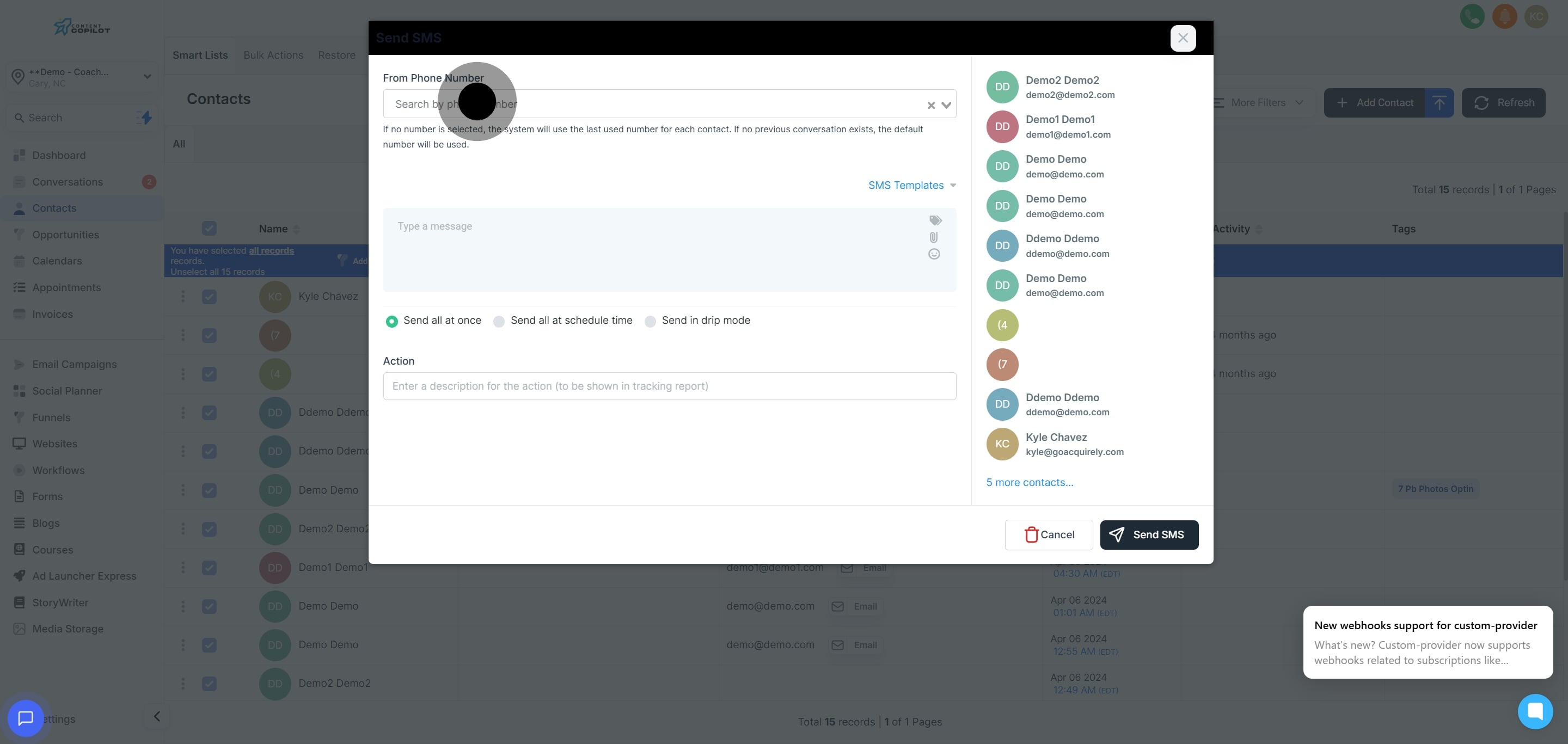
8. Choose the phone number to send messages from.
9. Select an SMS template or pick one from the list provided.
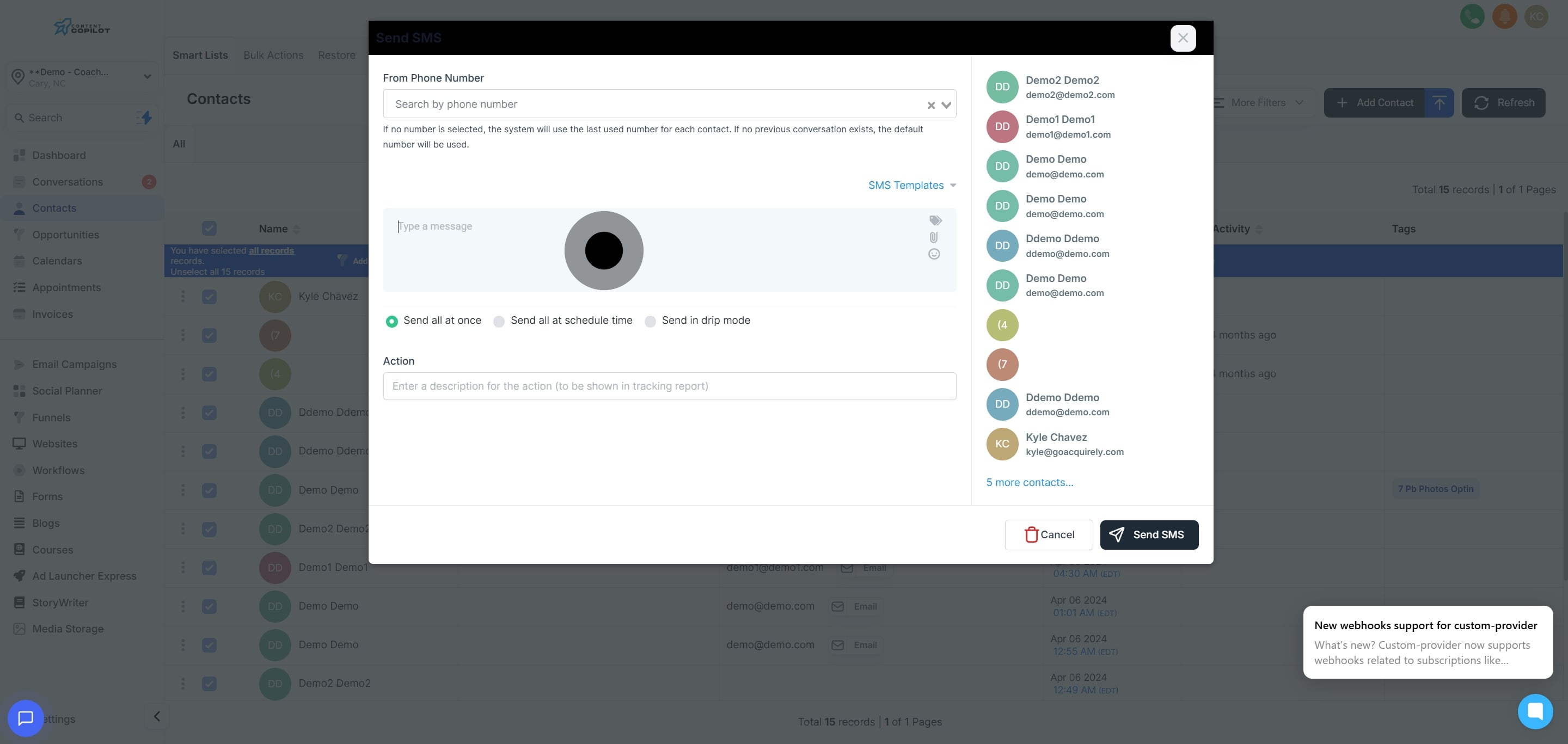
10. Alternatively, type your message to create a new SMS.
11. Click to send all messages at the scheduled time.
12. Now, provide a description for the action to be tracked.
13. Choose 'Start On' to begin the scheduling.
14. Set a specific time and date for your action.
15. Finally, continue by clicking here to confirm and proceed.
16. If you wish to cancel, click 'Cancel' to terminate the action.
Did this answer your question?
😞
😐
😁
Sending Bulk SMS to Contacts in Content Copilot CRM : Send all at schedule time. | Content Copilot