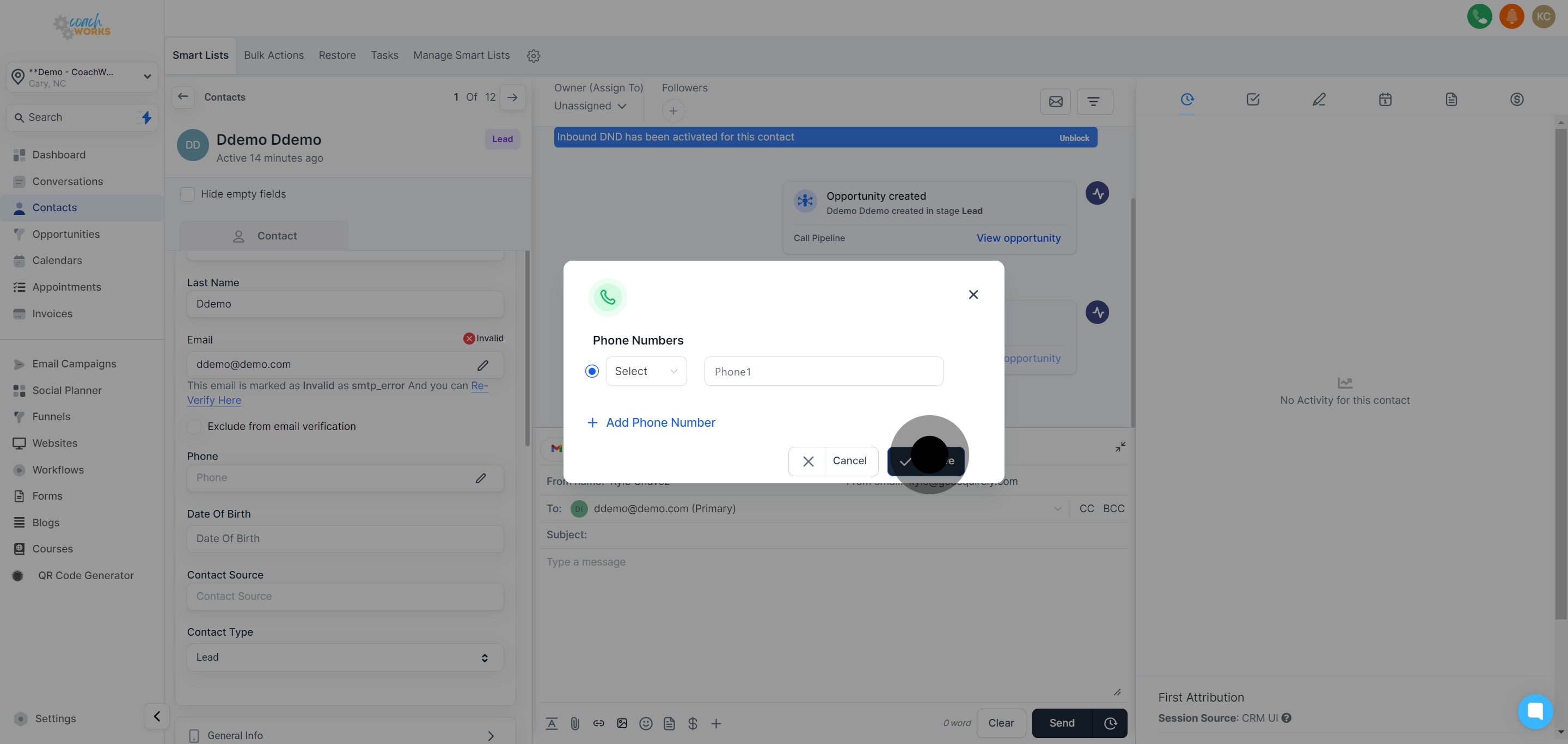
Log into your CoachWorks Marketing CRM account and navigate to the 'Contacts' section to view your list of contacts.
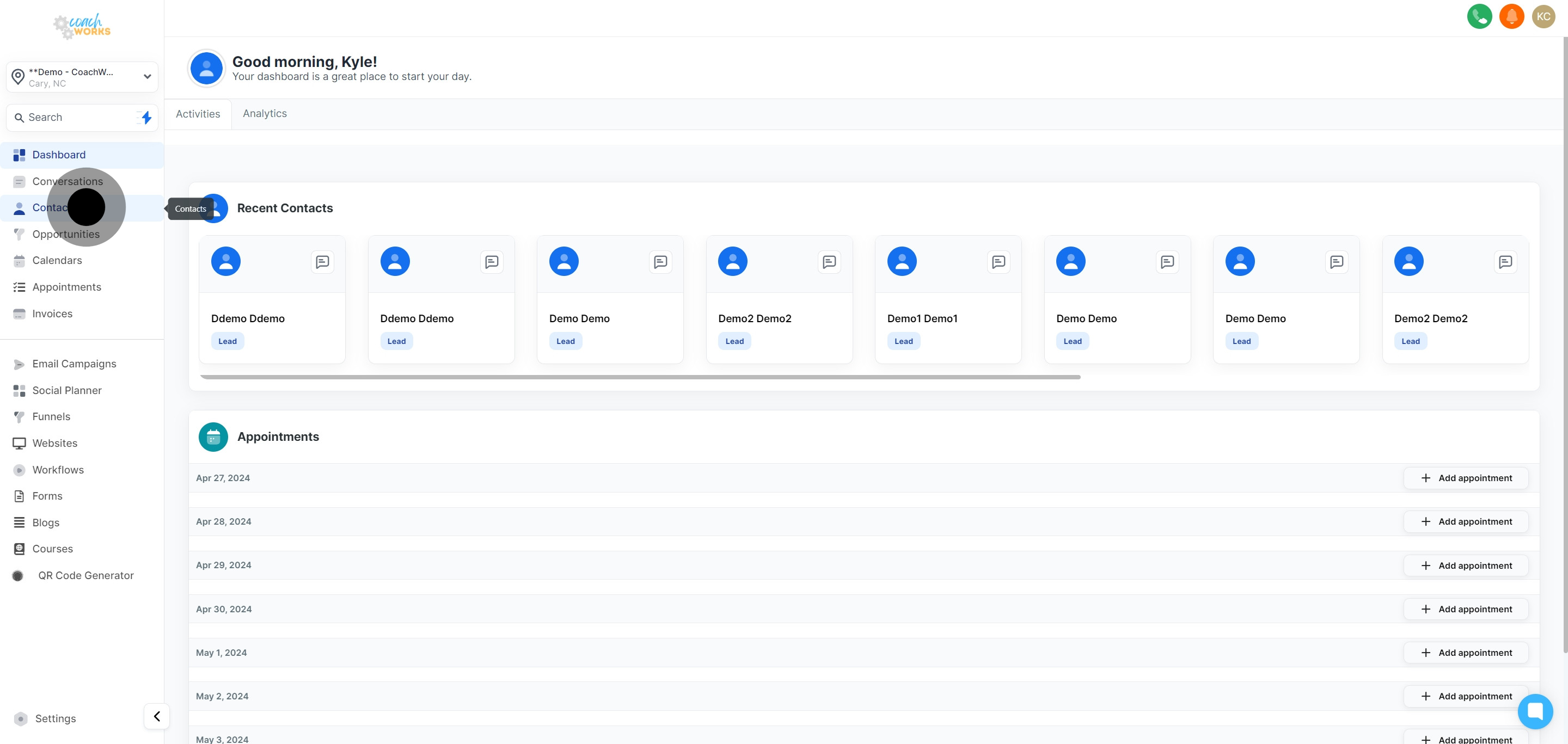
Browse through your contact list or use the search function to find and select the specific contact whose phone information you want to update.
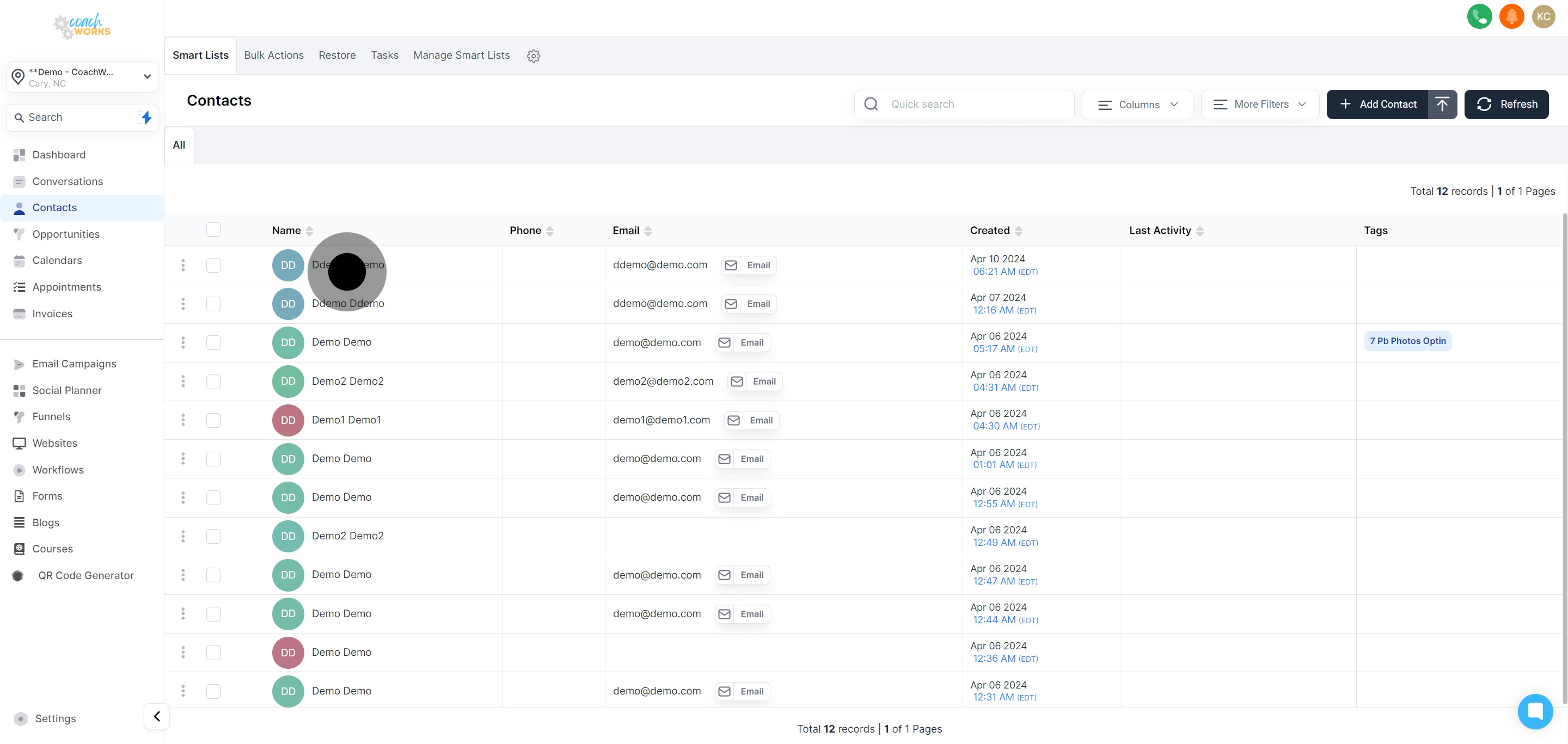
Once you have selected the contact, click on the option to edit the contact's details.
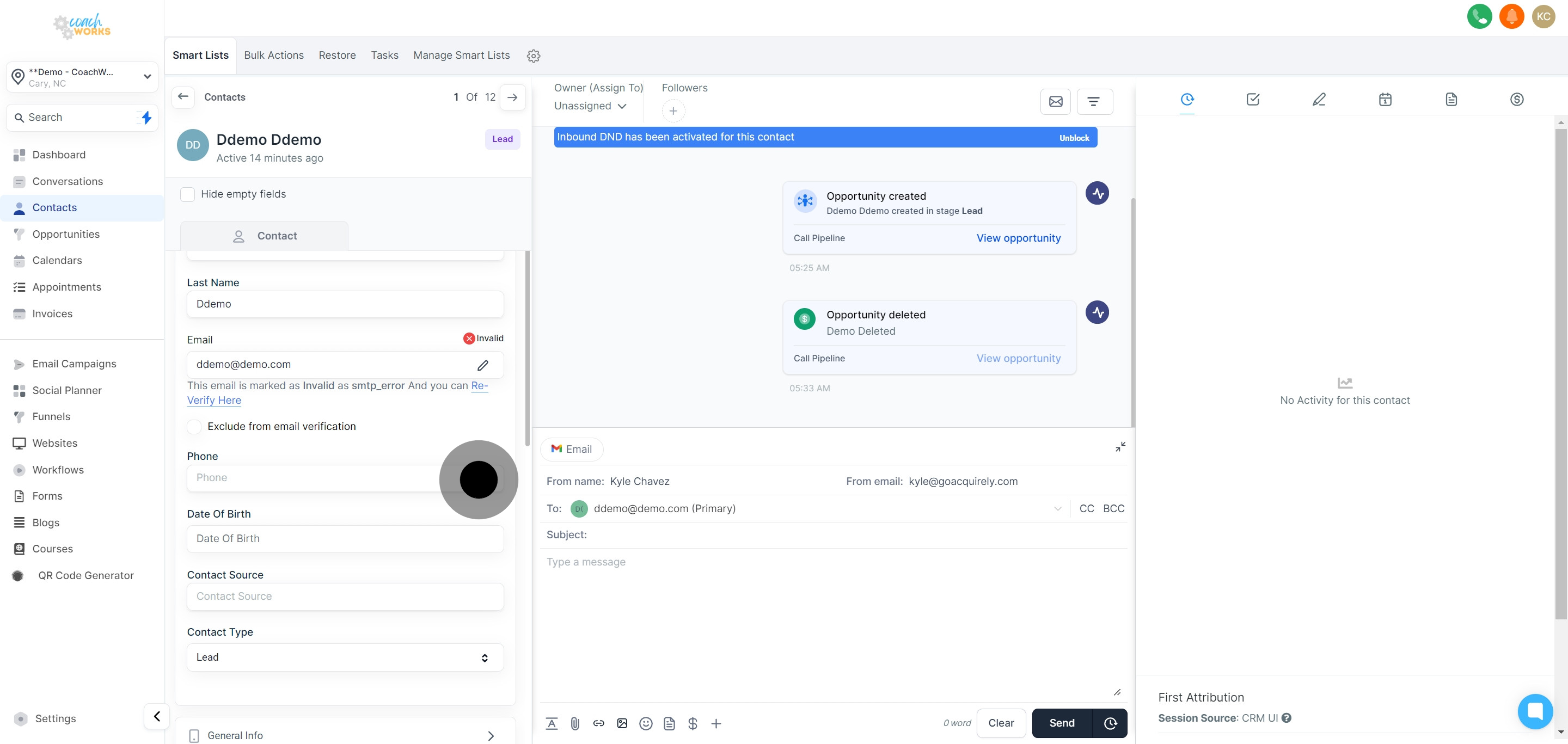
If the contact already has a registered phone number and you need to update it, click on the 'Edit' button next to the existing number and make the necessary changes.
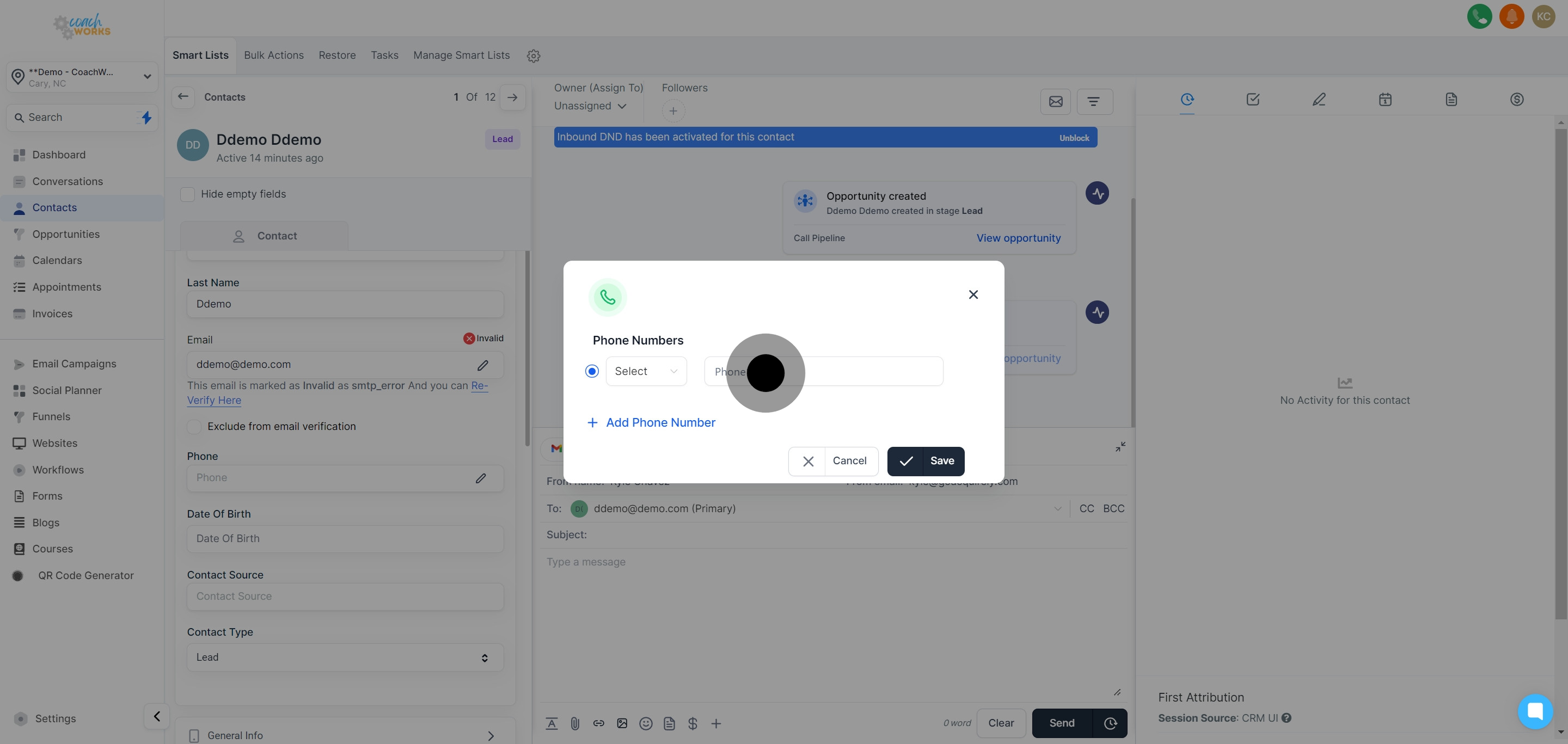
To add a new phone number, click on the 'Add Phone Number' button. This allows you to enter an additional number for the contact.
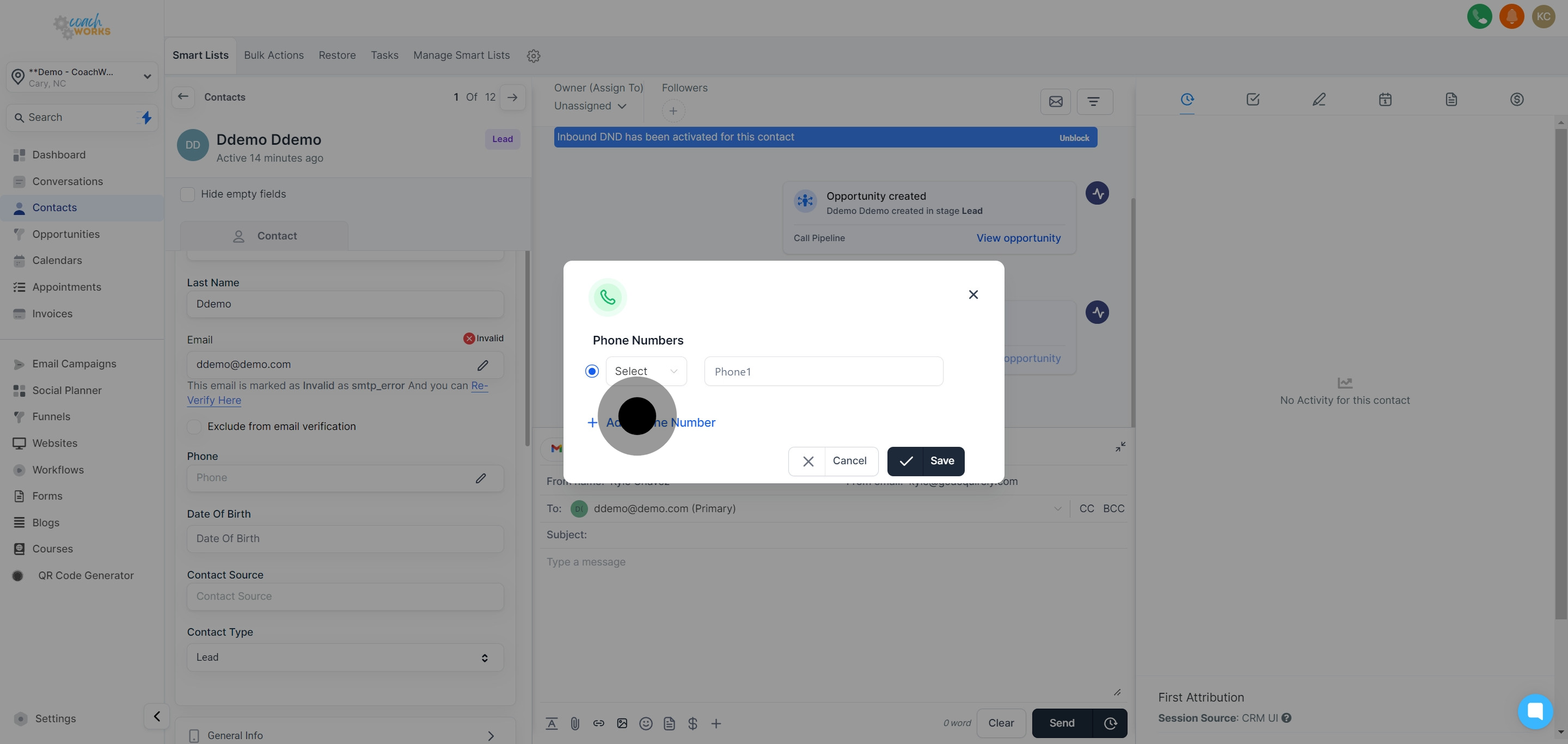
If it’s necessary to include multiple phone numbers for a single contact, repeat step 5 for each additional number you wish to add.
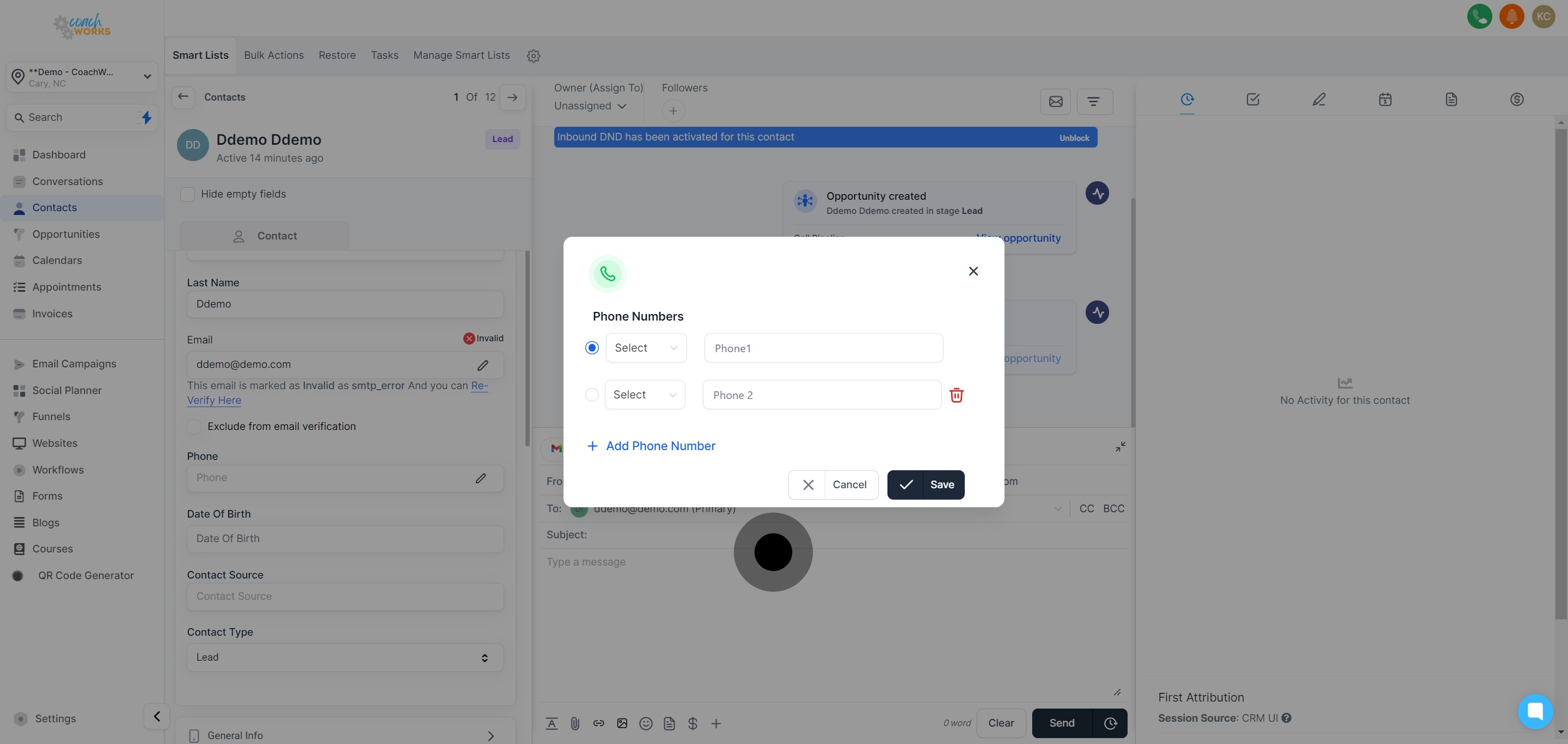
If there are any obsolete or incorrect numbers listed, you can remove them by clicking the 'Remove' or 'Delete' option next to the specific phone number.
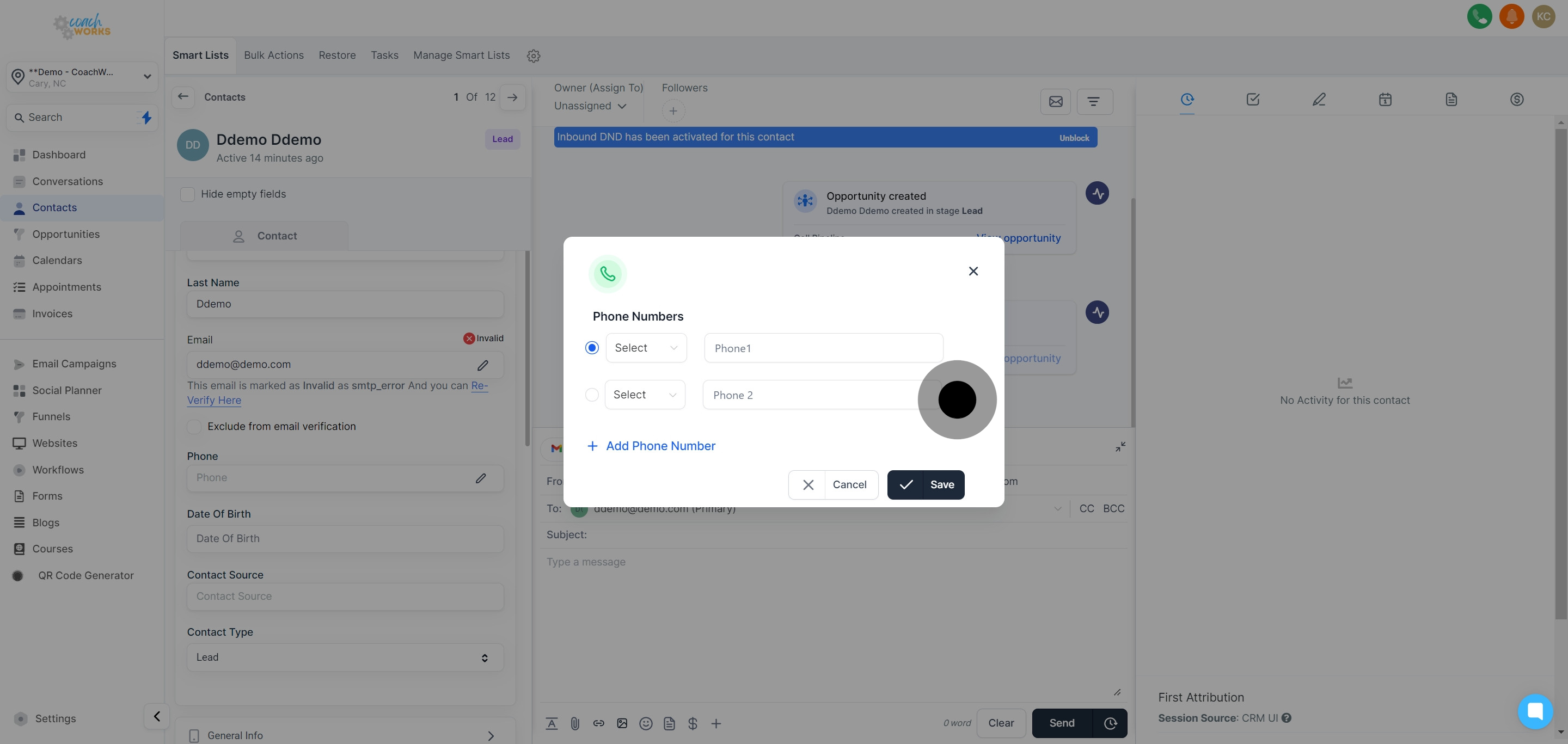
After making all the necessary updates, ensure to save the changes by clicking the 'Save' button at the bottom of the editing interface. This action confirms and applies all modifications to the contact’s phone information.